touch-action CSS rule.
#### `onPanStart`
Callback function that fires when a pan gesture starts. Provided the triggering `PointerEvent` and `info`.
```
`, you write ``. The element behaves identically but can now accept animation props like `animate`, `whileHover`, and `transition`.
### How do I animate an element in React with Motion?
Pass an `animate` prop to any `
{words.map((word, index) => (
{word}
))}
```
If your generated Make project doesn't include a `motion` import then you can either ask the AI to add it for you, or simply add an import to the top of your component:
```
import { motion } from "motion/react"
```
**Note:**
As with many AI generators, Figma Make tends to import Motion from `"framer-motion"`, its former package name. That import still runs, but `motion` is the current package, and we recommend moving to it.
The move is usually a rename: change the import to `"motion/react"`, and install `motion` in place of `framer-motion` if your project lists `framer-motion`. The [upgrade guide](https://motion.dev/docs/react-upgrade-guide) has the steps.
## FAQ
### Does Figma Motion use Motion?
Yes. When you export a Figma Motion animation as React in Dev Mode, you get
real, production-ready Motion code that you can paste straight into your
project. The animations Figma Sites publishes are also powered by Motion.
### How do I export a Figma Motion animation to code?
Open Dev Mode, select your animated layer, then pick a format in the Motion
panel. Choosing "React" gives you Motion code. Figma Motion can also export
CSS and JSON.
### Do I need to install Motion to use the exported code?
Yes. The exported React code assumes Motion is already installed in your
project. Follow the [Motion for React quick start](https://motion.dev/docs/react) to add it,
then paste the code in.
### Why does my exported code import from framer-motion?
Sometimes, because of outdated training data, agents will generate an import
from `"framer-motion"`. This still works and will for many versions to come,
but we recommend you change it to `"motion/react"` to ensure best
compatibility with our docs and examples.
### Can I add Motion animations without exporting code?
Yes. Figma Sites publishes real Motion animations with no setup. Add effects
like Hover or Press from the Interactions panel and Figma generates the
Motion animation for you.
---
Source: https://motion.dev/docs/react-tailwind
# Animating with Tailwind CSS
Combine Motion with Tailwind CSS's utility-first workflow.
Motion is the perfect animation companion for [Tailwind CSS](https://tailwindcss.com) v4: Tailwind handles the styling, Motion handles the animation. In this guide, we'll learn how to:
- **Perform basic animations **with the two libraries.
- **Create responsive animations** by animating CSS variables.
- **Generate Tailwind CSS spring animations** directly in your code editor using Motion for AI.
## Basic animations
The key to using Motion with Tailwind CSS is to let each library do what it does best.
- **Tailwind CSS**'s utility classes for static and responsive styling.
- **Motion**'s animation props like `animate` and `layout` for animation.
Motion animates by applying inline styles, or via native browser animations - both of which override Tailwind CSS classes. This separation is partly why the two work so well together.
Here's a basic example of a button with a hover effect. Tailwind styles the button, while Motion handles the interactivity.
```
import { motion } from "motion/react";
function Button() {
return (
Click Me!
);
}
```
## Responsive animations
It's possible to make an animation responsive to screen size by combining Tailwind CSS's ability to set responsive CSS variables together with Motion's ability to animate those variables.
To start, we can define our initial values like so:
```
```
Motion can also generate these curves at runtime or on the server. The [CSS spring animation guide](https://motion.dev/docs/css) covers React Server Components, Astro, Vue and CSS-in-JS.
## Troubleshooting
### My animation is moving weirdly
If you find that an Motion x Tailwind CSS animation is stuttery, or moving weirdly in some way, usually there's a conflict between the Motion animation and a pre-existing Tailwind transition class.
To fix, ensure that the element has no `transition-` class applied, for instance `transition-all` etc.
---
Source: https://motion.dev/docs/base-ui
# Base UI & Motion
Animate Base UI components with Motion.
[Base UI](https://base-ui.com/) is a component library for React that's rapidly growing in popularity.
It's possible to animate almost all Base UI components with Motion, and in this guide we'll explore how.
Live example: https://examples.motion.dev/react/base-tabs
## Setup `motion` components
By default, Base UI components render and control their own DOM elements. However most components provide [the ](https://base-ui.com/react/handbook/composition#composing-custom-react-components)`render`[ prop](https://base-ui.com/react/handbook/composition#composing-custom-react-components) that allows you to switch this out for a `motion`[ component](https://motion.dev/docs/react-motion-component).
```
import { Menu } from "@base-ui-components/react/menu"
import { motion } from "motion/react"
function Component() {
return (
{open && (
```
However, some Base UI components like `ContextMenu` and `Popover` control this conditional rendering themselves. To add exit animations to these components, we must:
- Hoist their `open` state
- Add `keepMounted` to their `Portal` component
- Conditionally render the `Portal` component with `AnimatePresence`
A component's `open` state can be hoisted by defining it manually with `useState`:
```
const [open, setOpen] = useState(false)
return (
```
Then, conditionally render the `Portal` (with a `keepMounted` prop) as a child of `AnimatePresence`:
```
return (
Open menu
{open && (
```
We can then add an exit animation via a `motion` component rendered via a `render` prop:
```
function App() {
const [open, setOpen] = useState(false)
return (
Open menu
{open && (
{isOpen &&
```
By default Radix tends to control state like this `isOpen` internally. However, it provides some helper props for us to track or control this state externally.
For instance, the Tooltip component provides the `open` and `onOpenChange` props, which makes it easy to track the tooltip state:
```
const [isOpen, setOpen] = useState(false)
return (
```
Now we can use this state to conditionally render the tooltip contents.
```
{isOpen && (
```
This is to ensure `motion` components know to perform layout animations when the state changes. You can even pass this state to `layoutDependency` for better performance.
```
```
## Radix x Motion examples
Live example: https://examples.motion.dev/react/radix-toast
[Motion+](https://motion.dev/plus) is a one-time payment, lifetime membership that gains you access to the source code of an ever-growing library of [Motion examples](https://motion.dev/examples), as well as Motion UI components like `Cursor` and `AnimateNumber`.
Check out all the [Motion x Radix examples](https://motion.dev/examples?platform=react&category=radix).
Live example: https://examples.motion.dev/react/radix-tabs
---
Source: https://motion.dev/docs/react-accessibility
# Accessibility
Respect users' Reduced Motion preferences with the reducedMotion option and useReducedMotion hook.
Animations can have serious usability implications, even inducing motion sickness in some people.
All modern operating systems provide a setting called "Reduced Motion", where people can indicate they prefer less physical motion, either because of personal preference or because they can suffer from motion sickness.
There are already some excellent guides about *why* and *how* we should design accessible animations, like those at [A List Apart](http://alistapart.com/article/designing-safer-web-animation-for-motion-sensitivity/) and [Smashing Magazine](https://www.smashingmagazine.com/2018/04/designing-accessibility-inclusion/). The main takeaways are that for users with "Reduced Motion" enabled, we should keep educational transitions but be aware of motion sickness.
That means replacing transform animations on large elements with opacity transitions, disabling auto-playing videos, and disabling parallax animations.
Motion for React provides APIs that make it simple to respect these people's preferences. In this guide, we'll learn how to use the `reducedMotion` option and `useReducedMotion` hook to make our animations accessible.
## Automatic
The `reducedMotion` option can be set on `MotionConfig` to define how you want to adhere to the Reduced Motion setting.
By setting `reducedMotion` it to `"user"`, all `motion` components will **automatically** disable transform and [layout animations](https://motion.dev/docs/react-layout-animations), while preserving the animation of other values like `opacity` and `backgroundColor`.
```
import { MotionConfig } from "framer-motion"
export function App({ children }) {
return (
{children}
)
}
```
[Framer](https://framer.com), the no-code site builder, uses this API and exposes it via a setting in `Site Settings > Accessibility`.
Additionally, you can allow a user to override Reduced Motion for just your site by setting reducedMotion to `"always"` or `"never"` based on their profile.
```
```
## Manual
While `reducedMotion` is a great blanket tool for ensuring accessible animations across your whole site, more bespoke solutions can be created with [the ](https://motion.dev/docs/react-use-reduced-motion)`useReducedMotion`[ hook](https://motion.dev/docs/react-use-reduced-motion).
This hook returns `true`/`false` depending on whether your visitor has Reduced Motion enabled.
```
import { useReducedMotion } from "framer-motion"
// In your componentconst
shouldReduceMotion = useReducedMotion()
```
We can use this boolean to fix some of the common accessibility problems, like the following.
### Replace `transform` with `opacity`
When Reduced Motion is enabled on iOS, the operating system still animates between states to help users transition between each context. But instead of the default scale and x/y animations, it fades content in and out.
We can achieve this in Motion by passing different values to `animate` based on whether `useReducedMotion` returns `true` or not.
```
function Sidebar({ isOpen }) {
const shouldReduceMotion = useReducedMotion()
let animate
if (isOpen) {
animate = shouldReduceMotion ? { opacity: 1 } : { x: 0 }
} else {
animate = shouldReduceMotion
? { opacity: 0 }
: { x: "-100%" }
}
return
{show &&
```
Live example: https://examples.motion.dev/react/exit-animation
Video: https://www.youtube.com/embed/vr03lok06FI?iv_load_policy=3&rel=0&modestbranding=1&playsinline=1&autoplay=0&mute=1
## Usage
### Import
```
import { AnimatePresence } from "motion/react"
```
### Exit animations
`AnimatePresence` works by detecting when its **direct children** are removed from the React tree.
This can be due to a component mounting/remounting:
```
{show &&
```
Its `key` changing:
```
```
Or when children in a list are added/removed:
```
{items.map(item => (
```
Any `motion` components within the exiting component will fire animations defined on their `exit` props before the component is removed from the DOM.
```
function Slide({ img, description }) {
return (

{description}
)
}
```
Like `initial` and `animate`, `exit` can be defined either as an object of values, or as a variant label.
```
const modalVariants = {
visible: { opacity: 1, transition: { when: "beforeChildren" } },
hidden: { opacity: 0, transition: { when: "afterChildren" } }
}
function Modal({ children }) {
return (
{children}
)
}
```
**Note:**
Direct children must each have a unique `key` prop so `AnimatePresence` can track their presence in the tree.
### Changing `key`
Changing a `key` prop makes React create an entirely new component. So by changing the `key` of a single child of `AnimatePresence`, we can easily make components like slideshows.
```
export const Slideshow = ({ image }) => (
)
```
### Access presence state
Any child of `AnimatePresence` can access presence state with the `useIsPresence` hook.
```
import { useIsPresent } from "motion/react"
function Component() {
const isPresent = useIsPresent()
return isPresent ? "Here!" : "Exiting..."
}
```
This allows you to change content or styles when a component is no longer rendered.
### Access presence data
When a component has been removed from the React tree, its props can no longer be updated. We can use `AnimatePresence`'s `custom` prop to pass new data down through the tree, even into exiting components.
```
```
Then later we can extract that using `usePresenceData`.
```
import { AnimatePresence, usePresenceData } from "motion/react"
function Slide() {
const isPresent = useIsPresent()
const direction = usePresenceData()
return (
{isPresent ? "Here!" : "Exiting " + direction}
)
}
```
Live example: https://examples.motion.dev/react/use-presence-data
### Manual usage
It's also possible to manually tell `AnimatePresence` when a component is safe to remove with the `usePresence` hook.
This returns both `isPresent` state and a callback, `safeToRemove`, that should be called when you're ready to remove the component from the DOM (for instance after a manual animation or other timeout).
```
import { usePresence } from "motion/react"
function Component() {
const [isPresent, safeToRemove] = usePresence()
useEffect(() => {
// Remove from DOM 1000ms after being removed from React
!isPresent && setTimeout(safeToRemove, 1000)
}, [isPresent])
return
}
```
### Propagate exit animations
By default, `AnimatePresence` controls the `exit` animations on all of its children, **until** another `AnimatePresence` component is rendered.
```
{show ? (
{/*
* When `show` becomes `false`, exit animations
* on these children will not fire.
*/}
{children}
) : null}
```
By setting an `AnimatePresence` component's `propagate` prop to `true`, when it's removed from another `AnimatePresence` it will fire all of **its** children's exit animations.
```
{show ? (
{/*
* When `show` becomes `false`, exit animations
* on these children **will** fire.
*/}
{children}
) : null}
```
## Props
### `initial`
By passing `initial={false}`, `AnimatePresence` will disable any initial animations on children that are present when the component is first rendered.
```
```
### `custom`
When a component is removed, there's no longer a chance to update its props (because it's no longer in the React tree). Therefore we can't update its exit animation with the same render that removed the component.
By passing a value through `AnimatePresence`'s `custom` prop, we can use dynamic variants to change the `exit` animation.
```
const variants = {
hidden: (direction) => ({
opacity: 0,
x: direction === 1 ? -300 : 300
}),
visible: { opacity: 1, x: 0 }
}
export const Slideshow = ({ image, direction }) => (
)
```
This data can be accessed by children via `usePresenceData`.
### `mode`
**Default: **`"sync"`
Decides how `AnimatePresence` handles entering and exiting children.
Live example: https://examples.motion.dev/react/animate-presence-modes
#### `sync`
In `"sync"` mode, elements animate in and out as soon as they're added/removed.
This is the most basic (and default) mode - `AnimatePresence` takes no opinion on sequencing animations or layout. Therefore, if element layouts conflict (as in the above example), you can either implement your own solution (using `position: absolute` or similar), or try one of the other two `mode` options.
#### `wait`
In `"wait"` mode, the entering element will **wait** until the exiting child has animated out, before it animates in.
This is great for sequential animations, presenting users with one piece of information or one UI element at a time.
**Warning:**
`wait` mode only supports one child at a time.
**Note:**
Try setting `ease: "easeIn"` (or similar) on the exit animation, and `ease: "easeOut"` on the enter animation for an overall `easeInOut` easing effect.
#### `popLayout`
Exiting elements will be "popped" out of the page layout, allowing surrounding elements to immediately reflow. Pairs especially well with the `layout` prop, so elements can animate to their new layout.
```
{items.map(item => (
```
For a more detailed comparison, check out the [full AnimatePresence modes tutorial](https://motion.dev/examples/react-animate-presence-modes).
**Warning:**
When using `popLayout` mode, any immediate child of AnimatePresence that's a custom component must be wrapped in React's `forwardRef` function, forwarding the provided `ref` to the DOM node you wish to pop out of the layout.
### `onExitComplete`
Fires when all exiting nodes have completed animating out.
### `propagate`
**Default:** `false`
If set to `true`, exit animations on children will also trigger when this `AnimatePresence` exits from a parent `AnimatePresence`.
```
{show ? (
{/* This exit prop will now fire when show is false */}
) : null}
```
### `root`
Root element for injecting `popLayout` styles. Defaults to `document.head` but can be set to another `ShadowRoot`, for use within shadow DOM.
## Troubleshooting
### Exit animations aren't working
Ensure all **immediate** children get a unique `key` prop that **remains the same for that component every render**.
For instance, providing `index` as a `key` is **bad** because if the items reorder then the `index` will not be matched to the `item`:
```
{items.map((item, index) => (
```
It's preferred to pass something that's unique to that item, for instance an ID:
```
{items.map((item) => (
```
Also make sure `AnimatePresence` is **outside** of the code that unmounts the element. If `AnimatePresence` itself unmounts, then it can't control exit animations!
For example, this will **not work**:
```
isVisible && (
)
```
Instead, the conditional should be at the root of `AnimatePresence`:
```
{isVisible &&
```
### Layout animations not working with `mode="sync"`
When mixing exit and [layout animations](https://motion.dev/docs/react-layout-animations), it might be necessary to wrap the group in `LayoutGroup` to ensure that components outside of `AnimatePresence` know when to perform a layout animation.
```
{items.map(item => (
```
### Layout animations not working with `mode="popLayout"`
When any HTML element has an active `transform` it temporarily becomes the [offset parent](https://developer.mozilla.org/en-US/docs/Web/API/HTMLElement/offsetParent) of its children. This can cause children with `position: "absolute"` not to appear where you expect.\
\
`mode="popLayout"` works by using `position: "absolute"`. So to ensure consistent and expected positioning during a layout animation, ensure that the animating parent has a `position` other than `"static"`.
```
{items.map(item => (
```
---
Source: https://motion.dev/docs/react-animate-view
# AnimateView
View transitions and page animations for React, with the AnimateView component.
`AnimateView` allows you to animate elements between different views using the browser's native [View Transition API](https://developer.mozilla.org/en-US/docs/Web/API/View_Transition_API).
It's built on Motion's mini `animate()` function and React's `ViewTransition` component. You can animate values like `clipPath` and configure animations with Motion's [transitions](https://motion.dev/docs/react-transitions), including springs.
It's possible to write specific animations for when elements enter and exit the DOM, when they update, or when performing shared element animations.
```
{isOpen && (
)}
```
Live example: https://examples.motion.dev/react/animate-view-toggle
## Install
Install [Motion](https://motion.dev/docs/react-installation):
```bash
npm install motion
```
`AnimateView` requires **React and React DOM 19.3 or later**. Update both packages together if needed:
```bash
npm install react@^19.3.0 react-dom@^19.3.0
```
Import `AnimateView` from the separate `"motion/react-animate-view"` entry point. It isn't exported from `"motion/react"`. Other Motion for React APIs continue to support React 18.
### Migrate from Motion+
`AnimateView` was originally in Motion+ early access. To migrate, replace imports from `"motion-plus/animate-view"` with `"motion/react-animate-view"`:
```jsx
import { AnimateView } from "motion/react-animate-view"
```
The API stays the same otherwise. `AnimateView` no longer requires a Motion+ membership or access token.
## Usage
Import `AnimateView` from `"motion/react-animate-view"`.
```jsx
import { AnimateView } from "motion/react-animate-view"
```
### Enter/exit animations
To animate an element as it enters and exits the DOM, we can just wrap it in ``.
```
{show && (
)}
```
Now, when `show` is changed within a React `startTransition`, the element will perform the browser's default fade in/out animation as it enters and leaves the DOM.
```
startTransition(() => setShow(!show))
```
Wrap state changes in `startTransition` to trigger a view transition.
The full setup looks like this:
```
import { AnimateView } from "motion/react-animate-view"
import { startTransition, useState } from "react"
function Example() {
const [show, setShow] = useState(true)
return (
<>
{show && (
)}
)
}
```
### Configure the transition
It's possible to set a default transition for all view transitions via the `transition` prop. This accepts all Motion's [transition options](https://motion.dev/docs/react-transitions).
```
```
You can also set a `transition` for specific `enter`, `exit`, `share` and `update` animations:
```
```
`AnimateView` uses Motion's mini `animate()` function. To use a spring, import `spring` from `"motion"` and pass it to the `type` transition option:
```jsx
import { spring } from "motion"
import { AnimateView } from "motion/react-animate-view"
```
Use `transition.layout` to set separate timing for changes in size and position:
```jsx
```
### Setting values
By default, `AnimateView` will animate elements using the browser's default opacity animation. But, if you set your own values within `enter`, `exit`, `share` or `update` then this crossfade will be disabled.
```
```
Live example: https://examples.motion.dev/react/animate-view-clip-path
You can re-enable an `opacity` animation by also passing this to the prop:
```
```
### Animating updates
Elements wrapped in `AnimateView` will also animate whenever their content or visual styles change, crossfading between the two views. This animation can be customised with the `update` prop.
```
```
If the element physically moves or changes size, this change will also be animated. We can use this to create, for example, reorder list animations.
```
function ReorderList({ items }) {
return (
element.getAnimations(). Motion will run `opacity`, `transform`, `filter`, and `clipPath` animations via hardware acceleration, so ensure at least one of these values is used for the exit animation.
## Examples
Live example: https://examples.motion.dev/react/base-progress
[Motion+](https://motion.dev/plus) unlocks the source code to the full vault of Motion examples. It's a one-time payment, lifetime update membership that also unlocks a creative animation library containing components like `Cursor` and `AnimateNumber`.
Check out all the [Motion x Base UI examples](https://motion.dev/examples?platform=react&category=base-ui).
Motion+ also includes a custom LLM ruleset for Motion x Base UI to improve the way your AI editor will integrate the two libraries.
Live example: https://examples.motion.dev/react/base-dialog
---
Source: https://motion.dev/docs/radix
# Radix UI & Motion
Animate Radix UI components with Motion.
[Radix](https://www.radix-ui.com/primitives) is one of the most popular component libraries for React, with pre-built, accessible components for common UI patterns like Accordion, Switch etc.
It doesn't come with animations out of the box, but in this guide we'll show how to integrate Motion for React with Radix UI to add a layer of polish to these components.
In this guide, we'll learn how to use `motion`[ components](https://motion.dev/docs/react-motion-component) with Radix primitives, as well as specific setups for exit and layout animations.
Live example: https://examples.motion.dev/react/number-radix-slider
## Setup `motion` components with Radix
Most Radix components render and control their own DOM elements. But they also provide [the ](https://www.radix-ui.com/primitives/docs/guides/composition)`asChild`[ prop](https://www.radix-ui.com/primitives/docs/guides/composition) that, when set to `true`, will make the component use the first provided child as its DOM node instead.
By passing a `motion`[ component](https://motion.dev/docs/react-motion-component) as this child, we can now use all of its animation props as normal:
```
{items.map((item) => (
))}
)
}
```
Live example: https://examples.motion.dev/react/animate-view-reorder
### Shared element animations
When an `AnimateView` component with a `name` prop exits the DOM, and another one with the same `name` enters it within the same transition, the two elements will perform a shared element animation.
```
if (selectedItem) {
return {item.label}
startTransition(() => setSelectedItem("item-1"))}
/>
)
}
function Modal({ selectedItem }) {
return (
)
}
```
Live example: https://examples.motion.dev/react/animate-view-app-store
If there is more than one element with a specific `name` either before, or after the transition, the animation will fail.
The animation can be configured via the `transition` or `share` props on the entering element:
```
```
### Transition types
React's `addTransitionType` lets you set contextual information (like navigation direction) to the current transition.
```
import { addTransitionType, startTransition } from "react"
startTransition(() => {
addTransitionType("next")
setItem(2)
})
```
`enter`, `exit`, `share` and `update` props can all resolve dynamically, with a list of values set via `addTransitionType`. You can use this information to generate different animations.
```
({
transform: `translateX(${types.includes("prev") ? 100 : -100}%)`,
})}
enter={(types) => ({
transform: [
`translateX(${types.includes("next") ? 100 : -100}%)`,
"translateX(0%)",
],
})}
>
```
Live example: https://examples.motion.dev/react/animate-view-types
### Suspense
`AnimateView` integrates with `Suspense`. Wrap a `Suspense` boundary in `AnimateView` to crossfade between its content and fallback:
```
```
## Performance
The React docs state:
> `` creates an image that can be moved around, scaled and cross-faded. Unlike Layout Animations you may have seen in React Native or Motion, this means that not every individual Element inside of it animates its position. This can lead to better performance and a more continuous feeling, smooth animation compared to animating every individual piece.
Neither of these claims are true.
From our own stress test benchmarking, creating image bitmaps and constructing a pseudo-DOM is more memory intensive and slower than the equivalent layout measurements used by Motion's [layout animations](https://motion.dev/docs/react-layout-animations).
The claim of "a more continuous feeling" is also not right. Layout animations are **interruptible**, which means you can change direction mid-animation and they respond immediately. View transitions are **not interruptible**, meaning they must complete before a new transition can begin. This makes layout animations a far better candidate for micro-interactions where responsiveness matters.
View transitions are best suited for **page-level transitions** (route changes, full-view swaps) where the non-interruptible nature is acceptable and the snapshot-based approach avoids complex per-element coordination.
## Props
### `children`
The content to animate. `AnimateView` uses React's `ViewTransition` boundary and doesn't add a wrapper element to the DOM.
### `name`
A name used to match elements for [shared element animations](#shared-element-animations). Each name must be unique within each view. Omit it when you don't need to match two different elements.
```jsx

```
### `transition`
Default [transition](https://motion.dev/docs/react-transitions) for all animation types. Import `spring` from `"motion"` to use springs. Each animation prop can override this with its own `transition`, including per-value options and `layout` timing.
```
```
### `enter`
**Default:** Browser fade-in animation.
An animation to use when the wrapped element enters the DOM.
```
```
Can also be a function that resolves with the list of current transition types.
```
({
transform: [
`translateX(${types.includes("next") ? 100 : -100}%)`,
"none",
],
})}
>
```
### `exit`
**Default:** Browser fade-out animation.
The animation to use when the wrapped element leaves the DOM. Accepts an object of values and an optional `transition`, or a function that receives the current transition types.
```jsx
```
### `update`
The animation to use when an existing element's content, style, size or position changes. By default, the old and new views crossfade and changes in size and position animate.
```jsx
```
Accepts an animation object or a function that receives the current transition types. Custom values replace the browser's crossfade while keeping the size and position animation.
### `share`
The animation to use when an element leaves and another with the same `name` enters during the same transition. Set this prop on the entering component.
```jsx
```
Accepts an animation object or a function that receives the current transition types. Custom values replace the browser's crossfade while keeping the size and position animation.
### `onAnimationStart`
Called when an animation starts. Receives the animation controls and its type: `"enter"`, `"exit"`, `"update"` or `"share"`.
```jsx
{
console.log(type)
animation.speed = 0.5
}}
>
```
### `onAnimationComplete`
Called when an animation finishes. Receives the animation type. It isn't called for an animation cancelled during React's cleanup.
```jsx
console.log(type)}>
```
---
Source: https://motion.dev/docs/react-drag
# Drag animation
Physics-based drag interactions for React.
Drag animations allow users to move elements with their pointer.
Motion provides a suite of features to create app-quality drag animations with a simple API:
- Momentum
- Axis control
- Elastic constraints
- Direction locking
- Optional imperative start/stop controls
Although browsers provide a native [Drag and Drop API](https://developer.mozilla.org/en-US/docs/Web/API/HTML_Drag_and_Drop_API), it can be challenging to create a pleasant experience, with an odd "ghost image" effect. On the other hand, it also contains native dropzone functionality - which isn't yet in Motion.
In this guide we'll take a look at all Motion's drag features and how to customise them.
Video: https://www.youtube.com/embed/lxNd50Nxi1E?iv_load_policy=3&rel=0&modestbranding=1&playsinline=1&autoplay=0&mute=1
Live example: https://examples.motion.dev/react/drag
If you're building a swipeable slider rather than a bare drag gesture, Motion+ has a ready-made [React carousel component](https://motion.dev/docs/react-carousel) with pointer, wheel and keyboard navigation already handled.
## Usage
### The `drag` prop
The simplest way to make a component draggable is to add the `drag` prop to a `motion` component.
```
)
}
```
#### Elastic constraints
By default, dragging an element beyond its constraints will "tug" with some elasticity. You can change this behavior with the `dragElastic` prop, which accepts a value between `0` (no movement) and `1` (full movement).
```
console.log(`Locked to ${axis} axis`)}
/>
```
Live example: https://examples.motion.dev/react/drag-lock-direction
### Drag events
You can listen to the lifecycle of a drag gesture with a set of event listeners. These are useful for updating other parts of your UI in response to a drag.
The main events are `onDragStart`, `onDrag`, and `onDragEnd`.
Live example: https://examples.motion.dev/react/multifollow-pointer-with-spring
Each callback is provided with the original `PointerEvent`, and an `info` object containing valuable data about the gesture's state:
- `point`: The `x` and `y` coordinates of the pointer.
- `delta`: The distance moved since the last event.
- `offset`: The distance from the element's origin.
- `velocity`: The current velocity of the pointer.
```
function onDrag(event, info) {
console.log(info.point.x, info.point.y)
}
)
}
```
The same fix applies to `rotate` and `skew`. If the mismatch comes from an SVG `viewBox` rather than a parent transform, use `transformViewBoxPoint` instead, covered in [SVG animation](https://motion.dev/docs/react-svg-animation).
### Layout animations misbehave inside a scaled parent
[Layout animations](https://motion.dev/docs/react-layout-animations) measure elements in screen space, and can't detect a CSS `transform` applied to an ancestor outside Motion. Elements inside a scaled parent will measure a layout that doesn't match their own coordinate space. If that parent's `transform` is animating, every frame reads as a layout change, so its children can animate their layout continuously.
`correctParentTransform` corrects the gesture but not this measurement. Instead, drive the parent's transform with a motion value, which Motion can account for.
```
import { motion, useMotionValue } from "motion/react"
export function Component() {
const scale = useMotionValue(1)
return (
)
}
```
### Dragging an image shows a ghost image
Draggable components will automatically set `draggable="false"` on their rendered HTML elements, so the browser knows not to handle drag itself. However, `![]() ` children will still be actively draggable, showing the browser's default ghost image effect.
These elements need `draggable` set to `false` to disable this ghost effect.
```
` children will still be actively draggable, showing the browser's default ghost image effect.
These elements need `draggable` set to `false` to disable this ghost effect.
```
![]()
```
---
Source: https://motion.dev/docs/react-gestures
# Gesture animation
An overview of the gestures available in Motion for React.
Motion extends React's basic set of event listeners with a simple yet powerful set of UI gestures.
The `motion` component currently has support for [**hover**](https://motion.dev/docs/react-hover-animation), **tap**, **pan**, **drag, focus** and [**inView**](https://motion.dev/docs/react-scroll-animations).
Each gesture has both a set of event listeners and a `while-` animation prop.
## Animation props
`motion` components provide multiple gesture animation props: `whileHover`, `whileTap`, `whileFocus`, `whileDrag` and `whileInView`. These can define animation targets to temporarily animate to while a gesture is active.
```
```
## Gestures
Live example: https://examples.motion.dev/react/gestures
### Hover
The hover gesture detects when a pointer hovers over or leaves a component. [Learn more about hover animations.](https://motion.dev/docs/react-hover-animation)
```
{}}
onHoverEnd={event => {}}
/>
```
### Tap
The tap gesture detects when the **primary pointer** (like a left click or first touch point) presses down and releases on the same component.
```
{}} />
```
Pan doesn't currently have an associated `while-` prop.
**Tip:**
For pan gestures to work correctly with touch input, the element needs touch scrolling to be disabled on either x/y or both axis with the
```
### `motion` components
Because `motion` gesture handlers are deferred, `e.stopPropagation()` can't be fired in time for event propagation to be blocked from a propagating from inside a (for instance) `onTapStart` handler. Instead, use the `propagate` prop to prevent specific gestures from propagating.
Currently, `propagate` only supports `tap`.
```
```
## Note: SVG filters
Gestures aren't recognised on SVG `filter` components, as these elements don't have a physical presence and therefore don't receive events.
You can instead add `while-` props and event handlers to a parent and use variants to animate these elements.
```
const MyComponent = () => {
return (
)
}
```
---
Source: https://motion.dev/docs/react
# Get started with Motion for React
Install Motion for React and animate elements with springs.
**Motion for React** (previously Framer Motion) is a React animation library for building smooth, production-grade UI animations.
You can start with simple prop-based animations before growing to layout, gesture and scroll animations.
Motion's hybrid engine runs animations natively in the browser using the Web Animations API and ScrollTimeline for 120fps performance. When you need capabilities those APIs can't provide (like spring physics, interruptible keyframes, or gesture tracking) it seamlessly falls back to JavaScript.
Motion is trusted by companies like [Framer](https://framer.com) and [Figma](https://figma.com) to power animations for their millions of users, and has over 30 million downloads per month on [npm](https://www.npmjs.com/package/framer-motion).
In this guide, we'll learn **why** and **when** you should use Motion, how to **install** it, and give you an overview of its main features.
[Using an AI agent? Install the Motion skill and MCP](https://motion.dev/docs/ai-kit)
## Why Motion for React?
React gives you the power to build dynamic user interfaces, but orchestrating complex, performant animations can be a challenge. Motion is a production-ready React animation library designed to solve this problem, making it simple to create everything from beautiful micro-interactions to complex, gesture-driven animations.
```
import { motion } from "motion/react"
function Component() {
return console.log('hover started!')}
/>
```
Live example: https://examples.motion.dev/react/gestures
Motion's gestures are designed to feel better than using CSS or JavaScript events alone.
## Scroll animation
Motion supports both types of [scroll animations](https://motion.dev/docs/react-scroll-animations): **Scroll-triggered **and **scroll-linked**.
To trigger an animation on scroll, the `whileInView` prop defines a state to animate to/from when an element enters/leaves the viewport:
```
` we gain access to [exit animations](https://motion.dev/docs/react-animate-presence). This allows us to animate elements as they're removed from the DOM.
```
{show ?
```
Live example: https://examples.motion.dev/react/exit-animation
## SVG animations
Motion has full support for [SVG animations](https://motion.dev/docs/react-svg-animation), including support for animating `viewBox` and special values for simple path drawing effects.
```
console.log('Hover starts')}
onHoverEnd={() => console.log('Hover ends')}
/>
```
These events differ from the browser's native pointer event handling by only firing on devices where hover is truly possible. They explicitly **won't** fire as the result of a touch event.
## `hover()` gesture recogniser
To use `onHoverStart` and `onHoverEnd`, you need to import the full `motion` component. For lightweight hover gesture handling, you can import the tiny (\<1kb) `hover()`[ function](https://motion.dev/docs/hover).
Because it returns a cleanup function, it's straightforward to integrate with `useEffect`:
```
import { hover } from "motion"
import { useRef, useEffect } from "react"
function Component() {
const ref = useRef(null)
useEffect(() => {
return hover(ref.current, () => {
console.log("on hover start")
return () => console.log("on hover end")
})
}, [])
return
}
```
---
Source: https://motion.dev/docs/react-installation
# Installation guide for Motion for React
Install Motion in your React project.
This guide covers everything you need to install and set up **Motion for React**. We'll cover installation via:
- **Package managers** like npm, Yarn and pnpm.
- **CDN** via jsDelivr.
- **Frameworks** like Next.js and Vite.
## Prerequisites
Before you install Motion, note that Motion is only compatible with React versions `18.2` and higher.
## Install via package manager
The most common way of installing Motion is via a package manager.
### npm
```
npm install motion
```
### Yarn
```
yarn add motion
```
### pnpm
```
pnpm add motion
```
Once the package is installed, you can import Motion's components and hooks via `"motion/react"`:
```
import { motion } from "motion/react"
```
## Add via CDN
It's also possible to import Motion directly from an external CDN, without installation. [jsDelivr](https://www.jsdelivr.com/package/npm/motion) mirrors packages published to npm, so you can import the exact same bundle like this:
```
```
**Note:**
The above URL uses the `latest` version. We recommend replacing this with a fixed version. You can see the latest published version in the site footer.
## Frameworks
Motion is designed to work seamlessly with modern React frameworks. Here are a few tips for the most popular.
### Next.js
Motion supports both the Next.js Page and App Routers.
To use with the App Router, you either need to convert the importing file to a client component with the `"use client"` directive:
```
"use client"
import { motion } from "motion/react"
export default function MyComponent() {
return
{isOpen &&
```
### Customise a layout animation
Layout animations can be customised using [the ](https://motion.dev/docs/react-transitions)`transition`[ prop](https://motion.dev/docs/react-transitions).
```
setIsOpen(true)}
// This transition will be used when the modal closes
transition={{ type: "spring" }}
>
Open
{isOn && (
```
### Motion along a path
By default, layout animations move elements in a straight line from their old position to their new one. Pass `arc()` to `transition.layout.path` to curve that motion instead, including for shared `layoutId` transitions.
```
import { arc, motion } from "motion/react"
setOpen(!isOpen)}
/>
)
}
```
But what happens when we have two or more components that don't re-render at the same time, but **do** affect each other's layout?
```
function List() {
return (
<>
)
}
```
When layout changes are detected in any grouped `motion` component, layout animations will trigger across all of them.
### Relative animation
Motion's layout animations use **parent-relative** calculations instead of **viewport or page-relative**.
What this means is if you have a parent and child performing a layout animation with different transitions, unlike the browser's View Transition API, the child will never get "left behind" by its parent.
By default, these calculations use the top left of the child, but you can change this with the `layoutAnchor` prop. This accepts `0`-`1` progress values for `x` and `y` where `0` is top/left and 1 is bottom/right.
```
// Pin element to center
```
Live example: https://examples.motion.dev/react/layout-anchor
### Fixing child distortion during layout animations
Because `layout` animations use `transform: scale()`, they can sometimes visually distort children or certain CSS properties.
- **Child elements:** To fix distortion on direct children, these can also be given the `layout` prop.
- **Border radius and box shadow: **Motion automatically corrects distortion on these properties, but they must be set via the `style`, `animate` or other animation prop.
```
```
Some elements, like images or text that are changing between different aspect ratios, might be better animated with `layout="position"`.
### Border radius or box shadows are behaving strangely
Animating `scale` is performant but can distort some styles like `border-radius` and `box-shadow`.
Motion automatically corrects for scale distortion on these properties, but they must be set on the element via `style`.
```
```
## Technical reading
Interested in the technical details behind layout animations? Nanda does an incredible job of [explaining the challenges](https://www.nan.fyi/magic-motion) of animating layout with transforms using interactive examples. Matt, creator of Motion, did a [talk at Vercel conference](https://www.youtube.com/watch?v=5-JIu0u42Jc&ab_channel=Vercel) about the implementation details that is largely up to date.
## Motion's layout animations vs the View Transitions API
More browsers are starting to support the [View Transitions API](https://developer.mozilla.org/en-US/docs/Web/API/View_Transitions_API), which is similar to Motion's layout animations.
### Benefits of View Transitions API
The main two benefits of View Transitions is that **it's included in browsers** and **features a unique rendering system**.
#### Filesize
Because the View Transitions API is already included in browsers, it's cheap to implement very simple crossfade animations.
However, the CSS complexity can scale quite quickly. Motion's layout animations are around 12kb but from there it's very cheap to change transitions, add springs, mark matching
#### Rendering
Whereas Motion animates the elements as they exist on the page, View Transitions API does something quite unique in that it takes an image snapshot of the previous page state, and crossfades it with a live view of the new page state.
For shared elements, it does the same thing, taking little image snapshots and then crossfading those with a live view of the element's new state.
This can be leveraged to create interesting effects like full-screen wipes that aren't really in the scope of layout animations. [Framer's Page Effects](https://www.framer.com/academy/lessons/page-effects) were built with the View Transitions API and it also extensively uses layout animations. The right tool for the right job.
### Drawbacks to View Transitions API
There are quite a few drawbacks to the API vs layout animations:
- **Not interruptible**: Interrupting an animation mid-way will snap the animation to the end before starting the next one. This feels very janky.
- **Blocks interaction**: The animating elements overlay the "real" page underneath and block pointer events. Makes things feel quite sticky.
- **Difficult to manage IDs**: Layout animations allow more than one element with a `layoutId` whereas View Transitions will break if the previous element isn't removed.
- **Less performant:** View Transitions take an actual screenshot and animate via `width`/`height` vs layout animation's `transform`. This is measurably less performant when animating many elements.
- **Doesn't account for scroll**: If the page scroll changes during a view transition, elements will incorrectly animate this delta.
- **No relative animations: **If a nested element has a `delay` it will get "left behind" when its parent animates away, whereas Motion handles this kind of relative animation.
- **One animation at a time**: View Transitions animate the whole screen, which means combining it with other animations is difficult and other view animations impossible.
All-in-all, each system offers something different and each might be a better fit for your needs. In the future it might be that Motion also offers an API based on View Transitions API.
## FAQs
### What is a layout animation?
A layout animation automatically animates an element's size and position
when the layout changes, like reordering a list, toggling an accordion, or
switching grid columns. Instead of calculating start and end values
yourself, add `layout` to a ` setIsOpen(!isOpen)}
>
{header}
{isOpen ? content : null}
)
}
```
If we arrange these next to each other in an `Accordion`, when their state updates, their siblings have no way of knowing:
```
function Accordion() {
return (
<>
)
}
```
### Namespace `layoutId`
Components expecting to perform shared layout animations are provided a `layoutId` prop.
In this following example, each `Tab` renders an element with the `layoutId="underline"` prop.
```
function Tab({ label, isSelected }) {
return (
{label}
{isSelected
?
)
}
function TabRow({ items }) {
return items.map(item =>
{items.map(item =>
}
```
---
Source: https://motion.dev/docs/react-lazy-motion
# LazyMotion
Load Motion's animation features on demand, shrinking initial bundle size to as low as 5kb.
For ease of use, the `motion`[ component](https://motion.dev/docs/react-motion-component) comes pre-bundled with all of its features for a bundlesize of around 43kb.
With `LazyMotion` and the `m` component, we can reduce this to about 5kb for the initial render and then sync or async load a subset of features.
```
import { LazyMotion, domAnimation } from "motion/react"
import * as m from "motion/react-m"
export const MyComponent = ({ isVisible }) => (
)
```
Read the [Reduce bundle size](https://motion.dev/docs/react-reduce-bundle-size) guide for full usage instructions.
## Props
### `features`
Define a feature bundle to load sync or async.
#### Sync loading
Synchronous loading is useful for defining a subset of functionality for a smaller bundlesize.
```
import { LazyMotion, domAnimation } from "motion/react"
import * as m from "motion/react-m"
export const MyComponent = ({ isVisible }) => (
)
```
#### Async loading
Asynchronous loading can ensure your site is hydrated before loading in some or all animation functionality.
```
// features.js
import { domAnimation } from "motion/react"
export default domAnimation
// index.js
const loadFeatures = () => import("./features.js")
.then(res => res.default)
function Component() {
return (
)
}
```
### `strict`
**Default:** `false`
If `true`, will throw an error if a `motion` component renders within a `LazyMotion` component (thereby removing the bundlesize benefits of lazy-loading).
```
// This component will throw an error that explains using a motion component
// instead of the m component will break the benefits of code-splitting.
function Component() {
return (
)
}
```
---
Source: https://motion.dev/docs/react-courses
# Motion Courses for React
Motion-Certified courses and community resources for learning Motion for React.
Motion for React is supported by the world's best educators.
Whether you are looking for a deep dive into advanced theory or a hands-on beginner guide, we have curated a selection of courses to match your journey.
## Motion Certified
Motion Certified courses are officially recognised for their exceptional quality, deep integration with Motion best practices, and advanced production value.
## Community
Courses from across the Motion ecosystem, offering unique teaching styles, and beginner-friendly introductions.
---
Source: https://motion.dev/docs/react-motion-value
# Motion values overview
Composable, animatable values that update styles without re-rendering React.
Motion values track the state and velocity of animated values.
They are composable, signal-like values that are performant because Motion can render them with its optimised DOM renderer.
Usually, these are created automatically by `motion`[ components](https://motion.dev/docs/react-motion-component). But for advanced use cases, it's possible to create them manually.
```
import { motion, useMotionValue } from "motion/react"
export function MyComponent() {
const x = useMotionValue(0)
return
)
```
## Props
### `transition`
Define a fallback `transition` to use for all child `motion` components.
### `reducedMotion`
**Default:** `"never"`
`reducedMotion` lets you set a site-wide policy for handling reduced motion. It offers the following options:
- `"user"`: Respect the user's device setting.
- `"always"`: Enforce reduced motion (useful for debugging).
- `"never"`: Don't respect reduced motion.
When reduced motion is on, transform and [layout animations](https://motion.dev/docs/react-layout-animations) will be disabled. Other animations, like `opacity` and `backgroundColor`, will persist.
### `transformPagePoint`
**Default:** `point => point`
`transformPagePoint` maps pointer coordinates from page space into the coordinate space of your elements. Motion applies it to pointer positions throughout [drag](https://motion.dev/docs/react-drag) and pan gestures, and when measuring ref-based `dragConstraints`.
You need it when something sat between the page and your element changes that coordinate space. The two common causes are a CSS `transform` on a parent element, and an SVG `viewBox` that differs from the SVG's rendered size. In both cases the pointer and the element disagree about how far a movement is, so a dragged element travels the wrong distance.
Motion provides a helper for each case.
#### `correctParentTransform`
When a parent element has a CSS `transform` (`scale`, `rotate` or `skew`), pass that element's ref to `correctParentTransform`.
```
import { motion, MotionConfig, correctParentTransform } from "motion/react"
import { useRef } from "react"
export function Component() {
const ref = useRef(null)
return (
)
}
```
The parent's computed transform is read on each pointer event, so this works with static and animating transforms alike.
#### `transformViewBoxPoint`
When an `svg` element has a `viewBox` that differs from its rendered size, pass the `svg` element's ref to `transformViewBoxPoint`. [SVG animation](https://motion.dev/docs/react-svg-animation) has a full example.
#### Custom transforms
`transformPagePoint` accepts any function that takes a page point and returns a corrected one.
```
({ x: x / 2, y: y / 2 })}>
```
### `nonce`
If using a [Content Security Policy](https://developer.mozilla.org/en-US/docs/Web/HTTP/Headers/Content-Security-Policy/style-src#unsafe_inline_styles) with a `nonce` attribute, passing the same attribute through `MotionConfig` will allow any `style` blocks generated by Motion to adhere the the security policy.
---
Source: https://motion.dev/docs/react-animation
# React animation
An overview of animating React with motion components, variants, gestures, and keyframes.
[Motion for React](https://motion.dev/) is a simple yet powerful animation library.
Whether you're building hover effects, scroll-triggered animations, or complex animation sequences, this guide will provide an overview of all the ways you can animate in React with Motion.
## What you'll learn
- How to create your first animation with the `
```
**Note:**
Animating the value of a CSS variable always triggers paint, therefore it can
be more performant to use
{isVisible && (
```
Live example: https://examples.motion.dev/react/exit-animation
## Keyframes
So far, we've set animation props like `animate` and `exit` to single values, like `opacity: 0`.
This is great when we want to animate from the current value to a new value. But sometimes we want to animate through a **series of values**. In animation terms, these are called **keyframes**.
All animation props can accept keyframe arrays:
```
)
```
Live example: https://examples.motion.dev/react/variants
### Orchestration
By default, this children animations will start simultaneously with the parent. But with variants we gain access to new `transition` props `when`[ and ](https://motion.dev/docs/react-transitions#orchestration)`delayChildren`.
```
const list = {
visible: {
opacity: 1,
transition: {
when: "beforeChildren",
delayChildren: stagger(0.3), // Stagger children by .3 seconds
},
},
hidden: {
opacity: 0,
transition: {
when: "afterChildren",
},
},
}
```
### Dynamic variants
Each variant can be defined as a function that resolves when a variant is made active.
```
const variants = {
hidden: { opacity: 0 },
visible: (index) => ({
opacity: 1,
transition: { delay: index * 0.3 }
})
}
```
These functions are provided a single argument, which is passed via the `custom` prop:
```
items.map((item, index) => {count}
}
```
This avoids React re-renders entirely. The `motion` component updates the DOM text node directly, making it suitable for high-frequency value changes like counters or live data.
Live example: https://examples.motion.dev/react/html-content
It's also possible to [animate numbers](https://motion.dev/docs/react-animate-number) with a ticking counter effect using the `AnimateNumber` component in [Motion+](https://motion.dev/plus) by passing them directly to the component:
```
{value}
```
Live example: https://examples.motion.dev/react/number-radix-slider
For text rather than numbers, the [`Typewriter` component](https://motion.dev/docs/react-typewriter) types content out character by character, with the speed variance and backspacing of a real person. The [text animation guide](https://motion.dev/docs/text-animation) maps every technique, from split text to scroll reveals.
## Next
In this guide we've covered the basic kinds of animations we can perform in Motion using its **animation props**. However, there's much more to discover.
Most of the examples on this page have used HTML elements, but Motion also has unique [SVG animation](https://motion.dev/docs/react-svg-animation) features, like its simple line drawing API.
We've also only covered time-based animations, but Motion also provides powerful [scroll animation](https://motion.dev/docs/react-scroll-animations) features like `useScroll` and `whileInView`.
It also provides a powerful [layout animation](https://motion.dev/docs/react-layout-animations) engine, that can animate between any two layouts using performant transforms.
Finally, there's also a whole [Basics examples category](https://motion.dev/examples?platform=react&category=basics) that covers all the basics of animating with Motion for React with live demos and copy-paste code.
---
Source: https://motion.dev/docs/react-scroll-animations
# React scroll animation
Scroll-triggered and scroll-linked effects in React: parallax, progress, and more.
Learn how to create scroll animations in React with Motion. This guide covers **scroll-linked** animations, **scroll-triggered** animations, **parallax**, **horizontal scrolling**, and more. All with live examples and copy-paste code.
## Types of scroll animation
There are two fundamental types of scroll animations:
- **Scroll-triggered:** An animation is triggered when an element enters or leaves the viewport. Common for fade-in effects and lazy-loading.
- **Scroll-linked:** Animation values are linked directly to scroll position. Used for parallax, progress bars, and interactive storytelling.
Motion supports both types of scroll animations with simple, performant APIs. Not using React? The same effects are available in vanilla JavaScript with [Motion's `scroll()` function](https://motion.dev/docs/scroll).
## Performance
Motion is the only animation library that runs scroll-linked animations on the browser's native `ScrollTimeline` where possible, for fully hardware-accelerated animations. Scroll-triggered animations use a pooled `IntersectionObserver` for minimal overhead.
## Scroll-triggered animations
Scroll-triggered animations fire when an element enters or leaves the viewport, or scrolls to a specific point in the viewport.
Video: https://www.youtube.com/embed/nC7qvT_yCxY?iv_load_policy=3&rel=0&modestbranding=1&playsinline=1&autoplay=0&mute=1
Motion provides[ the ](https://motion.dev/docs/react-motion-component#whileinview)`whileInView`[ prop](https://motion.dev/docs/react-motion-component#whileinview) to set an animation target.
```

)
```
Live example: https://examples.motion.dev/react/scroll-image-reveal
### Horizontal scroll section
You can make a horizontally-scrolling section by combining `useScroll`, a tall container section, and a wide `position: sticky` container.
```
const containerRef = useRef(null)
const { scrollYProgress } = useScroll({
target: containerRef,
offset: ["start start", "end end"]
})
const x = useTransform(scrollYProgress, [0, 1], ["0%", "-75%"])
return (
{items.map(item => (
)
```
The container should have a long viewport-relative measurement like `300vh`. Increasing this length will make the horizontal scrolling feel slower.
Live example: https://examples.motion.dev/react/scroll-horizontal
### Text scroll
By combining `useScroll` with the Motion+ [`Ticker` marquee component](https://motion.dev/docs/react-ticker) we can make this popular effect where blocks of text scroll horizontally as the page itself scrolls vertically.
By passing `scrollY` to `useTransform` and multiplying it by `-1` we get a [motion value](https://motion.dev/docs/react-motion-value) that moves in the opposite direction to the scroll.
```
const { scrollY } = useScroll()
const invertScroll = useTransform(() => scrollY.get() * -1)
const lines = [
{ text: "Creative", reverse: false },
{ text: "Design", reverse: true },
{ text: "Motion", reverse: false },
{ text: "Studio", reverse: true },
]
```
Live example: https://examples.motion.dev/react/scroll-text-lines
```
{lines.map((line, index) => (
{line.text},
{line.text},
]}
offset={line.reverse ? invertScroll : scrollY}
/>
))}
```
## Examples
#### Track element scroll offset
Live example: https://examples.motion.dev/react/scroll-container
#### Track element within viewport
#### 3D
#### Scroll velocity and direction
Read the [full ](https://motion.dev/docs/react-use-scroll)`useScroll`[ docs](https://motion.dev/docs/react-use-scroll) to discover more about creating the above effects.
## FAQs
### Are Motion scroll animations hardware accelerated?
Yes, when possible Motion scroll animations are hardware accelerated.
Scroll-linked animations default to the browser's native `ScrollTimeline`
(and soon `ViewTimeline`) when possible, falling back to JavaScript when
necessary. Scroll-triggered animations use a pooled `IntersectionObserver`
for extremely low overhead.
### What's the difference between scroll-triggered and scroll-linked animations?
Scroll-triggered animations fire when an element enters or leaves the
viewport, think fade-ins and reveal effects. Use `whileInView` or
`useInView` for these. Scroll-linked animations tie a value directly to
scroll position, think parallax and progress bars. Use `useScroll` for
these.
### How do I create a parallax effect in React?
Combine `useScroll` with `useTransform` to move elements at different speeds
relative to scroll position. Pass the target ref of a container, then map
`scrollYProgress` to different `y` ranges per layer: smaller ranges for
background, larger for foreground.
### How do I create a horizontal scroll section?
Wrap a wide flex container inside a `position: sticky` element, inside a
tall container (e.g. `height: 300vh`). Use `useScroll` to track the tall
container's progress, then `useTransform` to map `scrollYProgress` to a
horizontal `x` translation. The taller the outer container, the slower the
horizontal scroll feels.
---
Source: https://motion.dev/docs/react-reduce-bundle-size
# Reduce bundle size
Techniques for shrinking your Motion for React bundle.
A great web experience doesn't just look and move beautifully, it should load quickly, too.
When measuring the gzipped and minified size of Motion for React using a bundle analysis website like [Bundlephobia](https://bundlephobia.com/package/framer-motion@7.2.0), you might see big numbers like **50kb** or more!
This is misleading. Motion for React exports many functions, most of which you won't import. JavaScript bundlers like [Rollup](https://rollupjs.org/) and [Webpack](https://webpack.js.org/) are capable of "tree shaking", which means that only the code you import is shipped to consumers.
You may only use a tiny, single hook from Motion for React, like `useReducedMotion`. So in that case the size would be closer to **1kb**.
However, Motion for React's primary animation APIs are `useAnimate` and `motion`. Most developers will choose to use at least one of these when using Motion, so let's see how to make them as small as possible.
## `useAnimate`
`useAnimate` is Motion for React's animation function, used for manually triggering and controlling animations.
It comes in two sizes, **mini** (3.3kb) and **hybrid** (23kb).
The mini version exclusively uses WAAPI for hardware accelerated animations, whereas the hybrid function can also animate sequences, motion values, independent transforms and a whole lot more.
At 3.3kb, `useAnimate` mini is the smallest animation library available for React.
## `motion`
The `motion`[ component](https://motion.dev/docs/react-motion-component) is Motion for React's most common animation API.
Because of its declarative, props-driven API, it's impossible for bundlers to tree shake it any smaller than **43kb**.
However, by using [the ](https://motion.dev/docs/react-lazy-motion)`m`[ and ](https://motion.dev/docs/react-lazy-motion)`LazyMotion`[ components](https://motion.dev/docs/react-lazy-motion), you can bring this down significantly, to just over **5kb** for the initial render.
Then, with lazy-loading, you can defer the loading of animations and interactions until after your site has rendered.
### Reduce size
Instead of importing `motion`, import the slimmer `m` component.
```
import * as m from "motion/react-m"
```
`m` is used in the exact same way as `motion`, but unlike `motion`, the `m` component doesn't come preloaded with features like animations, [layout animations](https://motion.dev/docs/react-layout-animations), or the drag gesture.
Instead, we load these in manually via the `LazyMotion` component. This lets you choose which features you load in, and whether you load them as part of the main bundle, or lazy load them.
```
import { LazyMotion, domAnimation } from "motion/react"
// Load only the domAnimation package
function App({ children }) {
return (
{children}
)
}
```
### Available features
There are currently two **feature packages** you can load:
- `domAnimation`: This provides support for animations, variants, exit animations, and tap/hover/focus gestures. (**+24kb**)
- `domMax`: This provides support for all of the above, plus pan/drag gestures and layout animations. (**+38kb**)
In the future it might be possible to offer more granular feature packages, but for now these were chosen to reduce the amount of duplication between features, which could result in much more data being downloaded ultimately.
### Synchronous loading
By passing one of these feature packages to `LazyMotion`, they'll be bundled into your main JavaScript bundle.
```
import { LazyMotion, domAnimation } from "motion/react"
function App({ children }) {
return (
{children}
)
}
```
### Lazy loading
If you're using a bundler like Webpack or Rollup, we can pass a dynamic import function to `features` that will fetch features only after we've performed our initial render.
First, create a file that exports only the features you want to load.
```
// features.js
import { domMax } from "motion/react"
export default domMax
```
Then, pass `features` a function that will dynamically load that file.
```
import { LazyMotion } from "motion/react"
import * as m from "motion/react-m"
// Make sure to return the specific export containing the feature bundle.
const loadFeatures = () =>
import("./features.js").then(res => res.default)
// This animation will run when loadFeatures resolves.
function App() {
return (
)
}
```
### Strict mode
Because the normal `motion` component still preloads all of its functionality, including it anywhere will break the benefits of using `LazyMotion`.
To help prevent this, the `strict` prop can be set on `LazyMotion`. If a `motion` component is loaded anywhere within, it will throw with a reminder to render the `m` component instead.
```
function App() {
// This will throw!
return (
)
}
```
**Note:**
All sizes quoted in this guide are from Rollup-generated bundles. Webpack is less effective at tree-shaking and should generate slightly larger bundles.
---
Source: https://motion.dev/docs/react-reorder
# Reorder
Drag-to-reorder lists and grids with automatic layout and exit animations.
The `Reorder` components can be used to create drag-to-reorder layouts, like reorderable tabs, todo lists, or grids.
`Reorder.Group` automatically detects whether its items are arranged horizontally, vertically, or across both dimensions.
```
const [items, setItems] = useState([0, 1, 2, 3])
return (
{items.map((item) => (
{item}
))}
)
```
## Usage
Every reorderable layout is wrapped in the `Reorder.Group` component.
```
import { Reorder } from "motion/react"
function List() {
return (
)
}
```
By default, this is rendered as a `
touch-action CSS rule.
### Drag
The drag gesture applies pointer movement to the x and/or y axis of the component.
```
MotionValues
to setup this kind of animation.
Learn more about web animation performance
.
### CSS variables as animation targets
HTML `motion` components accept animation targets with CSS variables:
```
{isInView ? "Hello!" : "Bye..."}
)
}
```
## Scroll-linked animations
Scroll-linked animations connect CSS styles directly to scroll position. In Motion, this is done with the `useScroll`[ hook](https://motion.dev/docs/react-use-scroll).
`useScroll` returns four motion values:
- `scrollX`/`scrollY`: Scroll position in pixels
- `scrollXProgress`/`scrollYProgress`: Scroll progress from `0` to `1`
### Scroll progress bar
Create a reading progress indicator by linking `scrollYProgress` to `scaleX`:
```
const { scrollYProgress } = useScroll();
return (
{item.content}
))}
- `, but this can be changed with the `as` prop.
```
- First
- Second
- Third
-
 ```
## Options
### `axis`
**Default:** `undefined`
Set to `"x"` or `"y"` to lock dragging to one axis.
### `constraints`
An object of `top`, `left`, `right` and `bottom` values in pixels, or an element to drag within.
### `elastic`
**Default:** `0.35`
How far the element can move past its constraints, from `0` to `1`. Can be an object of values for each edge.
### `momentum`
**Default:** `true`
Whether to carry the gesture's velocity into an inertia animation on release.
### `transition`
Options for the inertia animation that runs on release: `power`, `timeConstant`, `bounceStiffness`, `bounceDamping`, `restDelta` and `restSpeed`.
### `snapToOrigin`
**Default:** `false`
Animate back to the origin on release. Set to `"x"` or `"y"` for one axis.
### `directionLock`
**Default:** `false`
Lock dragging to the first axis the pointer moves along.
### `propagation`
**Default:** `false`
Allow gestures to start on draggable parent elements.
### `onStart`, `onMove`, `onEnd`
Callbacks for the start, movement and end of the gesture. Each receives the `PointerEvent` and an `info` object.
### `onDirectionLock`
Fires with `"x"` or `"y"` when `directionLock` locks an axis.
### `onTransitionEnd`
Fires when the element comes to rest after a release.
### `onMeasureConstraints`
Fires when Motion measures element constraints. Return a new box to override them.
---
Source: https://motion.dev/docs/faqs
# FAQs
Find answers to common questions about Motion, including browser support and other troubleshooting.
## Browser support?
Motion supports all modern browsers. It **doesn't support** Internet Explorer 11 or below.
## Why is my animation finishing instantly?
There are a couple reasons an animation might appear to finish instantly.
### 1. Your browser doesn't support `CSS.registerProperty`
If you're animating CSS variables and your browser doesn't support the [CSS Properties and Values API](https://developer.mozilla.org/en-US/docs/Web/API/CSS_Properties_and_Values_API), animations will finish instantly.
1. ### `scale: 0` in Safari
There's a bug in older versions of Safari where animating to `scale(0)` completes instantly.
---
Source: https://motion.dev/docs/frame
# frame
frame() schedules tasks on Motion's animation loop, batching reads, updates, and renders.
`frame` is used to schedule a function to run on Motion's animation loop. Using Motion's animation loop:
- Prevents [layout thrashing](https://web.dev/avoid-large-complex-layouts-and-layout-thrashing/#avoid-layout-thrashing).
- Provides an easy keep-alive API for creating your own animation loop.
- Avoids the significant performance overhead of multiple `requestAnimationFrame` calls.
## Usage
Import `frame` from Motion:
```
import { frame } from "motion"
```
### Schedule a callback
`frame` works like `requestAnimationFrame`, whereby callbacks provided will execute on the next animation frame.
`frame` splits the animation frame into three steps:
- `read`: Read values from or measure the DOM.
- `update`: Amend values once all values have been read.
- `render`: Apply updated values to DOM once all values have been updated.
A function can be scheduled to run at each step like so:
```
frame.render(() => element.style.transform = "translateX(0px)")
```
### Cancel a callback
`cancelFrame` can be used to cancel a callback.
```
import { frame, cancelFrame } from "framer-motion"
function measureElement() {
console.log(element.getBoundingClientRect())
}
frame.read(measureElement)
cancelFrame(measureElement)
```
### Animation loop
Often, you'll want to keep firing a function every frame. You can do so by passing `true` as the second argument.
```
let i = 0
function update() {
i++
// Stop after 100 frames
if (i >= 100) cancelFrame(update)
}
frame.update(update, true)
```
---
Source: https://motion.dev/docs/quick-start
# Get started with Motion
Install Motion and animate HTML, SVG, or WebGL with springs.
Motion is an animation library that's easy to start and fun to master.
Its unique hybrid engine combines the performance of the browser with the limitless potential of a JavaScript engine. This means you can animate anything, like:
- **HTML/CSS**
- **SVG** (like path drawing animations)
- **WebGL **(3D graphics)
The best part? It's also tiny, with a mini HTML/SVG version of the `animate()` function that's just 3.2kb!
By the end of this quick guide, you'll have installed Motion and made your first animation.
Video: https://www.youtube.com/embed/G6swS_5jBU8?iv_load_policy=3&rel=0&modestbranding=1&playsinline=1&autoplay=0&mute=1
## Install
You can install Motion in two ways:
1. A package manager like npm or Yarn (**most popular)**
2. HTML `script` tag
### Package manager
Motion can be installed via the `"motion"` package.
```
npm install motion
```
Then imported in your JavaScript:
```
import { animate, scroll } from "motion"
```
### `script` tag
It's possible to import Motion directly using a `script` tag. This is perfect if you're working with a basic HTML page, or using a no-code tool like Webflow.
Import using the modern `import` syntax:
```
```
Or you can add `Motion` as a global variable using the legacy include:
```
```
**Note:**
It's best practise to replace "latest" in these URLs with a specific version,
like `11.11.13`. You can find the latest version in the site footer.
### Create an animation
The "Hello world!" of any animation library is a simple transform animation.
Let's start by importing the `animate`[ function](https://motion.dev/docs/animate).
```
import { animate } from "motion"
```
`animate` can animate one or more elements. You can either use a [CSS selector](https://developer.mozilla.org/en-US/docs/Web/API/Element/querySelectorAll#obtaining_a_list_of_matches) (like `".my-class"`) or provide the elements directly:
```
// CSS selector
animate(".box", { rotate: 360 })
// Elements
const boxes = document.querySelectorAll(".box")
animate(boxes, { rotate: 360 })
```
You can see here we're setting `rotate` to `360`. This will rotate the element 360 degrees:
Live example: https://examples.motion.dev/js/rotate
## What can be animated?
Motion lets you animate anything:
- **CSS properties** (like `opacity`, `transform` and `filter`)
- **SVG attributes and paths**
- **Independent transforms **(`x`, `rotateY` etc)
- **JavaScript objects** (containing strings/colors/numbers)
With Motion, you don't have to worry about achieving the best performance available. When a value can be hardware accelerated, like `x`, `y`, `opacity`, `filter` or `transform` etc, it will be.
`animate` isn't limited to HTML. It can animate single values or any kind of object. For example, the rotation of a Three.js object:
```javascript
animate(
cube.rotation,
{ y: rad(360), z: rad(360) },
{ duration: 10, repeat: Infinity, ease: "linear" },
)
```
Live example: https://examples.motion.dev/js/three
## Customising animations
Live example: https://examples.motion.dev/js/options
Motion comes with smart defaults, so your animations should look and feel great out of the box. But you can further tweak options like:
- **Duration** (how long the animation lasts)
- **Delay **(how long it waits before starting)
- **Easing** (how it speeds up and slows down)
- **Repeat** (how it repeats, how many times, etc)
```
animate(
element,
{ scale: [0.4, 1] },
{ ease: "circInOut", duration: 1.2 }
);
```
Motion also has amazing [spring animations](https://motion.dev/docs/spring) for natural, kinetic animations:
```
animate(
element,
{ rotate: 90 },
{ type: "spring", stiffness: 300 }
);
```
Live example: https://examples.motion.dev/js/spring
## Stagger animations
When animating multiple elements, it can feel more natural or lively to offset the animations of each. This is called **staggering**.
Motion provides a `stagger` function that can be used to dynamically set `delay`:
```
import { animate, stagger } from "motion"
animate(
"li",
{ y: 0, opacity: 1 },
{ delay: stagger(0.1) }
)
```
Live example: https://examples.motion.dev/js/stagger
## Development tools
The [Motion AI Kit](https://motion.dev/docs/ai-kit) provides visual editing and AI tools to enhance your animation development workflow, like inline bezier editing, CSS spring generation and more. Those two need [Motion+](https://motion.dev/plus).
The kit's `/motion` skill and its installer are free and open source (MIT): run `npx motion-ai` to install them, or read the [source on GitHub](https://github.com/motiondivision/ai-kit).
[Motion Studio](https://motion.dev/docs/studio) puts a visual animation editor on your own website. Edit keyframes, easing curves and springs on a timeline, then apply the result to your code with your agent. It's free to install and edit visually.
### What's next?
You've just learned the basics of Motion and created a simple animation. But there's so much more to discover, like:
- [**Keyframes and sequences**](https://motion.dev/docs/animate): Create more complex animations
- [**Controls**](https://motion.dev/docs/animate): Pause, resume or change animations
- [**Scroll-linked animations**](https://motion.dev/docs/scroll)**:** Link values to scroll position
- [**Scroll-triggered animations**](https://motion.dev/docs/inview): Trigger animations when elements enter the viewport
Or you can dive straight into our [examples](https://motion.dev/examples?platform=js), which include copy & paste source code to add straight to your project.
---
Source: https://motion.dev/docs/gsap-vs-motion
# GSAP vs Motion: Which should you use?
Compare Motion (formerly Framer Motion) and GSAP across bundle size, performance, and licensing.
**Motion** (formerly Framer Motion) and **GSAP** (formerly GreenSock) are two popular JavaScript animation libraries.
Their feature sets and popularity often make them candidates when you choose an animation library for your project.
Both can create stunning animations, but they have fundamental differences. This guide compares Motion and GSAP on **adoption**, **licensing**, **performance**, and **features** (complete with full comparison table), to help you decide which is right for your project.
## Adoption
Before delving into the libraries themselves, it's helpful to see what other developers are choosing. For modern applications, [npm](https://www.npmjs.com/package/framer-motion) is a great measure of a library's adoption and momentum.
Here, the numbers are clear: **Motion is growing exponentially,** making it the most-used and fastest-growing animation library in the ecosystem. It even just passed **16 million downloads per month**.
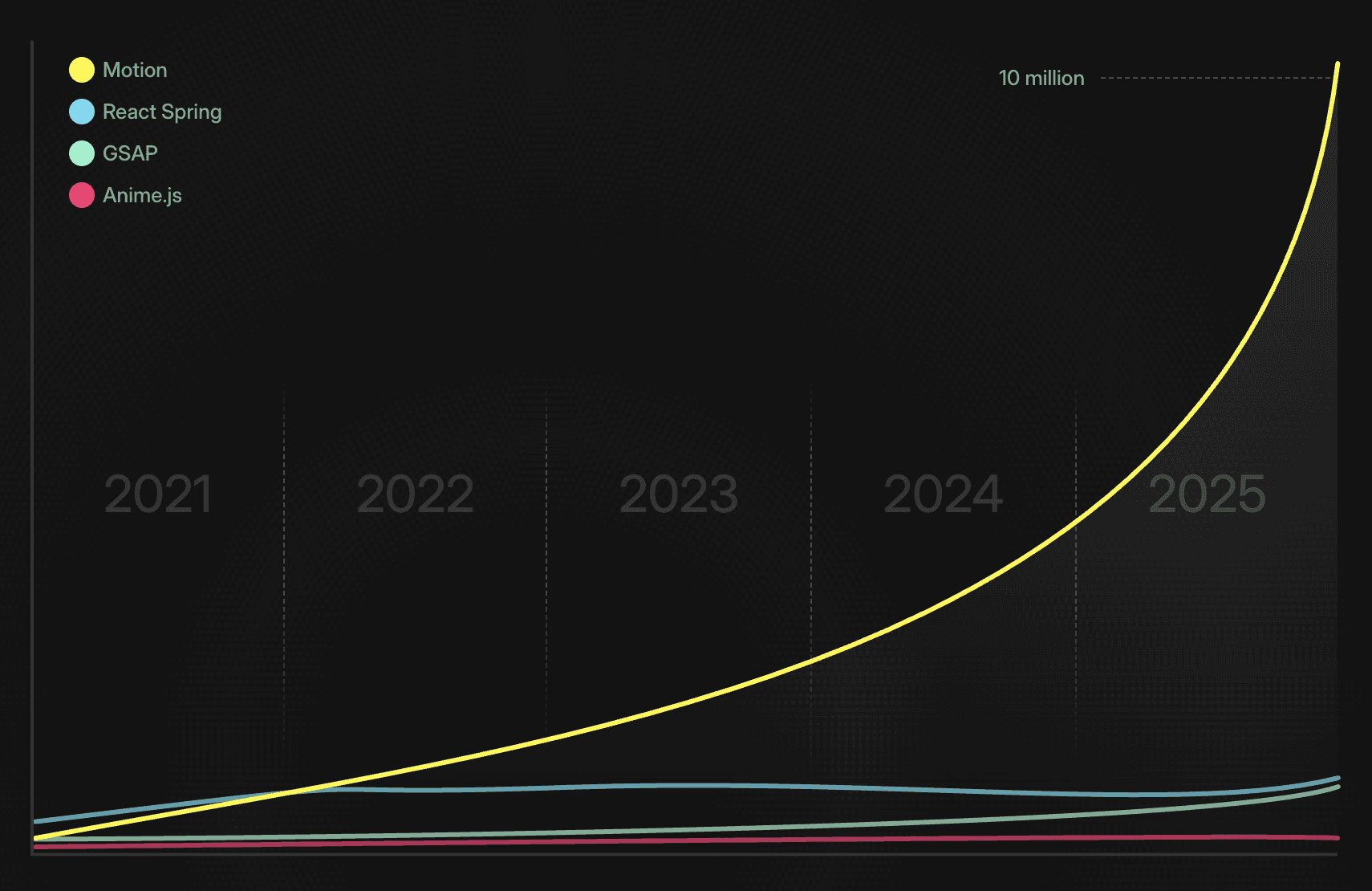
## Licensing
Motion is **fully independent** and **MIT open source**. It's financially supported by a mix of incredible industry-leading sponsors like [Framer](https://framer.com), [Figma](https://figma.com), [Sanity](https://www.sanity.io/), [Tailwind CSS](https://tailwindcss.com) and [LottieFiles](https://lottiefiles.com), as well as sales from [Motion+](https://motion.dev/plus).
GSAP, by contrast, is **closed source** and **owned and funded by Webflow**. While it can be used for free in many projects, [its license](https://gsap.com/community/standard-license/) contains a critical restriction: You're prohibited from using GSAP in any tool that competes with Webflow. Furthermore, its license states that **Webflow can terminate it at its discretion**.
With Motion, you have a **guarantee of freedom**. That MIT license is irrevocable. You will never be forced to remove and replace your animation library because of a business decision made by another company. This provides the stability and peace of mind that professional development teams require.
Motion's independence and self-sufficiency also means we work with a broad base of users and companies, creating a library that works for the whole web, rather than the interests of a single company.
## Performance
Performance is more than just smooth animations. It's about providing a flawless 120fps, faster start-up times, and minimal bundle sizes. This is where Motion's modern architecture provides an advantage.
### Hardware accelerated animations
You might already know that for best animation performance you should stick to animating `opacity` , `transform`, `filter` and `clipPath`, because these styles [can be rendered entirely on the GPU](https://developers.google.com/web/fundamentals/performance/rendering/avoid-large-complex-layouts-and-layout-thrashing).
But when animating with Motion, these values can enjoy an extra performance boost using "hardware accelerated" animations. This means the animations themselves also run entirely the GPU - separate from the JavaScript running on your CPU.
This means if your website or app is performing heavy work, **animations remain smooth**.
To illustrate, in the following example the ball on the left is animated with Motion, and the ball on the right by a traditional animation library. Press the "Block JavaScript" button to block JS execution for two seconds:
In the majority of browsers, the left ball will continue animating at 60/120fps, even as the website becomes unresponsive. Traditional animation libraries like GSAP will pause and stutter where Motion remains perfectly smooth.
What's more, Motion can even perform hardware accelerated [scroll animations](https://motion.dev/docs/scroll). Because browsers render all scroll on the GPU, JS-based scroll animations are always slightly out-of-sync. Not so with Motion.
```
const animation = animate(element, { opacity: [0, 1] })
scroll(animation)
```
### Start-up time
Two animate any two values, they have to be mixable. Think, two numbers, or two colors. But what if we want to perform an animation where we don't even know the initial value? Or we do - but it's a value like `height: auto`, or a color defined in a CSS variable like `var(—my-color)`?
To make these values mixable, the library first needs to **measure** them. But measuring something that's just been rendered forces a layout or style calculation. These are slow.
To solve this, Motion introduced **deferred keyframe resolution**. This ensures we batch all measurements into a single operation, drastically reducing style and layout calculations.
In benchmarks, Motion is **2.5x faster **than GSAP at animating from unknown values, and **6x faster** at animating between different value types.
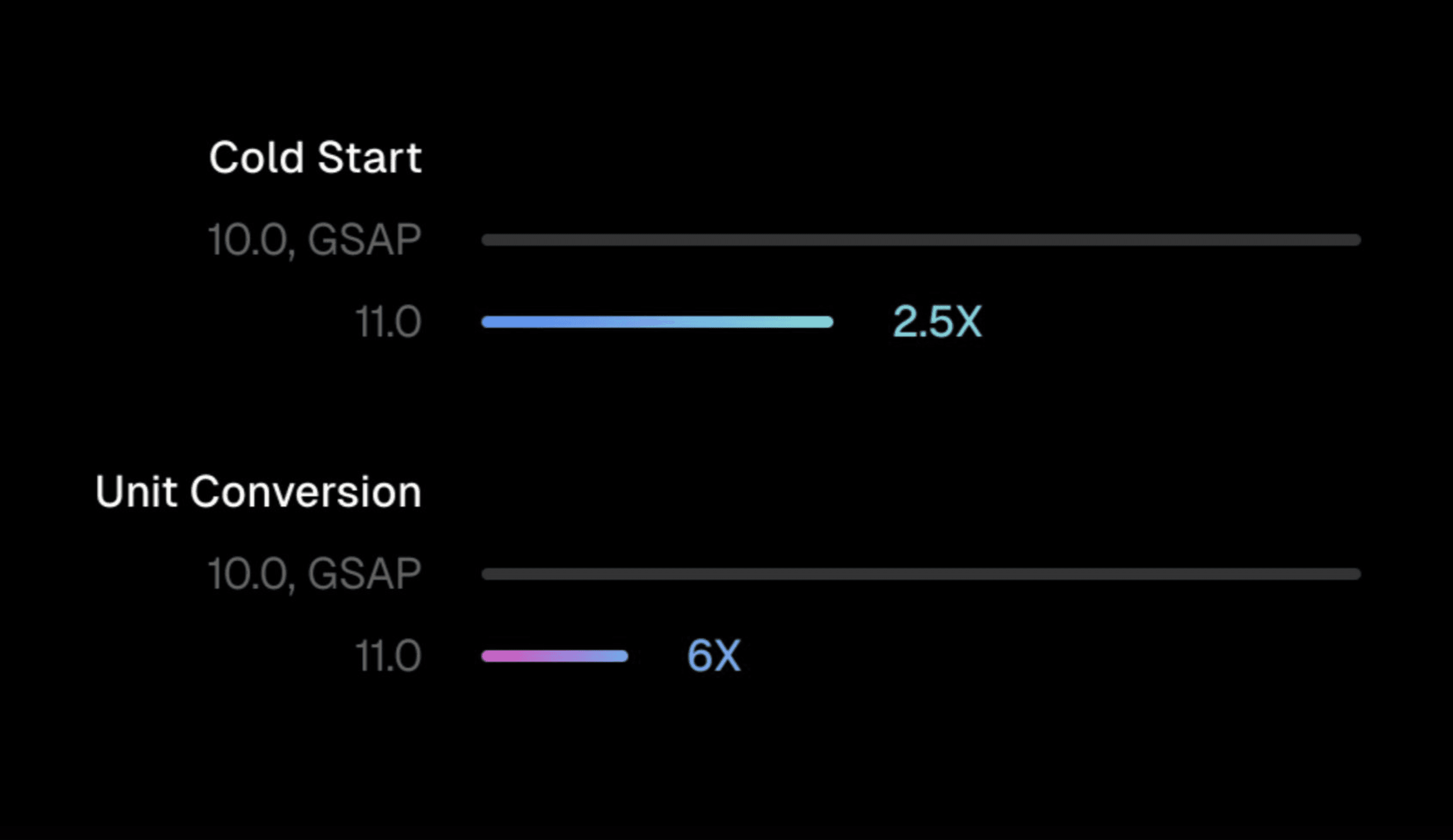
This is great for user experience, and also great for performance scores like Interaction to Next Paint (INP).
### Bundle size
Motion is built with a modern, modular architecture. If your bundler supports tree-shaking (like Vite, Rollup or Webpack), you only ever include the code you actually use. GSAP's older architecture, by contrast, means that importing any part of the library includes all of it.
This, combined with Motion's focus on leveraging native browser APIs, results in a significantly smaller footprint.
| Library | Size |
| ------------------ | ----- |
| `animate()` (mini) | 3.2kb |
| `animate()` (full) | 22kb |
| GSAP | 23kb |
A smaller bundle means a **faster site load and a better user experience**, especially on mobile devices. With Motion, you can deliver stunning animations with a minimal performance cost.
## Features
Of course, performance means little if a library can't deliver the features you need. While there is plenty of overlap, both libraries have unique strengths.
### React & Vue APIs
Motion provides a first-class, declarative API that is a natural extension of [React](https://motion.dev/docs/react) and [Vue](https://motion.dev/docs/vue). Animations are defined directly in your components via props, keeping your code clean, readable and easy to maintain.
```
```
## Options
### `axis`
**Default:** `undefined`
Set to `"x"` or `"y"` to lock dragging to one axis.
### `constraints`
An object of `top`, `left`, `right` and `bottom` values in pixels, or an element to drag within.
### `elastic`
**Default:** `0.35`
How far the element can move past its constraints, from `0` to `1`. Can be an object of values for each edge.
### `momentum`
**Default:** `true`
Whether to carry the gesture's velocity into an inertia animation on release.
### `transition`
Options for the inertia animation that runs on release: `power`, `timeConstant`, `bounceStiffness`, `bounceDamping`, `restDelta` and `restSpeed`.
### `snapToOrigin`
**Default:** `false`
Animate back to the origin on release. Set to `"x"` or `"y"` for one axis.
### `directionLock`
**Default:** `false`
Lock dragging to the first axis the pointer moves along.
### `propagation`
**Default:** `false`
Allow gestures to start on draggable parent elements.
### `onStart`, `onMove`, `onEnd`
Callbacks for the start, movement and end of the gesture. Each receives the `PointerEvent` and an `info` object.
### `onDirectionLock`
Fires with `"x"` or `"y"` when `directionLock` locks an axis.
### `onTransitionEnd`
Fires when the element comes to rest after a release.
### `onMeasureConstraints`
Fires when Motion measures element constraints. Return a new box to override them.
---
Source: https://motion.dev/docs/faqs
# FAQs
Find answers to common questions about Motion, including browser support and other troubleshooting.
## Browser support?
Motion supports all modern browsers. It **doesn't support** Internet Explorer 11 or below.
## Why is my animation finishing instantly?
There are a couple reasons an animation might appear to finish instantly.
### 1. Your browser doesn't support `CSS.registerProperty`
If you're animating CSS variables and your browser doesn't support the [CSS Properties and Values API](https://developer.mozilla.org/en-US/docs/Web/API/CSS_Properties_and_Values_API), animations will finish instantly.
1. ### `scale: 0` in Safari
There's a bug in older versions of Safari where animating to `scale(0)` completes instantly.
---
Source: https://motion.dev/docs/frame
# frame
frame() schedules tasks on Motion's animation loop, batching reads, updates, and renders.
`frame` is used to schedule a function to run on Motion's animation loop. Using Motion's animation loop:
- Prevents [layout thrashing](https://web.dev/avoid-large-complex-layouts-and-layout-thrashing/#avoid-layout-thrashing).
- Provides an easy keep-alive API for creating your own animation loop.
- Avoids the significant performance overhead of multiple `requestAnimationFrame` calls.
## Usage
Import `frame` from Motion:
```
import { frame } from "motion"
```
### Schedule a callback
`frame` works like `requestAnimationFrame`, whereby callbacks provided will execute on the next animation frame.
`frame` splits the animation frame into three steps:
- `read`: Read values from or measure the DOM.
- `update`: Amend values once all values have been read.
- `render`: Apply updated values to DOM once all values have been updated.
A function can be scheduled to run at each step like so:
```
frame.render(() => element.style.transform = "translateX(0px)")
```
### Cancel a callback
`cancelFrame` can be used to cancel a callback.
```
import { frame, cancelFrame } from "framer-motion"
function measureElement() {
console.log(element.getBoundingClientRect())
}
frame.read(measureElement)
cancelFrame(measureElement)
```
### Animation loop
Often, you'll want to keep firing a function every frame. You can do so by passing `true` as the second argument.
```
let i = 0
function update() {
i++
// Stop after 100 frames
if (i >= 100) cancelFrame(update)
}
frame.update(update, true)
```
---
Source: https://motion.dev/docs/quick-start
# Get started with Motion
Install Motion and animate HTML, SVG, or WebGL with springs.
Motion is an animation library that's easy to start and fun to master.
Its unique hybrid engine combines the performance of the browser with the limitless potential of a JavaScript engine. This means you can animate anything, like:
- **HTML/CSS**
- **SVG** (like path drawing animations)
- **WebGL **(3D graphics)
The best part? It's also tiny, with a mini HTML/SVG version of the `animate()` function that's just 3.2kb!
By the end of this quick guide, you'll have installed Motion and made your first animation.
Video: https://www.youtube.com/embed/G6swS_5jBU8?iv_load_policy=3&rel=0&modestbranding=1&playsinline=1&autoplay=0&mute=1
## Install
You can install Motion in two ways:
1. A package manager like npm or Yarn (**most popular)**
2. HTML `script` tag
### Package manager
Motion can be installed via the `"motion"` package.
```
npm install motion
```
Then imported in your JavaScript:
```
import { animate, scroll } from "motion"
```
### `script` tag
It's possible to import Motion directly using a `script` tag. This is perfect if you're working with a basic HTML page, or using a no-code tool like Webflow.
Import using the modern `import` syntax:
```
```
Or you can add `Motion` as a global variable using the legacy include:
```
```
**Note:**
It's best practise to replace "latest" in these URLs with a specific version,
like `11.11.13`. You can find the latest version in the site footer.
### Create an animation
The "Hello world!" of any animation library is a simple transform animation.
Let's start by importing the `animate`[ function](https://motion.dev/docs/animate).
```
import { animate } from "motion"
```
`animate` can animate one or more elements. You can either use a [CSS selector](https://developer.mozilla.org/en-US/docs/Web/API/Element/querySelectorAll#obtaining_a_list_of_matches) (like `".my-class"`) or provide the elements directly:
```
// CSS selector
animate(".box", { rotate: 360 })
// Elements
const boxes = document.querySelectorAll(".box")
animate(boxes, { rotate: 360 })
```
You can see here we're setting `rotate` to `360`. This will rotate the element 360 degrees:
Live example: https://examples.motion.dev/js/rotate
## What can be animated?
Motion lets you animate anything:
- **CSS properties** (like `opacity`, `transform` and `filter`)
- **SVG attributes and paths**
- **Independent transforms **(`x`, `rotateY` etc)
- **JavaScript objects** (containing strings/colors/numbers)
With Motion, you don't have to worry about achieving the best performance available. When a value can be hardware accelerated, like `x`, `y`, `opacity`, `filter` or `transform` etc, it will be.
`animate` isn't limited to HTML. It can animate single values or any kind of object. For example, the rotation of a Three.js object:
```javascript
animate(
cube.rotation,
{ y: rad(360), z: rad(360) },
{ duration: 10, repeat: Infinity, ease: "linear" },
)
```
Live example: https://examples.motion.dev/js/three
## Customising animations
Live example: https://examples.motion.dev/js/options
Motion comes with smart defaults, so your animations should look and feel great out of the box. But you can further tweak options like:
- **Duration** (how long the animation lasts)
- **Delay **(how long it waits before starting)
- **Easing** (how it speeds up and slows down)
- **Repeat** (how it repeats, how many times, etc)
```
animate(
element,
{ scale: [0.4, 1] },
{ ease: "circInOut", duration: 1.2 }
);
```
Motion also has amazing [spring animations](https://motion.dev/docs/spring) for natural, kinetic animations:
```
animate(
element,
{ rotate: 90 },
{ type: "spring", stiffness: 300 }
);
```
Live example: https://examples.motion.dev/js/spring
## Stagger animations
When animating multiple elements, it can feel more natural or lively to offset the animations of each. This is called **staggering**.
Motion provides a `stagger` function that can be used to dynamically set `delay`:
```
import { animate, stagger } from "motion"
animate(
"li",
{ y: 0, opacity: 1 },
{ delay: stagger(0.1) }
)
```
Live example: https://examples.motion.dev/js/stagger
## Development tools
The [Motion AI Kit](https://motion.dev/docs/ai-kit) provides visual editing and AI tools to enhance your animation development workflow, like inline bezier editing, CSS spring generation and more. Those two need [Motion+](https://motion.dev/plus).
The kit's `/motion` skill and its installer are free and open source (MIT): run `npx motion-ai` to install them, or read the [source on GitHub](https://github.com/motiondivision/ai-kit).
[Motion Studio](https://motion.dev/docs/studio) puts a visual animation editor on your own website. Edit keyframes, easing curves and springs on a timeline, then apply the result to your code with your agent. It's free to install and edit visually.
### What's next?
You've just learned the basics of Motion and created a simple animation. But there's so much more to discover, like:
- [**Keyframes and sequences**](https://motion.dev/docs/animate): Create more complex animations
- [**Controls**](https://motion.dev/docs/animate): Pause, resume or change animations
- [**Scroll-linked animations**](https://motion.dev/docs/scroll)**:** Link values to scroll position
- [**Scroll-triggered animations**](https://motion.dev/docs/inview): Trigger animations when elements enter the viewport
Or you can dive straight into our [examples](https://motion.dev/examples?platform=js), which include copy & paste source code to add straight to your project.
---
Source: https://motion.dev/docs/gsap-vs-motion
# GSAP vs Motion: Which should you use?
Compare Motion (formerly Framer Motion) and GSAP across bundle size, performance, and licensing.
**Motion** (formerly Framer Motion) and **GSAP** (formerly GreenSock) are two popular JavaScript animation libraries.
Their feature sets and popularity often make them candidates when you choose an animation library for your project.
Both can create stunning animations, but they have fundamental differences. This guide compares Motion and GSAP on **adoption**, **licensing**, **performance**, and **features** (complete with full comparison table), to help you decide which is right for your project.
## Adoption
Before delving into the libraries themselves, it's helpful to see what other developers are choosing. For modern applications, [npm](https://www.npmjs.com/package/framer-motion) is a great measure of a library's adoption and momentum.
Here, the numbers are clear: **Motion is growing exponentially,** making it the most-used and fastest-growing animation library in the ecosystem. It even just passed **16 million downloads per month**.

## Licensing
Motion is **fully independent** and **MIT open source**. It's financially supported by a mix of incredible industry-leading sponsors like [Framer](https://framer.com), [Figma](https://figma.com), [Sanity](https://www.sanity.io/), [Tailwind CSS](https://tailwindcss.com) and [LottieFiles](https://lottiefiles.com), as well as sales from [Motion+](https://motion.dev/plus).
GSAP, by contrast, is **closed source** and **owned and funded by Webflow**. While it can be used for free in many projects, [its license](https://gsap.com/community/standard-license/) contains a critical restriction: You're prohibited from using GSAP in any tool that competes with Webflow. Furthermore, its license states that **Webflow can terminate it at its discretion**.
With Motion, you have a **guarantee of freedom**. That MIT license is irrevocable. You will never be forced to remove and replace your animation library because of a business decision made by another company. This provides the stability and peace of mind that professional development teams require.
Motion's independence and self-sufficiency also means we work with a broad base of users and companies, creating a library that works for the whole web, rather than the interests of a single company.
## Performance
Performance is more than just smooth animations. It's about providing a flawless 120fps, faster start-up times, and minimal bundle sizes. This is where Motion's modern architecture provides an advantage.
### Hardware accelerated animations
You might already know that for best animation performance you should stick to animating `opacity` , `transform`, `filter` and `clipPath`, because these styles [can be rendered entirely on the GPU](https://developers.google.com/web/fundamentals/performance/rendering/avoid-large-complex-layouts-and-layout-thrashing).
But when animating with Motion, these values can enjoy an extra performance boost using "hardware accelerated" animations. This means the animations themselves also run entirely the GPU - separate from the JavaScript running on your CPU.
This means if your website or app is performing heavy work, **animations remain smooth**.
To illustrate, in the following example the ball on the left is animated with Motion, and the ball on the right by a traditional animation library. Press the "Block JavaScript" button to block JS execution for two seconds:
In the majority of browsers, the left ball will continue animating at 60/120fps, even as the website becomes unresponsive. Traditional animation libraries like GSAP will pause and stutter where Motion remains perfectly smooth.
What's more, Motion can even perform hardware accelerated [scroll animations](https://motion.dev/docs/scroll). Because browsers render all scroll on the GPU, JS-based scroll animations are always slightly out-of-sync. Not so with Motion.
```
const animation = animate(element, { opacity: [0, 1] })
scroll(animation)
```
### Start-up time
Two animate any two values, they have to be mixable. Think, two numbers, or two colors. But what if we want to perform an animation where we don't even know the initial value? Or we do - but it's a value like `height: auto`, or a color defined in a CSS variable like `var(—my-color)`?
To make these values mixable, the library first needs to **measure** them. But measuring something that's just been rendered forces a layout or style calculation. These are slow.
To solve this, Motion introduced **deferred keyframe resolution**. This ensures we batch all measurements into a single operation, drastically reducing style and layout calculations.
In benchmarks, Motion is **2.5x faster **than GSAP at animating from unknown values, and **6x faster** at animating between different value types.

This is great for user experience, and also great for performance scores like Interaction to Next Paint (INP).
### Bundle size
Motion is built with a modern, modular architecture. If your bundler supports tree-shaking (like Vite, Rollup or Webpack), you only ever include the code you actually use. GSAP's older architecture, by contrast, means that importing any part of the library includes all of it.
This, combined with Motion's focus on leveraging native browser APIs, results in a significantly smaller footprint.
| Library | Size |
| ------------------ | ----- |
| `animate()` (mini) | 3.2kb |
| `animate()` (full) | 22kb |
| GSAP | 23kb |
A smaller bundle means a **faster site load and a better user experience**, especially on mobile devices. With Motion, you can deliver stunning animations with a minimal performance cost.
## Features
Of course, performance means little if a library can't deliver the features you need. While there is plenty of overlap, both libraries have unique strengths.
### React & Vue APIs
Motion provides a first-class, declarative API that is a natural extension of [React](https://motion.dev/docs/react) and [Vue](https://motion.dev/docs/vue). Animations are defined directly in your components via props, keeping your code clean, readable and easy to maintain.
```
- elements on the next frame animate(opacity, 0) // Will animate all
- opacity
```
## API
### `get()`
Returns the latest state of the Motion Value.
### `getVelocity()`
Returns the latest velocity of the motion value. Returns `0` if the value is non-numerical.
### `set()`
Sets the Motion Value to a new state.
```
x.set("#f00")
```
### `jump()`
Jumps the Motion Value to a new state in a way that breaks continuity from previous values:
- Resets `velocity` to `0`.
- Ends active animations.
```
animate(x, 100)
x.jump(10)
x.getVelocity() // 0
```
### `isAnimating()`
Returns `true` if the value is currently animating.
### `stop()`
Stop the active animation.
### `on()`
Subscribe to Motion Value events. Available events are:
- `change`
- `animationStart`
- `animationCancel`
- `animationComplete`
```
import { motionValue, frame } from "motion"
const color = motionValue("#fff")
color.on("change", latest => {
frame.render(() => element.style.backgroundColor = latest)
})
```
It returns a function that, when called, will unsubscribe the listener.
```
const unsubscribe = x.on("change", latest => console.log(latest))
```
### `destroy()`
Destroy and clean up subscribers to this Motion Value.
---
Source: https://motion.dev/docs/pipe
# pipe
pipe() combines functions into one, passing each result to the next.
`pipe` combines several functions into one. Each function receives the result of the one before it.
```
const double = (v) => v * 2
const addOne = (v) => v + 1
const doubleThenAddOne = pipe(double, addOne)
doubleThenAddOne(5) // 11
```
## Usage
Import from Motion:
```
import { pipe } from "motion"
```
`pipe` accepts any number of functions and returns a new function. The functions run from left to right.
This is useful for building a value from small steps. For instance, to convert a scroll position into a whole-number percentage between `0` and `100`:
```
import { pipe, progress, clamp } from "motion"
const toPercent = pipe(
(y) => progress(0, 1000, y),
(p) => clamp(0, 1, p),
(p) => Math.round(p * 100)
)
toPercent(250) // 25
toPercent(1500) // 100
```
The order matters. `pipe(a, b)` runs `a` first, then `b`.
---
Source: https://motion.dev/docs/press
# press
press() detects press gestures, with keyboard support and pointer filtering built in.
Motion's `press` function detects press gestures, firing events when they start, end or cancel.
It's different to native browser events like `"pointerstart"` etc in that `press` automatically filters out secondary pointer events, like right clicks or a second touch point.
It also expands on `"click"` by being great for accessibility. Every element with a press gesture automatically becomes keyboard accessible via focus and the enter key.
```
press("button", (element) => {
console.log("press started on", element)
return () => console.log("press ended")
})
```
`press` is also:
- Clean: Automatically manages event listeners
- Convenient: Accepts either elements or CSS selectors for attaching multiple listeners at once
- Lazy: Attaches only the listeners needed
It can be used to fire any function, but also to start and stop animations:
```
press("button", (element) => {
animate(element, { scale: 0.9 })
return () => animate(element, { scale: 1 })
})
```
Live example: https://examples.motion.dev/js/press
## Video overview
Video: https://www.youtube.com/embed/TtbU8QfRfb8?iv_load_policy=3&rel=0&modestbranding=1&playsinline=1&autoplay=0&mute=1
## Usage
### Import
`press` can be imported via `"motion"`.
```
import { press } from "motion"
```
### Press start
`press` can detect press start gestures on either a `Element`/array of elements:
```
press(
document.getElementById("my-id"),
() => {
console.log("my-id pressed!")
}
)
```
It also accepts CSS selectors to detect press start on multiple elements:
```
press("a", () => console.log("link pressed"))
```
The callback is provided the element being pressed, and the triggering `PointerEvent`:
```
press("div:nth-child(2)", (element, startEvent) => {
console.log("Pressed", element)
console.log("At", startEvent.clientX, startEvent.clientY)
})
```
### Press end
The press start function can optionally return a function that will be called when the press gesture ends:
```
press(element, (element, startEvent) => {
console.log("press start")
return (endEvent) => {
console.log("press end")
}
})
```
The press end callback is passed a second argument, `info`. It currently has one property, `success`. If `true`, the press was successfully completed, like a click. If `false`, the press ended outside the element.
```
press(element, () => {
return (endEvent, info) => {
console.log("press ", info.success ? "end" : "cancel")
}
})
```
When using keyboard accessibility, `success` will be `false` if the element is blurred while the enter key is held.
### Cancelling gesture
`press` returns a function that, when fired, will cancel all active event handlers associated with the gesture.
```
const cancelPress = press(element, callback)
cancelPress()
```
## Options
### `passive`
**Default:** `true`
If set to `false`, it'll be possible to call `event.preventDefault()` but the gesture will be less performant. [Learn more about passive events](https://developer.mozilla.org/en-US/docs/Web/API/EventTarget/addEventListener#passive).
### `once`
**Default: **`false`
If set to `true`, each provided element will fire their gesture only once.
---
Source: https://motion.dev/docs/progress
# progress
progress() returns how far a value is through a range, as a number from 0 to 1.
`progress` returns how far a value is through a range. `0` is the start of the range and `1` is the end.
```
progress(0, 200, 50) // 0.25
```
It's the opposite of [`mix`](https://motion.dev/docs/mix). `mix` turns progress into a value, and `progress` turns a value into progress.
## Usage
Import from Motion:
```
import { progress } from "motion"
```
`progress` accepts the start of the range, the end of the range, and a value.
```
progress(100, 200, 150) // 0.5
```
The range can run in either direction:
```
progress(200, 100, 150) // 0.5
progress(200, 100, 175) // 0.25
```
### Values outside the range
`progress` doesn't limit its output. A value before the start returns less than `0`, and a value after the end returns more than `1`:
```
progress(0, 100, 150) // 1.5
progress(0, 100, -50) // -0.5
```
To keep the result between `0` and `1`, wrap it in [`clamp`](https://motion.dev/docs/clamp):
```
clamp(0, 1, progress(0, 100, 150)) // 1
```
If the start and end are the same, `progress` returns `1`.
### Map a value to another range
Combine `progress` with `mix` to map a value from one range to another:
```
const opacity = mix(0, 1, progress(0, 500, scrollY))
```
For mapping with several stops, easing or colours, use [`transform`](https://motion.dev/docs/transform).
---
Source: https://motion.dev/docs/prop-effect
# propEffect
propEffect() applies motion values to JavaScript object properties, useful with libraries like Three.js.
`propEffect` applies the output of [motion values](https://motion.dev/docs/motion-value) to the properties of an object.
When these motion values update, the element will re-render once per frame during the [render step of the frameloop](https://motion.dev/docs/frame).
```
const pos = { x: 0, y: 0, z: 0 }
const x = motionValue(0)
propEffect(pos, { x })
// Set x on pos to 100
x.set(100)
// Animate x on pos to 200
animate(x, 200)
```
This can also be used for rendering Three.js props:
```
const cube = new THREE.Mesh(geometry, material)
const x = motionValue(0)
propEffect(cube.position, { x })
```
## Usage
Import `propEffect` from `"motion"`:
```
import { propEffect } from "motion"
```
`propEffect` accepts an a single object, plus a map of motion values:
```
const data = { opacity: 0, x: 100 }
const opacity = motionValue(0)
propEffect(data, { opacity })
```
When any of the motion values update, the element(s) will re-render on the next animation frame:
```
opacity.set(1)
```
Each motion value can be applied to any number of styles, and any number of elements.
Any motion value can be provided, including those defined by `mapValue` and `transformValue`.
### Cancel
`propEffect` returns a cleanup function which, when called, will stop applying changes to the motion values to the element:
```
const rotateX = motionValue(0)
const cancel = propEffect(threeRotation, { x: rotateX })
cancel()
```
---
Source: https://motion.dev/docs/resize
# resize
resize() reacts to size changes on the viewport or any element, via ResizeObserver.
`resize` allows you to monitor and react to size changes in the viewport, or specific HTML and SVG elements.
```
// Viewport
resize(() => {})
// Specific elements
resize("li", () => {})
```
For optimal performance, all resize handlers are triggered via a single, shared `ResizeObserver`.
## Usage
Import `resize` from `"motion"`.
```
import { resize } from "motion"
```
### Tracking viewport changes
Changes to the viewport can be detected by passing just a callback to `resize`:
```
resize(() => console.log("viewport change detected"))
```
The callback is provided a single argument, containing `width` and `height` getters.
```
resize(({ width, height }) => console.log(width, height))
```
### Tracking element changes
By passing an element or CSS selector, `resize` can detect changes on specific elements.
```
resize("li", (element) => console.log(element, "change detected"))
```
This function is also provided `width` and `height` getters for each `element`:
```
resize(".drawer", (element, { width, height }) => {
console.log(element, " is now ", width, height)
})
```
The returned `width` and `height` are the element's **border box**, which is the size of the element including the border.
### Responding to size changes
For best performance, subsequent renders should be performed with the [Motion frameloop](https://motion.dev/docs/frame). This ensures DOM reads and writes are correctly batched to prevent layout and style thrashing.
```
resize(".drawer", (element, { width, height }) => {
frame.render(() => {
element.style.height = Math.max(400, height)
})
})
```
### Cleanup
`resize` returns a function that will, when called, remove the attached listeners.
```
const stop = resize(log)
stop()
```
When there are no more listeners on an element, the element will be removed from the `ResizeObserver`, and when there are no more listeners at all, the `ResizeObserver` will be stopped.
---
Source: https://motion.dev/docs/resolve-elements
# resolveElements
resolveElements() turns a selector, element or list of elements into an array of elements.
`resolveElements` turns a selector, an element or a list of elements into a plain array of elements.
```
const items = resolveElements("li")
```
Motion uses it inside [`animate`](https://motion.dev/docs/animate), [`inView`](https://motion.dev/docs/inview), [`hover`](https://motion.dev/docs/hover) and other functions, which is why they all accept the same kinds of targets. You can use it to write your own functions that work the same way.
## Usage
Import from Motion:
```
import { resolveElements } from "motion"
```
`resolveElements` accepts:
- A CSS selector: `"li"`
- A single element: `document.body`
- A `NodeList`: `document.querySelectorAll("li")`
- An array of elements
It always returns an array:
```
resolveElements("li") // [li, li, li]
resolveElements(document.body) // [body]
```
`null` and `undefined` return an empty array, and `null` entries in a list are removed. So the result of a `querySelector` that found nothing is safe to pass:
```
resolveElements(document.querySelector(".missing")) // []
```
### Scope selectors to an element
By default, selectors search the whole document. To search inside one element, pass a scope as the second argument. A scope is an object with the element as `current`:
```
const list = document.querySelector("ul")
resolveElements("li", { current: list, animations: [] })
```
### Write a function that accepts any target
```
import { resolveElements } from "motion"
function highlight(target) {
for (const element of resolveElements(target)) {
element.classList.add("highlight")
}
}
highlight(".card")
highlight(document.querySelector("#hero"))
```
---
Source: https://motion.dev/docs/spring
# spring
spring() creates physics-based spring animations, configured by bounce, stiffness, damping, and mass.
The `spring` function is most often used to provide spring functionality to the mini `animate()`[ function](https://motion.dev/docs/animate).
```
import { animate } from "motion/mini"
import { spring } from "motion"
animate(
element,
{ transform: "translateX(100px)" },
{ type: spring, bounce: 0.3, duration: 0.8 }
)
```
However, `spring` can also be used directly for low-level, advanced use cases. For instance, creating a spring visualiser.
## Usage
Import `spring` from Motion.
```
import { spring } from "motion"
```
`spring` is a function that returns a [generator](https://developer.mozilla.org/en-US/docs/Web/JavaScript/Reference/Global_Objects/Generator).
```
const generator = spring({ keyframes: [0, 100] })
```
This generator can be used to sample to spring at specific times (defined in milliseconds).
As a generator, `next()` returns two values, `value` and `done`.
```
const { value, done } = generator.next(10) // Spring state at 10 milliseconds
```
The spring can be sampled in a non-linear fashion, meaning you can sample the spring at any time.
```
generator.next(100)
generator.next(10)
```
### Sampling a spring
For most use-cases, like `linear()` easing generation or visualisation, you will probably want to run the generator in time order. You can do this with a normal loop that continues until the spring is done.
```
const generator = spring({ keyframes: [25, 75], stiffness: 400 })
const output = []
let isDone = false
let time = 0
const sampleDuration = 20 // ms
while (!isDone) {
const { value, done } = generator.next(time)
output.push(value)
time += sampleDuration
if (done) isDone = true
}
```
**Warning:**
Springs with `damping: 0` will run forever, so you'll need to put some kind of constraint on how many times the spring will be sampled, or what the minimum `damping` can be, etc.
## Visualiser
## CSS generation
It's possible to use `spring()` to generate CSS transitions.
```
element.style.transition = "all " + spring(0.5)
```
Read the [CSS generation guide ](https://motion.dev/docs/css)for more details.
## Options
The spring can be configured with a number of options.
#### `keyframes`
`spring` **must** be provided with two keyframes to animate between. These can be any two **numerical** values.
```
spring({ keyframes: [0, 100] })
```
### Time options
#### `duration`
**Default:** `800`
Duration for the entire spring.
**Warning:**
Motion normally defines `duration` in seconds. For historical reasons, when defining `duration` directly via the `spring()` function, it must be in milliseconds.
#### `visualDuration`
If `visualDuration` is set, this will override `duration`.
The visual duration is a time, **set in seconds**, that the animation will take to visually appear to reach its target.
In other words, the bulk of the transition will occur before this time, and the "bouncy bit" will mostly happen after.
This makes it easier to edit a spring, as well as visually coordinate it with other time-based animations.
#### `bounce`
**Default:** `0.25`
`bounce` determines the "bounciness" of a spring animation. It accepts values from `-1` to `1`.
`0` is no bounce (critically damped), and `1` is extremely bouncy.
Negative values, down to `-1`, make the spring overdamped: it starts quicker, then settles more slowly into its target, with no overshoot. The lower the value, the slower the settle. It still arrives at the same time as a `bounce` of `0`, so a negative `bounce` changes the shape of the motion, not its timing.
**Note:**
Time options will be overridden if any physics options are set.
### Physics options
#### `damping`
**Default:** `10`
Strength of opposing force. If set to 0, spring will oscillate indefinitely.
#### `mass`
**Default:** `1`
Mass of the moving object. Higher values will result in more lethargic movement.
#### `stiffness`
**Default:** `1`
Stiffness of the spring. Higher values will create more sudden movement.
#### `velocity`
**Default:** Current value velocity
The initial velocity of the spring.
#### `restSpeed`
**Default:** `0.1`
End animation if absolute speed (in units per second) drops below this value and delta is smaller than `restDelta`.
#### `restDelta`
**Default:** `0.01`
End animation if distance is below this value and speed is below `restSpeed`. When animation ends, the spring will end.
---
Source: https://motion.dev/docs/spring-value
# springValue
springValue() creates motion values driven by physics, with stiffness, damping, and mass.
`springValue` creates a new [motion value](https://motion.dev/docs/motion-value) that reacts to changes with a physics-based spring animation.
`springValue` either accepts a number:
```
const x = springValue(0)
const y = springValue("100%")
// These will go to their new target with a spring animation
x.set(100)
y.set("0%")
styleEffect("div", { x, y })
```
Or another motion value:
```
const pointerX = motionValue(0)
const x = springValue(pointerX)
document.addEventListener("pointerMove", (e) => {
// x will animate these changes with a spring animation
pointerX.set(e.clientX)
})
styleEffect("div", { x })
```
Live example: https://examples.motion.dev/js/spring-follow-cursor
## Usage
`springValue` accepts either a number value or a motion value.
### Number
A number can be provided with or without a unit:
```
import { springValue } from "motion"
const scaleX = springValue(0)
const rotate = springValue("1turn")
```
When we've provided a number, we can animate the returned motion value by calling its `.set()`
```
scaleX.set(1)
rotate.set("2turn")
```
### Motion value
Alternatively, we can attach a spring onto another motion value by passing it to `springValue`:
```
const opacity = motionValue(1)
const x = mapValue(opacity, [0, 1], [0, 100])
const xWithSpring = springValue(x)
```
## Options
All of the normal Motion [spring options](https://motion.dev/docs/animate#spring) are supported via a second argument.
```
springValue(0, { stiffness: 1000 })
```
**Note:**
Although `duration` and `visualDuration` are accepted, it's recommended to define springs using the physics-based options `stiffness`, `damping` and `mass`. This is because these options incorporate the velocity of the value for the smoothest and most reactive motion.
---
Source: https://motion.dev/docs/stagger
# stagger
stagger() distributes a delay across elements, with control over origin, grids and easing.
Stagger animations delay each element in a sequence by a set amount of time, creating a cascading or wave-like effect. Motion's `stagger()` function makes this easy.
It's perfect for animating lists, grids, navigation menus and loading icons. Its also the key feature in split text animations, where staggering the characters is the whole effect: the [text animation guide](https://motion.dev/docs/text-animation) explains more.
```
import { animate, stagger } from "motion"
animate(
"li",
{ opacity: 1 },
{ delay: stagger(0.1) }
)
```
Live example: https://examples.motion.dev/js/stagger
## Usage
Import `stagger` from Motion.
```
import { animate, stagger } from "motion"
```
By passing a duration, in seconds, to `stagger`, the `delay` of each element will be increased by that amount for each animation.
```
animate(
"li",
{ opacity: 1 },
{ delay: stagger(0.1) }
)
```
### Animation sequencing
It's also possible to stagger segments within animation sequences.
```
animate([
["ul", { opacity: 1 }]
["li", { x: [100, 0] }, { delay: stagger(0.05) }]
])
```
Any subsequent segments will be scheduled after the final staggered element.
### Negative staggers
Motion supports setting `delay` as a negative value in order to start an animation mid-way.
```
animate(
element,
keyframes,
// Will start half-way through the animation
{ delay: -1, duration: 2 }
)
```
This means you can also set `stagger` to a negative offset to start animations at staggered mid-points.
```
delay: stagger(0.05, { startDelay: -1 })
```
For instance, this [loading spinner tutorial](https://motion.dev/examples/js-svg-loading-spinner) explains how, by setting `startDelay` to a negative value, all of the icon segments can start mid-animation rather than waiting for a full iteration before they're all animating together.
Live example: https://examples.motion.dev/js/svg-loading-spinner
### Stagger direction
It's possible to set a stagger direction by choosing a direction to stagger `from`. The `from` option can be set as `"first"`, `"center"`, `"last"`, `"edges"`, `"random"`, or any item `index`.
Live example: https://examples.motion.dev/js/stagger-from-center
`"edges"` staggers inwards from both ends at the same time.
```
stagger(0.1, { from: "edges" })
```
Live example: https://examples.motion.dev/js/stagger-from-edges
`"random"` gives each element a different step in a random order.
```
stagger(0.05, { from: "random" })
```
Live example: https://examples.motion.dev/js/stagger-random
### Grid stagger
By passing the number of `[columns, rows]` to the `grid` option, elements are treated as a grid in reading order. Each delay is then based on the distance from the `from` origin in two dimensions, so the stagger ripples outwards.
```
animate(
".cell",
{ opacity: 1 },
{ delay: stagger(0.05, { grid: [8, 6], from: "center" }) }
)
```
Every `from` option works with grids. An index staggers from that cell, `"center"` staggers from the middle of the grid, and `"edges"` staggers inwards from all four sides.
Live example: https://examples.motion.dev/js/stagger-grid
**Tip:**
If your layout uses CSS grid, you can read the number of columns and rows from the grid itself:
```
const style = getComputedStyle(grid)
const columns = style.gridTemplateColumns.split(" ").length
const rows = style.gridTemplateRows.split(" ").length
stagger(0.05, { grid: [columns, rows] })
```
The `grid` option staggers by row and column. To stagger by the real distance between elements on screen, this [physically-aware stagger tutorial](https://motion.dev/examples/js-staggered-grid) explains how to calculate the delays yourself.
### Stagger React animations
`stagger` works with Motion for React via a variant's `delayChildren` option.
```
const parentVariants = {
open: {
opacity: 1,
transition: {
delayChildren: stagger(0.1)
}
},
close: {
opacity: 0,
transition: {
delayChildren: stagger(0.01, { from: "last" })
}
}
}
```
By setting `delayChildren` to `stagger`, when children enter the defined variant they'll be delayed by the defined amount of time.
```
`, ` ` and ` ` (no relation). ```html `. Like Motion, if it's an attribute, SMIL can animate it, which isn't true of CSS or Web Animations API. ### Motion along a path [` `](https://developer.mozilla.org/en-US/docs/Web/SVG/Reference/Element/animateMotion) is the precursor to CSS's `offset-path`. It moves an element along a path, and it can define its own, or point at a path that already exists in the document. ``` ` child and it follows a path that already exists in the document, so the curve you can see and the curve the circle follows are always in sync. Live example: https://examples.motion.dev/js/svg-smil For the best part of two decades there was nothing else on the web that could do this. CSS has since caught up: `offset-path` and `offset-distance` do the same job for any element. Motion has its own path animation API, [`arc()`](https://motion.dev/docs/arc). Instead of authoring a path upfront, it dynamically bends the line between any two `x`/`y` points into a curve at runtime: ```javascript import { animate, arc } from "motion" animate(".item", { x: 200, y: 100 }, { duration: 1, path: arc() }) ``` There's no `d` string anywhere: the curve is automatically generated from wherever the element is to wherever it's going, which is why it also works with [layout animations](https://motion.dev/docs/react-layout-animations). ### SMIL isn't dead, but maybe it should be You'll read that SMIL is deprecated. It isn't. Chrome shipped an intent to deprecate SMIL back in 2015, pointing developers to CSS animations and the Web Animations API instead. These, at the time, were not at feature parity with SMIL, so Google reversed this decision. However, there are two outstanding issues with this API that will almost certainly never be addressed. One, its verbosity. To animate multiple attributes, you need a separate ` ` tag for each one, and every tag carries its own attributes that have to be duplicated and kept in sync. This generates tons more code than either Motion or CSS. Additionally, SMIL works exclusively via SVG attributes. CSS, Web Animations API and Motion will all drive animations like `opacity` and `transform` off-thread via the GPU, while the same SMIL animations will stutter when the main thread is busy. So given the lack of ongoing investment we don't recommend using SMIL to animate SVGs. Live example: https://examples.motion.dev/js/svg-smil-vs-motion ## CSS and Web Animations API CSS and Web Animations are the polar opposite to SMIL in that they **can't animate attributes**. Luckily, SVG's "presentation attributes" like `fill`, `stroke`, `stroke-width` and `opacity` are also available as CSS properties. Which means they transition and animate like anything else on the page: ```css circle { fill: #0f0; transition: fill 0.3s; } circle:hover { fill: #f00; } ``` SVG 2 went further and promoted a handful of _geometry_ attributes to properties to CSS too: `cx`, `cy`, `r`, `rx`, `ry`, `x`, `y`, `width` and `height`. Those landed across browsers between 2020 and 2024, so a circle's radius is now something a stylesheet can animate directly. ### The transform origin gotcha Rotate an element in CSS and it spins around its own centre. However, rotate an **SVG elememt** and it spins around the origin of the `viewBox`, which is usually the top left corner of the image. Unintuitive and almost never what you want. The fix is [`transform-box: fill-box`](https://developer.mozilla.org/en-US/docs/Web/CSS/Reference/Properties/transform-box), which tells the browser to resolve `transform-origin` against the element's own bounding box, the way CSS does: ```css .spinner { transform-box: fill-box; transform-origin: center; animation: spin 1s linear infinite; } ``` Older animation libraries like GSAP normalise transform origin by measuring elements relative to the `viewBox`, but this is no longer necessary. `transform-box` has been supported for years, which is why Motion's [`svgEffect`](https://motion.dev/docs/svg-effect) and `motion` components apply `fill-box` themselves the moment they see a transform, and you can opt back out with `transformBox: "view-box"`. Live example: https://examples.motion.dev/js/svg-css ### Morphing with `d` Path data is a CSS property too, in some browsers. Set `d` with `path()` and you can transition between two shapes (with the same order of path draw commands) without JavaScript: ```css path { d: path("M 0,0 L 0,10 L 10,10"); transition: d 0.4s; } path:hover { d: path("M 0,0 L 10,0 L 10,10"); } ``` The catch is (surprise) Safari, which doesn't support the `d` property as a style at all. You're better setting and animating it via Motion for full cross-browser compatibility. ### Unsupported properties As mentioned, CSS and Web Animations API simply can't animate attributes, which precludes everything that never became a CSS property. `viewBox`, `points` on a ` `, `x1`/`y1`/`x2`/`y2` on a ` `, `offset` on a gradient stop. Every filter primitive attribute, so `stdDeviation`, `baseFrequency`, `numOctaves` and the rest. For those, CSS has nothing at all. And, because it _is_ the CSS engine, neither does the Web Animations API. ```javascript // cx became a CSS property in SVG 2, so this works circle.animate({ cx: ["0px", "50px"] }, 1000) // viewBox never did, so this does nothing at all svg.animate({ viewBox: ["0 0 100 100", "0 0 50 50"] }, 1000) ``` **Tip:** Notice the units on that first line. WAAPI wants a complete CSS value, so a bare `50` is an error where `"50px"` is fine. That's one of a pile of WAAPI-related papercuts I've [tried to improve with Motion](https://motion.dev/docs/improvements-to-the-web-animations-api-dx). Everything beyond these styles, `viewBox`, `points`, the filter primitives etc, needs a value written to the attribute every frame from JavaScript. That's exactly the job Motion's [`svgEffect`](https://motion.dev/docs/svg-effect) and `motion` components do for you, as we'll see below. ### Line drawing The single most requested SVG animation is line drawing. The secret to a drawing animation is a trick played with two properties designed for dashed lines: [`stroke-dasharray`](https://developer.mozilla.org/en-US/docs/Web/SVG/Reference/Attribute/stroke-dasharray) and `stroke-dashoffset`. `stroke-dasharray` takes a line length and a gap length. Give it a line exactly as long as the whole path, followed by a gap exactly as long as the whole path, and you have a fully drawn line trailed by a gap so large that you don't see the start of the next line. By animating `stroke-dashoffset` you can then slide that pattern along the stroke, leading to the illusion of a line being drawn. The problem is, we don't know how long the line is. One typical approach is simply to read it with `.getTotalLength()`: ```javascript const path = document.querySelector("path") const length = path.getTotalLength() path.style.strokeDasharray = length path.style.strokeDashoffset = length path.animate({ strokeDashoffset: [length, 0] }, 2000) ``` This works, but introduces a DOM measurement which, if not properly handled with something like Motion's [`frame` batching](https://motion.dev/docs/frame), will lead to style thrashing. Luckily, there's a much simpler approach. By actively setting the shape's [`pathLength`](https://developer.mozilla.org/en-US/docs/Web/SVG/Reference/Attribute/pathLength) attribute, we can _tell_ the browser how long the line is. Set it to something very simple like `1` and suddenly the animation becomes much simpler: ```html ``` Now the maths is in simpler progress units and there's no measurements. This is exactly what Motion does under the hood, handing you these simpler three attributes to achieve draw animations: - `pathLength`: how much of the line is drawn - `pathSpacing`: the gap between drawn segments - `pathOffset`: where along the path the drawn segment starts Which makes the whole effect one line: ```jsx animate("path", { pathLength: [0, 1] }, { duration: 2 }) ``` Live example: https://examples.motion.dev/js/svg-line-drawing Or, in React: ```jsx ``` Live example: https://examples.motion.dev/react/path-drawing It works on `circle`, `ellipse`, `line`, `path`, `polygon`, `polyline` and `rect`, and there's a full [path drawing example](https://motion.dev/examples/react-path-drawing) to check out. Looping the offset gives you an infinite chasing-line loader: ```javascript const pathLength = motionValue(0.25) const pathOffset = motionValue(0) svgEffect("path", { pathLength, pathOffset }) animate(pathOffset, [0, 1], { repeat: Infinity, ease: "linear" }) ``` Live example: https://examples.motion.dev/js/loading-infinite-path-drawing ## Motion To sum up, Motion adds: - Simple path drawing API - Automatically handles attributes vs styles - Default init types On top of the usual Motion features such as spring animations, timelines and simple keyframe syntax. Plus: **`viewBox`.** ` ` can animate `viewBox`, which is the tidiest way to pan or zoom a graphic and something neither CSS or WAAPI can animate: ``` ``` Live example: https://examples.motion.dev/react/svg-viewbox **Springs on SVG values.** Neither CSS nor WAAPI has native springs, both must use pre-generated `linear()` easing curves. Motion can animate any SVG attribute with time-based or physics-based springs: ``` animate("path", { pathLength: 1 }, { type: spring, bounce: 0.4 }) ``` **Scroll-linking.** Motion's `scroll` is backwards-compatible with browsers that don't yet support native scroll animations, supporting hardware accelerated animations wherever the browser allows it: ``` scroll(animate("path", { pathLength: [0, 1] })) ``` **Morphing.** Like CSS and WAAPI, Motion can interpolate `d` natively, but this works in every browser including Safari. Also like CSS and WAAPI, the two paths must have the same points defined in the same order. For genuinely different shapes you can pair Motion with a path mixer like Flubber, which is what our [SVG path morphing example](https://motion.dev/examples/js-svg-path-morphing) does. Live example: https://examples.motion.dev/js/svg-path-morphing ## What does an SVG animation cost? Broadly, animating an SVG is a paint (grade C by [the MotionScore methodology](https://motion.dev/magazine/web-animation-performance-tier-list). However - animating `transform` or `opacity` via CSS, WAAPI or Motion is actually an S-tier, GPU-accelerated animation. Animating these via other animation libraries like GSAP, or via JS directly, is still **rendered** via the compositor but **animated** on the main thread. Still, the majority of SVG animations like path drawing and morphing are still paint triggering. The thing that scales a paint is surface area. Bigger elements are more expensive to redraw. Therefore, it's always cheaper to animate `transform` instead of values like `x`, `cx` and `r`. The `
controls.start(e)}
/>
)
}
```
### Auto-scroll lists
If a `Reorder.Group` is within a scrollable container, the container will automatically scroll when a user drags an item towards the top and bottom of the list.
The closer to the edge of the container, the faster the scroll.
Live example: https://examples.motion.dev/react/todo-list
### z-index
`Reorder.Item` will automatically set a `z-index` style on the currently dragged item so it appears above the surrounding items.
However, `z-index` only affects items with `position !== "static"`. So to enable this effect ensure the position of the `Reorder.Item` is set to `relative` or `absolute`.
## API
### `Reorder.Group`
#### `as`
**Default**: `"ul"`
The underlying element for `Reorder.Group` to render as.
```
```
#### `values`
The values array that will be reordered. Each item in this list must match a `value` passed to each `Reorder.Item`.
#### `onReorder`
A callback that will fire when items are detected to have reordered. The provided `newOrder` should be passed to a `values` state update function.
```
const [items, setItems] = useState([0, 1, 2, 3])
return (
```
### `Reorder.Item`
`Reorder.Item` components accept all `motion`[ component props](https://motion.dev/docs/react-motion-component) in addition to the following:
#### `as`
**Default:** `"li"`
The element for `Reorder.Item` to render as.
#### `value`
When `onReorder` is called, this is the value that will be passed through in the newly ordered array.
---
Source: https://motion.dev/docs/react-svg-animation
# SVG animation
Animate SVGs in React, including line drawing and morphing effects.
Motion makes React SVG animation straightforward. In this guide, we'll learn how to make line drawing animations, path morphing animations, animate `viewBox` and more.
If you're still weighing up your options, our [complete guide to SVG animation](https://motion.dev/docs/svg-animation) compares Motion with SMIL, CSS and the Web Animations API.
Live example: https://examples.motion.dev/react/path-drawing
## Overview
SVG animations are performed via the `motion`[ component](https://motion.dev/docs/react-motion-component). There's a `motion` component for every SVG element (e.g. ``, ``, ``, and even filters like `` and ``).
```
```
A `motion` component can animate `style`, as normal:
```
)
}
```
---
Source: https://motion.dev/docs/text-animation
# Text animation
A complete overview of text animation techniques: splitting, staggering, clipped reveals, rolling labels, scramble text, typewriters, numbers and scroll-linked words.
"Text animation" covers a broad family of techniques.
These include split text animations, rolling text, typing effects and text that appears on scroll.
In this guide we're going to go through the predominant animations that people mean when they say "text animation", see what they do, how they work, and how they perform.
## Split text
"Split text" is, in part, a genre of text animation where blocks of text have been cut up into their constituent characters, words or lines, and then animated independently.
Live example: https://examples.motion.dev/react/split-text
Confusingly, split text is also the name of the process by which we split this blocks of text up, a process that underpins other text animations that we'll see later on, like scramble text and (sometimes) rolling text.
To perform any of these animations we need to split text up because neither CSS or JavaScript give us a way of targeting parts of text on their own. Instead, we need to change blocks of text like this:
```html
Start free
```
It also handles keyboard accessibility for you, by playing the animation on focus.
### Stagger the characters
Already the whole-label roll looks great, but for a more playful version we can use our text splitting technique from before.
Live example: https://examples.motion.dev/react/rolling-text-button-stagger
```
const outgoing = splitText(outgoingRef.current)
const incoming = splitText(incomingRef.current)
const delay = stagger(0.025)
animate(
outgoing.chars,
{ transform: "translateY(100%)" },
{ delay },
)
animate(
incoming.chars,
{ transform: "translateY(0%)" },
{ delay },
)
```
The [`RollingTextButton` Motion UI component](https://motion.dev/ui/components/rolling-text-button) enables this automatically with the `staggerCharacters` prop.
## Scramble text
Scramble text animations cycles characters through random characters before settling on the final text.
Live example: https://examples.motion.dev/react/scramble-text-hover
Because this involves updating text in the DOM, a naive approach to this would be to use React's `setState` to update the text. Rather than involving the component tree, a more performant approach to this would be setting `innerText` directly.
Because [`motion` components](https://motion.dev/docs/react-motion-component) can render [motion values](docs/react-motion-value), a simple way of doing this would be to store your text in a motion value and update it at a set interval:
```
const text = useMotionValue("Hello")
useEffect(() => {
setInterval(() => {
text.set(/** insert scrambled text */)
}, 50)
})
return {text}
```
This is how Motion's [`ScrambleText`](https://motion.dev/docs/react-scramble-text) component works under the hood, while providing hover, mount, custom character sets, stagger support and more:
```
import { stagger } from "motion"
import { ScrambleText } from "motion-plus/react"
Hello world!
```
There's also a vanilla [`scrambleText`](https://motion.dev/docs/scramble-text) function, plus examples of [scramble triggered by hover](https://motion.dev/examples/react-scramble-text-hover) and [staggering from the centre](https://motion.dev/examples/react-scramble-text-stagger-center).
## Typewriter
A typewriter animation attempts to make it look like text is being typed in by a human.
Live example: https://examples.motion.dev/react/typewriter
Like scramble text effects, this involves updating `innerText` at a set interval:
```
const element = document.querySelector(".typewriter")
const text = "Hello world!"
let length = 0
const interval = setInterval(() => {
length++
element.innerText = text.substring(0, length)
if (length === text.length) clearInterval(interval)
}, 50)
```
The drawback to this approach is no human types each character at a monotonous interval. Animations look robotic.
In reality, people change the cadence of their typing with a degree of randomness - but also depending on what they are typing. Characters tend to flow faster or slower depending on whether we're mid word, within a long word, and various other factors.
Motion+'s [`Typewriter`](https://motion.dev/docs/react-typewriter) accounts for all of these variables for a natural-feeling typing animation:
```
import { Typewriter } from "motion-plus/react"
Hello world!
```
In vanilla JavaScript, the [`typewriter`](https://motion.dev/docs/typewriter) function does the same:
```
import { typewriter } from "motion-plus"
typewriter(".typewriter", "Hello world!", { speed: "slow" })
```
Live example: https://examples.motion.dev/react/typewriter-natural-typing
It also handles the `aria-label` accessibility that we've seen so far, as well as offering various backspace techniques to handle full scripts in a natural way.
## Number animation
Counters, prices and countdowns look like text animation. But the value underneath is still a number, and turning it into a row of character spans only throws useful information away.
Instead, animate the number and format it on the way out. [`AnimateNumber`](https://motion.dev/docs/react-animate-number) uses Motion's layout animations to move digits as the value changes, while `Intl.NumberFormat` handles currencies, percentages and separators:
```
import { AnimateNumber } from "motion-plus/react"
{price}
```
Live example: https://examples.motion.dev/react/number-counter
It takes the usual `transition` prop, so putting a spring on the digits is one line. See it used as a [counter](https://motion.dev/examples/react-number-counter), a [price switcher](https://motion.dev/examples/react-number-price-switcher) and a set of [scroll-triggered stats](https://motion.dev/examples/react-stats-counters).
## Reveal on scroll
A final popular technique is having individual words fade in line by line as the page is scrolled:
Live example: https://examples.motion.dev/react/text-scroll-word-reveal
Inside each word, `useTransform` maps that small slice of progress to opacity:
```
const start = words.length === 1
? 0
: (index / (words.length - 1)) * 0.8
const range = [start, start + 0.2]
const opacity = useTransform(progress, range, [0.15, 1])
```
The first word starts at progress `0`. The last starts at `0.8` and settles at `1`. Everything between them is distributed evenly, so the reveal reads as a stagger without being tied to time.
Each visual word gets its own span. The parent keeps the complete sentence as its accessible label, while those generated spans are hidden from assistive technology.
You can copy the [`ScrollWordReveal` Motion UI component](https://motion.dev/ui/components/scroll-word-reveal), or open the [complete example](https://motion.dev/examples/react-text-scroll-word-reveal) to see the sticky scroll range around it.
## Performance
Animating text does come at a slight cost. Split a long paragraph and suddenly the size of your DOM has ballooned. Luckily, each of these elements is typically small, so even if you run a paint-triggering animation on them like `color` the damage is limited.
Then the process of splitting the text by swapping out a single element with a bunch more is in itself potentially expensive - but it is a one-time cost rather than something that happens every frame.
What isn't a one-time cost is the techniques like typewriter and scramble text that update strings via `innerText`, which triggers layout recalculations.
For scramble text, the blast radius of this can be reduced by using mono fonts for these animations. Your animations will look better as text stops jumping around so much. For typewriter, remember to use [`contain: layout`](https://developer.mozilla.org/en-US/docs/Web/CSS/Reference/Properties/contain) where possible.
Blur is a classic trap. `filter` can be handled by the compositor, which sounds like it'll always perform well, but higher blurs are dangerous anyway, before taking small character-sized layers and applying a blur that makes them much larger. These layers, now overlapping, become much more expensive in terms of surface area and GPU usage, than a blurring a single root layer.
In general, animating fewer, smaller elements is better, but as ever with animation performance this is something you have to profile and keep an eye on yourself. Tools like Chrome'a Performance panel and [MotionScore](https://score.motion.dev) can help here.
## FAQ
### How do I animate text letter by letter?
Split the text into per-character elements first, then stagger their
animations. `splitText` returns `chars`, `words` and `lines` as arrays you
can pass straight to `animate` with `delay: stagger(0.03)`.
### Can CSS animate individual letters on its own?
No. CSS has `::first-letter` and nothing beyond it, so there's no selector
for the third character or the second line. Something has to put each
character in its own element first.
### Does splitting text break screen readers?
It does if the container isn't labelled, because the reader finds a run of
single-character spans instead of a sentence. `splitText` sets the original
string as an `aria-label` on the container before it rewrites the contents.
### Which properties are cheapest to animate on split text?
`transform` and `opacity`. Both run on the compositor, so the cost of
animating many characters at once stays low. Layout properties and
per-character blur are where split text starts to jank.
---
Source: https://motion.dev/docs/react-transitions
# Transitions
Control timing with duration, easing, springs, delay, and stagger.
A `transition` defines the type of animation used when animating between two values.
```
const transition = {
duration: 0.8,
delay: 0.5,
ease: [0, 0.71, 0.2, 1.01],
}
```
```
// Motion component
```
### Inheritance
By default, transitions of higher specificity will replace default transitions. For example:
```
```
In this above example, `x` will animate with the default `duration` of `0.3`.
By setting `inherit: true`, a transition will inherit values from transitions with lower specificity.
```
```
This is also true of value-specific transitions:
```
Math.round(target / 50) * 50
}}
/>
```
#### `min`
Minimum constraint. If set, the value will "bump" against this value (or immediately spring to it if the animation starts as less than this value).
```
)
```
#### `delayChildren`
**Default: **`0`
With variants, setting `delayChildren` on a parent will delay child animations by this duration (in seconds).
```
const container = {
hidden: { opacity: 0 },
show: {
opacity: 1,
transition: {
delayChildren: 0.5
}
}
}
const item = {
hidden: { opacity: 0 },
show: { opacity: 1 }
}
return (
)
```
Using the `stagger` function, we can stagger the delay across children.
```
const transition = {
delayChildren: stagger(0.1)
}
```
By default, delay will stagger across children from first to last. By using `stagger`'s `from` option, we can stagger from the last child, the center, the edges, a specific index, or in a random order.
```
const transition = {
delayChildren: stagger(0.1, { from: "last" })
}
```
Children laid out in a grid can stagger outwards in two dimensions by passing the number of `[columns, rows]` to the `grid` option. See the [`stagger` docs](https://motion.dev/docs/stagger#grid-stagger) for more.
```
const transition = {
delayChildren: stagger(0.05, { grid: [8, 6], from: "center" })
}
```
---
Source: https://motion.dev/docs/react-upgrade-guide
# Upgrade guide
Step-by-step upgrade notes between Motion for React versions.
Upgrade Motion automatically with the [Motion AI Kit](https://motion.dev/docs/ai-kit), or follow the manual steps in this guide.
We strive to reduce the number of breaking API changes but they are occasionally necessary.
## Upgrade with AI
Install the [Motion AI Kit](https://motion.dev/docs/ai-kit) and run:
```
/motion upgrade
```
Your agent will handle the rest.
## Manual upgrade instructions
For manual upgrade, start with the major version you're currently using, then follow the guide to upgrade to the next version, and so on until you're at the latest version.
Changes between major versions are usually small so this is usually a quick process.
### 14.0
There are no breaking changes in Motion for React in version 14.
This release deprecates some internal APIs. It also introduces stricter versioning between Motion's internal dependencies.
### 13.0
To improve compatibility across different build systems, Motion 13.0 removes `@emotion/is-prop-valid` as an optional dependency in favour of explicit injection.
This primarily affects users of CSS-in-JS libraries Styled Components and Emotion.
If, after upgrade, you find styled `motion` components now rendering props to the DOM that would previously be filtered out, you can either:
1. Manually provide `@emotion/is-prop-valid` to Motion via [`MotionConfig`](https://motion.dev/docs/react-motion-config).
```
import isPropValid from "@emotion/is-prop-valid"
import { MotionConfig } from "motion/react"
```
2. Reverse the composition so the styling library controls DOM prop forwarding:
```
const StyledDiv = styled.div`
/* styles */
`
const MotionDiv = motion.create(StyledDiv)
```
When using Styled Components 6, use transient props or configure `shouldForwardProp` to prevent styling props reaching the DOM.
### 12.0
There are no breaking changes in Motion for React in version 12. Please see the [JavaScript upgrade guide](https://motion.dev/docs/upgrade-guide) for changes to the vanilla JS API.
### `"motion/react"`
To upgrade to Motion for React, uninstall `framer-motion` and install `motion`:
```
npm uninstall framer-motion
npm install motion
```
Then simply swap imports from `"framer-motion"` to `"motion/react"`:
```
import { motion } from "motion/react"
```
### 11.0
#### Velocity calculation changes
In previous versions, setting a `MotionValue` multiple times within the same animation frame would update the value's velocity:
```
const x = motionValue(0)
requestAnimationFrame(() => {
x.set(100)
x.getVelocity() // Velocity of 0 -> 100
x.set(200)
x.getVelocity() // Velocity of 100 -> 200
})
```
This behaviour is incorrect. Synchronous code, practically speaking for the purposes of animation, should be considered instantaneous. Therefore, in the above example, `x` was only `100` for a infinitely small amount of time. It essentially never happened.
From version 11, subsequent value updates within synchronous blocks of code won't be considered part of a `MotionValue`'s velocity calculations. Therefore, if `getVelocity` is called after the second update, velocity will be calculated between the latest value and the value at the end of the previous frame.
```
const x = motionValue(0)
requestAnimationFrame(() => {
x.set(100)
x.getVelocity() // Velocity of 0 -> 100
x.set(200)
x.getVelocity() // Velocity of 0 -> 200
})
```
#### Render scheduling changes
In previous versions, `motion` components trigger a render synchronously after mount to ensure dynamically-calculated values are updated on-screen. This process has now been moved to a [microtask](https://developer.mozilla.org/en-US/docs/Web/API/queueMicrotask).
This ensures that if a component is synchronously re-rendered by a `useLayoutEffect`, the first render is swallowed and we only apply the final one (the one that will be used on-screen).
This is better for performance and in most cases won't have practical ramifications for you as a developer. However, there is a caveat for Jest tests. Previously it could be assumed that updates would have applied synchronously.
```
render(
((resolve) => {
frame.postRender(() => resolve())
})
}
```
### 10.0
#### `IntersectionObserver` fallback
This version removes the `IntersectionObserver` fallback behaviour for `whileInView`.
`IntersectionObserver` is supported by all modern browsers, representing over 99% of visitors to sites built in [Framer](https://framer.com/). If you require support for legacy browsers like Internet Explorer or Safari 12, we recommend adding an `IntersectionObserver` polyfill.
#### `AnimatePresence exitBeforeEnter` prop
This prop was deprecated in `7.2.0`. Usage will now throw an error with upgrade instructions (swap to `mode="wait"`).
### 9.0
This version makes **tap events keyboard-accessible**.
As a result, all elements with tap listeners or `whileTap` will receive `tabindex="0"`. Reverting this behaviour is discouraged, but can be achieved by passing `tabIndex={-1}`.
Additionally, `whileFocus` now behaves like `:focus-visible` rather than `:focus`. Loosely, this means that elements receiving focus via pointer **won't trigger** focus animations, with the exception of input elements which will trigger focus from any input.
### 8.0
Framer Motion uses pointer events to detect tap, drag and hover gestures. In previous versions, these were polyfilled with mouse and touch events in legacy browsers. Version 8 removes this polyfill.
As a result, while [DragControls.start](https://motion.dev/docs/react-use-drag-controls) was always only documented to work with events from `onPointerDown`, it was **typed** to also accept `onMouseDown` and `onTouchStart` events. These will now throw a type error for TypeScript users and should be converted to `onPointerDown`.
### 7.0
Framer Motion 7 makes `react@18` the minimum supported version.
Framer Motion 3D users should also [upgrade React Three Fiber](https://docs.pmnd.rs/react-three-fiber/tutorials/v8-migration-guide) to `^8.2.2`.
### 6.0
Framer Motion 3D now lives in the `framer-motion-3d` package. So to upgrade to `6.0` simply change imports from `"framer-motion/three"` to `"framer-motion-3d"`.
### 5.0
#### Shared layout animations
Framer Motion 5 removes need for using the `AnimateSharedLayout` component when performing [shared element animations](https://motion.dev/docs/react-layout-animations).
Now, you can use the `layoutId` prop and components will animate from one to another without the need for the `AnimateSharedLayout` wrapper.
#### Measuring layout changes
Layout changes are detected when a component with a `layout` or `layoutId` prop re-renders. But it isn't performant to measure **all** components when just **one** changes.
`AnimateSharedLayout` could be used to group components that affected each other's layout. When one rerendered, `AnimateSharedLayout` would force them all to rerender.
This was not a performant approach because all grouped components would perform a re-render. Now, components that affect each other's layout can be grouped [with LayoutGroup](https://motion.dev/docs/react-layout-group):
```
import { LayoutGroup, motion } from "framer-motion"
export function App() {
return (
)
}
function Submenu({ children }) {
const [isOpen, setIsOpen] = useState(false)
return (
{children}
)
}
```
Grouped components will be measured whenever one of them renders, but they won't be forced to render themselves.
#### Scoped layout animations
Previously, because `AnimateSharedLayout` was required, it would naturally scope shared layout animations. So animating between components with the same `layoutId` would only happen within the same `AnimateSharedLayout`:
```
/**
* These items share the same layoutId but won't animate
* between each other because they're children of different
* AnimateSharedLayout components.
*/
<>
{isVisible ?
{isVisible ?
```
This could lead to very poor performance. `AnimateSharedLayout` reduces layout thrashing within itself by batching layout measurements. But it had no way of batching between many `AnimateSharedLayout` components. The more you add, the more layout thrashing will occur.
Now, there is one global tree throughout your app so all layout measurements are batched. But this means all `layoutId`s share the same global context. To bring back this old behaviour you can namespace `layoutId` by providing a `id` prop to `LayoutGroup`:
```
/**
* These layoutIds are now namespaced with
* the id provided to LayoutGroup.
*/
<>
{isVisible ?
{isVisible ?
```
#### Drag to reorder
Previous drag-to-reorder implementations were ad-hoc, usually adapted from an old proof-of-concept sandbox that relied on the (now removed) `onViewportBoxUpdate` prop. These solutions should be reimplemented with the [new Reorder components](https://www.framer.com/docs/reorder/).
#### ESM and `create-react-app`
To enable Framer's experimental "Handshake" features, that allow you to publish no-code components straight from Framer into production, we've moved Framer Motion to ESM modules. Some build environments like `create-react-app` might have some trouble mixing ES modules (like Framer Motion) and CJS modules (like React).
To fix, either upgrade to `create-react-app@next`, or downgrade to `framer-motion@4.1.17`.
### 4.0
Framer Motion 4 introduces a brand new `LazyMotion` component to help reduce bundle size.
Previously, a subset of `motion` functionality could be loaded in synchronously or asynchronously via `MotionConfig`'s `features` prop. This functionality has been removed in favour of the new `LazyMotion` component.
Check out the new reduce bundle size guide to find out how to use this new API.
```
import { LazyMotion, domAnimation, m } from "framer-motion"
export const MyComponent = ({ isVisible }) => (
)
```
#### Other breaking changes
`4` also removes `motion.custom()`, which was previously deprecated in favour of `motion()`.
`motion.custom()` had the default behaviour of forwarding all of Framer Motion's props to the underlying component. To replicate this, the `forwardMotionProps` option can be used.
```
const MotionComponent = motion(Component, {
forwardMotionProps: true
})
```
### 3.0
Framer Motion 3 is major release but the type of breaking change is very specific and very small. It's unlikely, though possible, to change the way your animations function.
#### The changing behaviour
Motion 3 features a centralisation of how animation states are computed.
All animation props are now ranked in terms of priority (left being lowest, right being highest).
When one of those props changes, or becomes active/inactive, we will recompute the necessary animations. This is an extension and codification of a behaviour that was partially implemented only for the `while` props, leading to a more consistent and predictable experience.
```
const priority = ["animate", "while-", "exit"]
```
#### Removing animation values
**Before**, if a value was outright removed from an animation prop, nothing would happen.
**Now**, if a value is removed, we check for it in the next highest-priority animation state. For instance, if `opacity` is removed from `whileHover`, Motion will check for it in `animate` and animate to that.
If we don't find one in `animate`, it'll check in `style`, or fallback to its initially-recorded value (for instance if the value was initially read from the DOM because none was explicitly defined).
### 2.0
Framer Motion 2 is major release and that means there's API changes. In this guide we'll take a look at how you can upgrade your code to ensure it continues to work as expected, and highlight some features that will be broken in the new version of Motion.
#### Layout animations
Framer Motion 1 supported a couple of ways to perform layout animations, the `positionTransition` and `layoutTransition` props.
```
// Before
```
#### Breaking changes
There are some changes that don't have an immediate fix that you should be aware of before upgrading.
##### Drag
Drag has been refactored to use the same layout projection rendering methodology that powers Motion 2's layout animations to ensure the two features are fully compatible with each other.
This has lead to some breaking changes:
- Drag listeners (like `onDrag`) now report the `point` relative to the viewport, moving in line with other pointer gestures in Motion.
- `dragOriginX` and `dragOriginY` have been removed. These were added to allow a hacky way to make `positionTransition` compatible with `drag`, but `layout` is compatible with `drag` by default.
##### `useAnimatedState`
The `useAnimatedState` API was an experimental and undocumented API for use in Framer X. This has now been removed.
---
Source: https://motion.dev/docs/react-use-animate
# useAnimate
Manually start and control animations, scoped to the current React component.
`useAnimate` provides a way of using the `animate`[ function](https://motion.dev/docs/animate) that is scoped to the elements within your component.
This allows you to use manual animation controls, timelines, selectors scoped to your component, and automatic cleanup.
It provides a `scope` ref, and an `animate` function where every DOM selector is scoped to this ref.
```
function Component() {
const [scope, animate] = useAnimate()
useEffect(() => {
// This "li" selector will only select children
// of the element that receives `scope`.
animate("li", { opacity: 1 })
})
return
{show ?
```
---
Source: https://motion.dev/docs/react-use-animation-frame
# useAnimationFrame
Run a callback every frame, with elapsed time and delta arguments.
`useAnimationFrame` runs a callback once every animation frame.
```
useAnimationFrame((time) => {
ref.current.style.transform = `rotateY(${time}deg)`
})
```
The callback is provided two arguments:
- `time`, the total duration of time since the callback was first called.
- `delta`, the total duration of time since the last animation frame.
```
import { useAnimationFrame } from "motion/react"
function Component() {
const ref = useRef(null)
useAnimationFrame((time, delta) => {
ref.current.style.transform = `rotateY(${time}deg)`
})
return
}
```
## Examples
Live example: https://examples.motion.dev/react/use-animation-frame
---
Source: https://motion.dev/docs/react-use-drag-controls
# useDragControls
Manually start and stop drag gestures, with snap to cursor and more.
Usually, dragging is initiated by pressing down on [a ](https://motion.dev/docs/react-gestures#drag)`motion`[ component with a ](https://motion.dev/docs/react-gestures#drag)`drag`[ prop](https://motion.dev/docs/react-gestures#drag) and then moving the pointer.
For some use-cases, for example clicking at an arbitrary point on a video scrubber, we might want to initiate that dragging from a different element.
With `useDragControls`, we can create a set of controls to manually start dragging from any pointer event.
## Usage
Import `useDragControls` from Motion:
```
import { useDragControls } from "motion/react"
```
`useDragControls` returns drag controls that can be passed to a draggable `motion` component:
```
const controls = useDragControls()
return
Hello
``` Into something like this: ```htmlH e l l o
``` Where every character or group of characters that we want to element receives their own element. Then, they can be targeted and animated individually: ``` import { animate, stagger } from "motion" animate( "h1 span", { opacity: 1 }, { delay: stagger(0.05) } ) ``` However, now we've got two problems. **One**, the authorship process. It's a pain to write all those elements by hand. And if you want to edit the text? A nightmare. These days, AI can help with this process but it feels like a waste of tokens. Additionally, **splitting by line** requires runtime calculations that depend on how the text is rendering on a given device. **Two**, where a screen reader previously read this text as "Hello", now it's going to read out "H", "e", etc in turn. To fix this, we can repeat the string in the `h1` `aria-label` attribute, but now we're maintaining the text in two places. Motion's [`splitText`](https://motion.dev/docs/split-text) handles both tasks automatically. It preserves the original string by moving it to the container's `aria-label`, then replaces the visible text with spans, returning arrays of `chars`, `words` and `lines`: ``` import { animate, stagger } from "motion" import { splitText } from "motion-plus" useEffect(() => { const { chars } = splitText(ref.current) animate( chars, { opacity: 1, y: 0 }, { delay: stagger(0.03) }) }, []) ``` These are lists of ordinary elements. You can animate them with Motion, style them with CSS, or attach interactions to individual characters. Live example: https://examples.motion.dev/react/split-text-scatter When splitting text on page mount, ensure the process runs after `document.fonts.ready` so line measurements use the intended font. ### About `inline-block` A `` is `display: inline` by default. This is fine for `opacity` animations but CSS transforms don't apply to ordinary inline boxes. We could use `display: block`, but then every character would start a new line. That's where `inline-block` comes in: it sits inside a line like text, but behaves like a box that can be translated, scaled or rotated. ``` .char { display: inline-block; transform: translateY(-12px); /* works! */ } ``` `splitText` automatically applies `inline-block` to its character, word and line `span`s for you. This **can** change the final rendering of the text, but it's also necessary to achieve split text animations. ### Stagger Splitting text is just the first step. You then need to actively animate the characters/words. Animate every character at once and the result would look exactly like animating the original heading, only with considerably more DOM. The stagger is what makes the split visible. `stagger()` takes an interval in seconds and turns it into a sequence of delays: ``` animate( chars, { opacity: 1 }, { delay: stagger(0.03) } ) ``` The `from` options can move the origin to the centre, the end, or a specific index. `ease` reshapes how the delays are distributed: ``` animate( chars, { opacity: 1 }, { delay: stagger(0.05, { from: "center" }) } ) ``` This is the difference between letters arriving like a queue and an animation that opens out from the middle. The [`stagger` reference](https://motion.dev/docs/stagger) covers the full set of options. Live example: https://examples.motion.dev/js/stagger ### Clipped containers In the previous split text example, all the characters faded in. But you can animate in with `translate` alone for a slightly different effect by adding clipping to the line container. ``` const { lines, words } = splitText(ref.current) lines.forEach((line) => { line.style.display = "block" line.style.overflow = "hidden" }) animate(words, { y: ["120%", "0%"] }, { delay: stagger(0.04) }) ``` Live example: https://examples.motion.dev/ui/sections/text-split-reveal **Tip:** If your characters are still slightly clipped along the bottom when the animation has finished, add a little bottom padding like `0.15em` along with a matching negative bottom margin like `-0.15em` to preserve line height and show your full characters. ## Rolling text hover This effect is usually called a **rolling text hover**, a **rolling label**, or simply a **text rollover**: Live example: https://examples.motion.dev/react/rolling-text-button The trick to this animation is to stack two copies of the same label inside a one-line clipped container. ```html ``` ```css .label-window { position: relative; display: block; overflow: hidden; } .label-copy { display: block; } .label-copy--incoming { position: absolute; inset: 0; } ``` The first label stays in normal flow and sizes the button. The second is positioned over it. For a downward roll, animate the first from `translateY(0%)` to `translateY(100%)` while the second moves from `translateY(-100%)` to `translateY(0%)`. Keep both visual copies inside `aria-hidden` and put the accessible name on the button via `aria-label`. Otherwise a screen reader may announce the label twice. Alternatively, Motion UI's [`RollingTextButton` component](https://motion.dev/ui/components/rolling-text-button) handles this for you: ```- {children}
- {children}
controls.start(event)} />
```
### Touch support
To support touch screens, the triggering element should have the `touch-action: none` style applied.
```
```
### Snap to cursor
By default, the drag gesture will only apply **changes** to the pointer position.
We can also make the `motion` component immediately snap to the cursor by passing `snapToCursor: true` to the `start` method.
```
controls.start(event, { snapToCursor: true })
```
### Disable automatic drag
With this configuration, the `motion` component will still automatically start a drag gesture when it receives a `pointerdown` event itself.
We can stop this behaviour by passing it a `dragListener={false}` prop.
```
{children}
)
```
Live example: https://examples.motion.dev/react/scroll-container
### Element position
We can track the progress of an element as it moves within a container by passing its `ref` to the `target` option.
```
const ref = useRef(null)
const { scrollYProgress } = useScroll({
target: ref,
offset: ["start end", "end end"]
})
return
```
In this example, each item has its own progress indicator.
Live example: https://examples.motion.dev/react/scroll-track-element-in-viewport
### Scroll offsets
With [the ](https://motion.dev/docs/react-use-scroll#offset)`offset`[ option](https://motion.dev/docs/react-use-scroll#offset) we can define which parts of the element we want to track with the viewport, for instance track elements as they enter in from the bottom, leave at the top, or travel throughout the whole viewport.
## Performance
Browsers are capable of animating some values, like `opacity`, `transform`, `clipPath` and `filter`, entirely on the GPU. This improves scroll synchronisation and ensures animations remain smooth even when sites are performing heavy work.
`useScroll` is also capable of running animations via the GPU. By passing `scrollXProgress` or `scrollYProgress` either directly to an `opacity` style, or via `useTransform` to one of the above styles, it will create a hardware-accelerated animation.
```
const { scrollYProgress } = useScroll()
const filter = useTransform(scrollYProgress, [0, 1], ["blur(10px)", "blur(0px)"])
return
```
`AnimateActivity` is currently available in [Motion+](https://motion.dev/plus) Early Access. As an Early Access API, expect changes as we receive feedback.
Live example: https://examples.motion.dev/react/animate-activity
## Install
First, [install Motion UI](https://motion.dev/docs/react-motion-ui-installation) in your project. You need to be a [Motion+ member](https://motion.dev/plus) to generate an access token.
Once installed, `AnimateActivity` can be imported via `motion-plus/animate-activity`.
`AnimateActivity` requires `motion@12.23.24` and `react@19.2.0` or above.
Once out of alpha, `AnimateActivity` will be imported from the main `"motion"` package.
## Usage
`AnimateActivity` shares the same API as `Activity`. By switching the `mode` prop from `"visible"` to `"hidden"`, its child element will be hidden with `display: none` **after** child exit animations have completed.
```
```
```
function Tab() {
return (
{items.map(item => (
{item.title}
))}
```
## Layout
By default, exiting children will maintain their default styles in the DOM. This means that if they're `position: static` or in some way affecting the layout of the elements around them, they continue to do so until the exit animation is complete.
We can change this by setting `layoutMode` to `"pop"`. This will immediately pop the element out of its layout, allowing surrounding elements to reflow while it exits.
```
{count}
```
Built on top of Motion's powerful layout animations, `AnimateNumber` allows you to leverage all of Motion's existing transition settings, like `spring` and `tween`, to create fluid and engaging effects.
`AnimateNumber` is exclusive to [Motion+](https://motion.dev/plus) members. Motion+ is a one-time payment, lifetime membership that unlocks Motion UI, premium examples and access to a private Discord community.
Live example: https://examples.motion.dev/react/number-counter
## Features
- **Built on Motion: **Leverages Motion's robust animation engine, allowing you to use familiar `transition` props like `spring`, `duration`, and `ease`.
- **Lightweight:** Adds only 2.5kb on top of Motion.
- **Advanced formatting:** Uses the built-in `Intl.NumberFormat` for powerful, locale-aware number formatting (e.g., currency, compact notation).
- **Customisable: **Provides distinct CSS classes for each part of the number (prefix, integer, fraction, suffix) for full styling control.
## Install
First, [install Motion UI](https://motion.dev/docs/react-motion-ui-installation) in your project. You need to be a [Motion+ member](https://motion.dev/plus) to generate an access token.
## Usage
`AnimateNumber` accepts a single child, a number.
```
300
```
When this number changes, it'll animate to its latest value.
```
import { AnimateNumber } from "motion-plus/react"
function Counter() {
const [count, setCount] = useState(0)
return (
<>
{count}
)
}
```
### Customise animation
The `transition` prop accepts Motion for React's [transition options](https://motion.dev/docs/react-transitions).
```
```
`transition` accepts value-specific transition settings, so it's possible to set specific transitions for `layout`, `y` and `opacity`:
```
```
The rest of this page is for Motion+ members: https://motion.dev/docs/react-animate-number
---
Source: https://motion.dev/docs/react-carousel
# Carousel
Motion+ (paid). Not included in the free motion package. Install Motion UI: https://motion.dev/docs/react-motion-ui-installation. Import: `import { Carousel } from "motion-plus/react"`. A performant, accessible, and infinitely scrollable carousel for React.
The Carousel component creates performant, accessible and fully-featured carousels in React. It's designed to be flexible and easy to use, supporting pointer, wheel and keyboard navigation out the box.
Live example: https://examples.motion.dev/react/carousel
It allows you to go beyond the traditional limitations of CSS-only approaches, with support for infinitely-scrolling carousels and without limitations on styling.
### Features
- **Lightweight:** Just `+5.5kb` on top of [the ](https://motion.dev/docs/react-motion-component)`motion`[ component](https://motion.dev/docs/react-motion-component).
- **Accessible:** Automatic ARIA labels, respects reduced motion, RTL layouts, and all major input methods.
- **Performant:** Built on the same [unique rendering](https://motion.dev/magazine/building-the-ultimate-ticker) used by the [Ticker](https://motion.dev/docs/react-ticker) component that achieves infinite scrolling with while minimising or eliminating item cloning.
- **Customisable:** Provides functions and state to easily create custom controls and pagination.
## Install
First, [install Motion UI](https://motion.dev/docs/react-motion-ui-installation) in your project. You need to be a [Motion+ member](https://motion.dev/plus) to generate an access token.
## Usage
### Import
Import the `Carousel` component from "motion-plus/react"\`:
```
import { Carousel } from "motion-plus/react"
```
`Carousel` accepts a single mandatory prop, `items`. This is a list of valid React nodes (which can be components, strings or numbers):
```
const items = [
One,
Two,
Three
]
return
```
### Features
- **Eight arrangements:** `list`, `grid`, `barrel`, `coverflow`, `helix`, `ring`, `sphere` and `stack`, or write your own with `defineGalleryArrangement`.
- **Smooth everything:** Arrangement swaps, opening an item, adding and removing items all blend from the current pose, with springs and stagger.
- **Inputs:** Drag with momentum, wheel and keyboard navigation out the box, with snapping and infinite looping.
- **Detail views:** Open an item into its own box with a thumbnail strip, or reveal a panel around it. Higher-res assets are loaded automatically.
- **Velocity effects:** `tilt` and `ripple` modifiers link items to the gallery's speed.
- **Accessible:** Uses the correct ARIA tags, respects reduced motion and supports keyboard navigation.
- **Performant:** All items animated with `transform`, and only visible media loads and plays.
## Install
First, [install Motion UI](https://motion.dev/docs/react-motion-ui-installation) in your project. You need to be a [Motion+ member](https://motion.dev/plus) to generate an access token.
## Usage
### Import
Import `Gallery` from `"motion-plus/gallery"`:
```jsx
import { Gallery } from "motion-plus/gallery"
```
Arrangements, modifiers and presence presets are separate imports, so only the ones you use are bundled:
```jsx
import { Gallery, barrel, tilt } from "motion-plus/gallery"
```
### Items
`Gallery` accepts three kinds of item as children.
- `Gallery.Image` renders an `img`. `alt` is required. Use `""` for decorative images.
- `Gallery.Video` renders a `video`. `alt` is required and is applied as `aria-label`.
- `Gallery.Item` renders an `li` with any content inside.
```jsx
```
Each item can take a `value`. This is its identity for `active`, `selected`, callbacks and hooks. Without one, items are identified by their index.
```jsx
{text}
```
`ScrambleText` is exclusive to [Motion+](https://motion.dev/plus) members. Motion+ is a one-time payment, lifetime membership that unlocks Motion UI, premium examples and access to a private Discord community.
## Features
- **Stagger:** Use Motion's `stagger` function for both `delay` and `duration` to create letter-by-letter reveal effects.
- **Performant:** Renders via Motion's high-performance animation loop, skipping React re-renders.
- **Playback control:** Toggle the `active` prop to start/stop scrambling, perfect for hover effects or scroll-triggered animations.
- **Customisable characters:** Use the default alphanumeric set, or provide custom characters (including emoji).
## Install
First, [install Motion UI](https://motion.dev/docs/react-motion-ui-installation) in your project. You need to be a [Motion+ member](https://motion.dev/plus) to generate an access token.
## Usage
By passing a string as the `ScrambleText` child, it will animate that text in character by character.
```
Hello world!
```
Live example: https://examples.motion.dev/react/scramble-text
### Stagger
Use Motion's `stagger()` function to reveal characters one by one:
```
import { stagger } from "motion"
import { ScrambleText } from "motion-plus/react"
// Start scrambling at the same time, reveal after 1
// second, with a 0.05 delay between each character/
Hello world!
```
#### Delay
Stagger when each character starts scrambling by passing `stagger` to `delay`:
```
// Chars start scrambling one-by-one, all reveal after 1s of scrambling
Hello world!
```
#### Direction
Use `stagger`'s `from` option for controlling the direction of stagger:
```
Hello world!
```
Live example: https://examples.motion.dev/react/scramble-text-stagger-center
The rest of this page is for Motion+ members: https://motion.dev/docs/react-scramble-text
---
Source: https://motion.dev/docs/react-ticker
# Ticker
Motion+ (paid). Not included in the free motion package. Install Motion UI: https://motion.dev/docs/react-motion-ui-installation. Import: `import { Ticker } from "motion-plus/react"`. Infinitely-scrolling ticker and marquee effects, driven by time, drag, or scroll.
The `Ticker` component for React creates performant, flexible, and fully accessible ticker and marquee animations. It's perfect for showcasing logos, photos, testimonials, news headlines, and more.
`Ticker`'s simple API makes these infinitely-scrolling animations easy to build.
```
Hello world!
```
It's also available for vanilla JavaScript as the [`typewriter`](https://motion.dev/docs/typewriter) function.
`Typewriter` is exclusive to [Motion+](https://motion.dev/plus) members. Motion+ is a one-time payment, lifetime membership that unlocks Motion UI, premium examples and access to a private Discord community.
Live example: https://examples.motion.dev/react/typewriter-natural-typing
## Features
- **Natural animation: **Typing speeds and variance emulate real-world behaviour.
- **Playback control:** Easily play and pause animations, perfect for scroll-triggered animations.
- **Accessible:** Correct ARIA labels for screen reader compatibility.
- **Reactive:** Will animate with backspace and typing to the latest provided value.
- **Customisable: **Control everything from typing speed and variance to cursor style and blink speed.
## Install
First, [install Motion UI](https://motion.dev/docs/react-motion-ui-installation) in your project. You need to be a [Motion+ member](https://motion.dev/plus) to generate an access token.
## Usage
Import from `"motion-plus/react"`.
```
import { Typewriter } from "motion-plus/react"
```
By passing a string as the `Typewriter` child, it will animate that text in character by character.
```
Hello world!
```
Live example: https://examples.motion.dev/react/typewriter
### Dynamic content
When the `children` prop changes, `Typewriter` will intelligently animate from the old text to the new text. By default, it backspaces character by character to the point of difference and then types out the new content.
Live example: https://examples.motion.dev/react/typewriter-change-content
By default, each character will be backspaced individually. Using the `backspace` prop we can also backspace each word/special character:
```
{text}
```
Or remove all the mismatching content immediately:
```
{text}
```
### Adjust speed
The animation will emulate "normal" real-world typing speeds, based on real research. It's also possible to set speed as `"fast"`, `"slow"`, or a custom interval (in milliseconds).
```
Hello world!
```
By default, the typing speed will vary naturally per character, based on the type of content being "typed".
For example, typing will slow down while typing long words, while at the start/end of a word, when using punctuation, or when using uncommon character combinations.
This can be configured with the `variance` prop. This is a `0`-`1` factor applied to `speed`, to create a range of speeds that we can randomly select between.
So for instance if we want no variance then we can set this to `0`.
```
Hello world!
```
Or to have some variance it could be set to `0.5`:
```
Hello world!
```
The rest of this page is for Motion+ members: https://motion.dev/docs/react-typewriter
---
Source: https://motion.dev/docs/animate
# animate
animate() runs easing and spring animations, hardware-accelerated where supported.
The `animate()` function is a powerful tool for creating and controlling animations.
```
animate("li", { opacity: 0 })
```
It comes in two sizes, **mini (3.2kb)** and **hybrid (22kb)**.
The **mini** version can animate HTML and SVG styles using native browser APIs for incredible performance.
The **hybrid **version can additionally animate:
- Independent transforms (`x`/`y`/`rotateZ` etc)
- More styles, like `mask-image` and gradients
- CSS variables
- SVG paths
- Animation sequences
- Colors/strings/numbers
- JavaScript objects, [Three.js](https://motion.dev/docs/three) and [vgpu](https://motion.dev/docs/vgpu)
## Usage
`animate` can be imported from the `"motion"` package:
```
// Hybrid
import { animate } from "motion"
// Mini
import { animate } from "motion/mini"
```
### HTML & SVG
Both versions of `animate` are capable of animating HTML and SVG styles either by passing elements directly, or via CSS selectors.
```
// Element(s)
const box = document.getElementById("box")
animate(box, { opacity: 0 }, { duration: 0.5 })
// CSS selectors
animate("div", { opacity: 0 }, { duration: 0.5 })
```
### Transforms
Live example: https://examples.motion.dev/js/rotate
The **hybrid** version of `animate` can animate every transform axis independently:
- Translate: `x`, `y`, `z`
- Scale: `scale`, `scaleX`, `scaleY`
- Rotate: `rotate`, `rotateX`, `rotateY`, `rotateZ`
- Skew: `skewX`, `skewY`
- Perspective: `transformPerspective`
The z-axis values need a camera before they show anything on screen. [3D transforms and perspective](https://motion.dev/docs/3d-transforms) covers how perspective works and when to set it on the parent instead of the element.
```
animate("div", { rotate: 360 })
```
### CSS variables
H**ybrid **`animate` can animate CSS variables in every browser:
```
animate(element, { "--rotate": "360deg" })
```
**Mini **`animate` can only animate[ registered CSS properties](https://developer.mozilla.org/en-US/docs/Web/API/CSS/registerProperty_static) in modern browsers.
### SVG paths
The **hybrid** `animate` function can perform line drawing animations with most SVG elements using three special properties: `pathLength`, `pathSpacing` and `pathOffset`.
```
animate("circle", { pathLength: [0, 1] })
```
All three are set as a progress value between `0` and `1`, `1` representing the total length of the path.
Path animations are compatible with `circle`, `ellipse`, `line`, `path`, `polygon`, `polyline` and `rect` elements.
### Single values
By passing a `to` and `from` value, the hybrid `animate` will output the latest values to the provided `onUpdate` callback.
```
// Numbers
animate(0, 100, {
onUpdate: latest => console.log(latest)
})
// Colors
animate("#fff", "#000", {
duration: 2
onUpdate: latest => console.log(latest)
})
```
Live example: https://examples.motion.dev/js/html-content
### Motion values
By passing hybrid `animate` a [React motion value](https://motion.dev/docs/react-motion-value), it'll be automatically updated with the latest values.
```
const x = motionValue(0)
animate(x, 200, { duration: 0.5 })
```
### Objects
Objects can be animated much in the same way as HTML & SVG elements.
```
const values = {
x: 100,
color: "#f00"
}
const animation = animate(values, { x: 200, color: "#00f" })
await animation.finished
console.log(values.x) // 200
```
### 3D
Motion can animate [Three.js](https://motion.dev/docs/three) and [vgpu](https://motion.dev/docs/vgpu) in the same timelines as HTML. Both integrations are in Motion+ early access.
Live example: https://examples.motion.dev/js/three
### Timeline sequences
The **hybrid** `animate` function can also accept complex animation sequences.
```
const sequence = []
animate(sequence)
```
A **sequence** is an array of `animate` definitions:
```
const sequence = [
["ul", { opacity: 1 }, { duration: 0.5 }],
["li", 100, { ease: "easeInOut" }]
]
```
Each definition will, by default, play one after the other.
#### Reschedule a segment
It's possible to change when a segment will play by passing [an ](https://motion.dev/docs/animate#at)`at`[ option](https://motion.dev/docs/animate#at), which can be either an absolute time, relative time, or label.
```
const sequence = [
["ul", { opacity: 1 }],
["li", { x: [-100, 0] }, { at: 1 }]
]
```
#### Transitions
Each segment can accept all `animate`[ options](https://motion.dev/docs/animate#options) (except `repeatDelay` and `repeatType`) to control the duration and other animation settings of that segment.
```
const sequence = [
["ul", { opacity: 1 }, { duration: 1 }]
]
```
Both `type: "keyframes"` and `type: "spring"` transitions are supported.
It's also possible to override transitions for each value individually.
```
const sequence = [
[
"ul",
{ opacity: 1, x: 100 },
{ duration: 1, x: { duration: 2 }}
]
]
```
#### Manually set sequence duration
Sequence durations are automatically calculated, but it's also possible to pass any `animate`[ option](#options) to change playback as a whole:
```
animate(sequence, { duration: 10, repeat: 2 })
```
#### Default segment transition
You can define default transition settings to be passed to all items in the sequence with the `defaultTransition` option:
```
animate(sequence, {
defaultTransition: { duration: 0.2 }
})
```
#### Animatable subjects & values
Any value supported by `animate` can be animated in sequences, mixing HTML & SVGs, motion values and objects in the same animation:
```
const color = motionValue("rgba(255, 0, 0, 1)")
const box = new THREE.BoxGeometry()
const sequence = [
["li", { x: 100 }],
[box.position, { y: 10 }],
[color, "#444"]
]
```
#### Callbacks
It's also possible to insert callback functions into the sequence.
```
const sequence = [
[(latest) => console.log(latest)]
]
```
By default, this will output a progress value between `0` to `1` for the duration of this segment. You can also pass custom keyframes:
```
const sequence = [
[(color) => console.log(color), ["#000", "#fff"]]
]
```
You might want to fire a function just once. Animations are stateless and scrubbable, so it's also best to provide some kind of cleanup function to undo your changes in case the animation is cancelled or reversed. To achieve this, you can use this kind of `toggle` helper function which keeps track of animation playback.
```
function toggle(onForwards, onBackwards) {
let done = false
return (p) => {
if (p >= 1 && !done) { done = true; onForwards() }
else if (p < 1 && done) { done = false; onBackwards() }
}
}
animate([
[
toggle(
() => el.classList.add("active"),
() => el.classList.remove("active")
),
{ duration: 0 }
]
])
```
### Stagger
When animating more than one element, it's possible to stagger animations by passing the `stagger` function to `delay`.
```
import { stagger, animate } from "motion"
animate(".item", { x: 300 }, { delay: stagger(0.1) })
```
Live example: https://examples.motion.dev/js/stagger
### Motion along a path
By default, `x` and `y` animate in a straight line. Pass `arc()` to `transition.path` to bend that line into a curve.
Live example: https://examples.motion.dev/js/add-to-basket
```
import { animate, arc } from "motion"
animate(
".product",
{ x: 200, y: -120 },
{ duration: 0.6, path: arc() }
)
```
`arc()` works with all animations, and you can configure its `strength`, `peak`, `direction` and `rotate` options. See the [`arc()` docs](https://motion.dev/docs/arc) for the full list.
**Note:**
It's also possible to use CSS's [`offset-path`](https://developer.mozilla.org/en-US/docs/Web/CSS/offset-path) to animate along a fixed path, by running an animation on `offsetDistance`:
```typescript
animate(".product", { offsetDistance: ["0%", "100%"] }, { duration: 2 })
```
The benefit of using `arc()` instead of `offset-path` is that it can create curves dynamically.
## Options
Animations can be configured with transition options. By default, provided options will affect every animating value.
```
animate(
element,
{ x: 100, rotate: 0 },
{ duration: 1 }
)
```
By providing named transitions, these can be overridden on a per-value basis:
```
animate(
element,
{ x: 100, rotate: 0 },
{
duration: 1,
rotate: { duration: 0.5, ease: "easeOut" }
}
)
```
Live example: https://examples.motion.dev/js/options
### `type`
`type` decides the type of animation to use.
**Mini** `animate` can either animate with the default keyframes animation, or `spring`:
```
import { animate } from "motion/mini"
import { spring } from "motion"
animate(
element,
{ transform: "translateX(100px)" },
{ type: spring, stiffness: 300 }
)
```
**Hybrid** `animate` has all animation types built-in, and can be set to `"tween"`, `"spring"` or `"inertia"`.
[**Tween**](https://motion.dev/docs/tween) animations are set with a duration and an easing curve.
**Spring** animations are either physics-based or duration-based.
Physics-based spring animations are set via `stiffness`, `damping` and `mass`, and these incorporate the velocity of any existing gestures or animations for natural feedback.
Live example: https://examples.motion.dev/js/spring
Duration-based spring animations are set via a `duration` and `bounce`. These don't incorporate velocity but are easier to understand.
**Inertia** animations decelerate a value based on its initial velocity, usually used to implement inertial scrolling.
```
animate("path", { pathLength: 1 }, { duration: 2, type: "tween" })
```
### `duration`
**Default: **`0.3` (or `0.8` if multiple keyframes are defined)
The duration of the animation. Can also be used for `"spring"` animations when `bounce` is also set.
```
animate("ul > li", { opacity: 1 }, { duration: 1 })
```
### `ease`
The easing function to use with tween animations. Accepts:
- Easing function name. E.g `"linear"`
- An array of four numbers to define a cubic bezier curve. E.g `[.17,.67,.83,.67]`
- A JavaScript easing function, that accepts and returns a value `0`-`1`.
These are the available easing function names:
- `"linear"`
- `"easeIn"`, `"easeOut"`, `"easeInOut"`
- `"circIn"`, `"circOut"`, `"circInOut"`
- `"backIn"`, `"backOut"`, `"backInOut"`
- `"anticipate"`
When animating keyframes, `ease` can optionally be set as an array of easing functions to set different easings between each value:
```
animate(
element,
{ x: [0, 100, 0] },
{ ease: ["easeIn", "easeOut"] }
)
```
### `times`
When animating multiple keyframes, `times` can be used to adjust the position of each keyframe throughout the animation.
Each value in `times` is a value between `0` and `1`, representing the start and end of the animation.
```
animate(
element,
{ x: [0, 100, 0] },
{ times: [0, 0.3, 1] }
)
```
There must be the same number of `times` as there are keyframes. Defaults to an array of evenly-spread durations.
### `bounce`
**Default:** `0.25`
`bounce` determines the "bounciness" of a spring animation. It accepts values from `-1` to `1`.
`0` is no bounce (critically damped), and `1` is extremely bouncy.
Negative values, down to `-1`, make the spring overdamped: it starts quicker, then settles more slowly into its target, with no overshoot. The lower the value, the slower the settle. It still arrives at the same time as a `bounce` of `0`, so a negative `bounce` changes the shape of the motion, not its timing.
```
animate(
"section",
{ rotateX: 90 },
{ type: "spring", bounce: 0.25 }
)
```
**Note:**
`bounce` and `duration` will be overridden if `stiffness`, `damping` or `mass`
are set.
### `visualDuration`
If `visualDuration` is set, this will override `duration`.
The visual duration is a time, **set in seconds**, that the animation will take to visually appear to reach its target.
In other words, the bulk of the transition will occur before this time, and the "bouncy bit" will mostly happen after.
This makes it easier to edit a spring, as well as visually coordinate it with other time-based animations.
```
animate(
"section",
{ rotateX: 90 },
{ type: "spring", visualDuration: 0.5, bounce: 0.25 }
)
```
### `stiffness`
**Default:** `1`
Stiffness of the spring. Higher values will create more sudden movement.
```
animate(
"section",
{ rotate: 180 },
{ type: "spring", stiffness: 50 }
)
```
### `damping`
**Default:** `10`
Strength of opposing force. If set to 0, spring will oscillate indefinitely.
```
animate(
"section",
{ rotate: 180 },
{ type: "spring", damping: 300 }
)
```
### `mass`
**Default:** `1`
Mass of the moving object. Higher values will result in more lethargic movement.
```
animate(
"feTurbulence",
{ baseFrequency: 0.5 },
{ type: "spring", mass: 0.5 }
)
```
### `velocity`
**Default:** Current value velocity
The initial velocity of the spring.
```
animate(
".my-element",
{ rotate: 180 },
{ type: "spring", velocity: 2 }
)
```
### `restSpeed`
**Default:** `0.1`
End animation if absolute speed (in units per second) drops below this value and delta is smaller than `restDelta`.
```
animate(
".my-element",
{ rotate: 180 },
{ type: "spring", restSpeed: 2 }
)
```
### `restDelta`
**Default:** `0.01`
End animation if distance is below this value and speed is below `restSpeed`. When animation ends, the spring will end.
```
animate(
".my-element",
{ x: 200 },
{ type: "spring", restDelta: 0.5 }
)
```
### `delay`
**Default: **`0`
Delay the animation by this duration (in seconds).
```
animate(element, { filter: "blur(10px)" }, { delay: 0.3 })
```
By setting `delay` to a negative value, the animation will start that long into the animation. For instance to start 1 second in, `delay` can be set to -`1`.
### `repeat`
**Default: **`0`
The number of times to repeat the transition. Set to `Infinity` for perpetual animation.
```
animate(
element,
{ backgroundColor: "#fff" },
{ repeat: Infinity, duration: 2 }
)
```
### `repeatType`
**Default: **`"loop"`
How to repeat the animation. This can be either:
- `loop`: Repeats the animation from the start.
- `reverse`: Alternates between forward and backwards playback.
- `mirror`: Switches animation origin and target on each iteration.
```
animate(
element,
{ backgroundColor: "#fff" },
{ repeat: 1, repeatType: "reverse", duration: 2 }
)
```
### `repeatDelay`
**Default: **`0`
When repeating an animation, `repeatDelay` will set the duration of the time to wait, in seconds, between each repetition.
```
animate(
element,
{ backgroundColor: "#fff" },
{ repeat: 1, repeatDelay: 1 }
)
```
**Warning:** Not available in `animate` mini.
### `at`
When defining animations as part of a larger sequence, each definition will start one after the other:
```
const sequence = [
["ul", { opacity: 1 }],
// This will start when ul opacity is 1
["li", { x: [-100, 0] }]
]
```
By passing `at`, this behaviour can be changed. `at` can change the time to:
- A specific time
- A labelled time
- The start of the previous animation
- Time relative to start or end of previous animation
### Specific time
Set as a number to define a specific time (in seconds):
```
const sequence = [
["nav", { opacity: 1 }],
// This will start 0.5 from the start of the whole animation:
["nav", { x: 100 }, { at: 0.5 }],
]
```
#### Labelled time
Set as a label name to start at the same point as the label definition:
```
const sequence = [
["nav", { x: 100 }, { duration: 1 }],
"my-label", // label definition
["li", { opacity: 1 }],
// my-label was defined at 1 second
["a", { scale: 1.2 }, { at: "my-label" }],
]
```
#### Start of previous animation
Pass `"<"` to start at the same time as the previous segment:
```
const sequence = [
["nav", { x: 100 }, { duration: 1 }],
// This will start at the same time as the x: 100 animation
["li", { opacity: 1 }, { at: "<" }],
]
```
#### Relative to end of previous animation
Pass a string starting with `+` or `-` to start relative to the end of the previous animation:
```
const sequence = [
["nav", { opacity: 1 }, { duration: 1 }],
// 0.5 seconds after the previous animation (1.5 secs):
["nav", { x: 100 }, { at: "+0.5" }],
// 0.2 seconds before the end of the previous animation:
["nav li", { opacity: 1 }, { at: "-0.2" }],
]
```
#### Relative to start of previous animation
Pass a string starting with `<+` or `<-` to start relative to the start of the previous animation:
```
const sequence = [
["nav", { opacity: 1 }],
// 0.5 seconds after the start animation (0.5 secs):
["nav", { x: 100 }, { at: "<0.5" }],
// 0.2 seconds before the start of the previous animation (0.3 secs):
["nav li", { opacity: 1 }, { at: "<-0.2" }],
]
```
### `onUpdate`
A function that's provided the latest animation values.
```
animate("#fff", "#000", {
duration: 2
onUpdate: latest => console.log(latest)
})
```
**Warning:** Currently works only for single value animations.
## Controls
`animate()` returns animation playback controls. These can be used to pause, play, cancel, change playback speed and more.
```
const animation = animate(element, { opacity: 1 })
animation.time = 0.5
animation.stop()
```
### `duration`
Returns the duration of the animation.
This is the duration of a single iteration of the animation, without delay or repeat options. It is **read-only**.
```
const animation = animate(element, { opacity: 0 })
const duration = animation.duration
```
### `time`
Gets and sets the current time of the animation.
```
const animation = animate(x, 100, { duration: 1 })
// Set animation time to 0.5 seconds
animation.time = 0.5
// Get animation time
console.log(animation.time) // 0.5
```
### `speed`
Gets and sets the current playback speed of the animation.
- `1` is normal rate.
- `0.5` is half rate.
- `2` doubles the playback rate.
- `-1` reverses playback.
```
const animation = animate(element, { opacity: 0 })
const currentSpeed = animation.speed
// Double current speed
animation.speed = currentSpeed * 2
```
### `then()`
A `Promise`-like API that resolves when the animation finishes:
```
const animation = animate(element, { opacity: 0 })
// Async/await
await animation
console.log("Animation complete")
// Promise
animation.then(() => {
console.log("Animation complete")
})
```
**Note:**
When an animation finishes, a new `Promise` is created. If the animation is
then replayed via the `play()` method, any old callbacks won't fire again.
### `pause()`
Pauses the animation until resumed with `play()`.
```
const animation = animate(element, { opacity: 0 })
animation.pause()
```
### `play()`
Plays an animation.
- If an animation is **paused**, it will resume from its current `time`.
- If an animation has **finished**, it will restart.
```
animation.pause()
// Will resume from 1 second
animation.time = 1
animation.play()
// Will play from start
await animation
animation.play()
```
### `complete()`
Immediately completes the animation, running it to the end state.
```
animation.complete()
```
### `cancel()`
Cancels the animation, reverting it to the initial state.
```
const animation = animate(element, { opacity: 0 })
animation.cancel()
```
### `stop()`
Stops the animation.
Any values being animated via the Web Animations API will be committed to the element via `style`.
Stopped animations cannot be restarted.
```
const animation = animate(element, { opacity: 0 })
animation.stop()
```
---
Source: https://motion.dev/docs/motion-ui-installation
# Install Motion UI
Install Motion UI in your project from the private registry, keeping your token out of source control.
Motion UI is served through Motion's private registry.
You need a [Motion+ membership](https://motion.dev/plus) to get an access token for the registry at `api.motion.dev`. Your access token is a secret: it never belongs in `package.json`, lockfiles, or anything else you commit. The setup below keeps it in an environment variable instead.
You can find your token on your [Motion+ tokens page](https://motion.dev/dashboard/tokens).
## Quick start (npm, pnpm, Bun)
**1. Create (or update) `.npmrc` in your project root:**
```ini
@motionplus:registry=https://api.motion.dev/npm/
//api.motion.dev/npm/:_authToken=${MOTION_TOKEN}
```
This file is safe to commit: it references an environment variable, not the token itself.
**2. Add the dependency to `package.json`:**
```json
{
"dependencies": {
"motion-plus": "npm:@motionplus/core@^2.12.0"
}
}
```
This installs the scoped package `@motionplus/core` under the name `motion-plus`, so imports work exactly as documented:
```js
import { curtains } from "motion-plus/curtains"
```
If you prefer, you can depend on `@motionplus/core` directly and import from `@motionplus/core/curtains` instead.
**3. Provide the token and install:**
```bash
export MOTION_TOKEN=your-token-here
npm install # or pnpm install / bun install
```
Semver ranges work like any npm package: `^2.12.0`, `2.12.0`, `latest`.
## Where to put the token
Your package manager reads `${MOTION_TOKEN}` from the **process environment** at install time. How you set it depends on your tooling:
- **Bun** loads `.env` files automatically. Add `MOTION_TOKEN=...` to `.env` (and `.env` to `.gitignore`) and you're done.
- **npm and pnpm** do *not* read `.env` files. Export the variable in your shell, use [direnv](https://direnv.net), or prefix installs with [dotenv-cli](https://www.npmjs.com/package/dotenv-cli): `npx dotenv-cli -- npm install`.
**Note:**
npm exits with `Failed to replace env in config` on every command while `MOTION_TOKEN` is unset, including commands that don't touch the network. Everyone on your team (and CI) needs it set.
## Yarn
**Yarn 1 (Classic)** ignores the scoped-registry line in `.npmrc`, so add a `.yarnrc` alongside it:
```ini
"@motionplus:registry" "https://api.motion.dev/npm/"
```
Keep the `.npmrc` from the quick start: Yarn 1 reads the auth token from it. Then set `MOTION_TOKEN` in your shell and `yarn install`.
**Yarn 2+ (Berry)** uses `.yarnrc.yml` instead of `.npmrc`:
```yaml
npmScopes:
motionplus:
npmRegistryServer: "https://api.motion.dev/npm"
npmAuthToken: "${MOTION_TOKEN}"
```
## CI
Add `MOTION_TOKEN` as a secret in your CI provider and expose it as an environment variable. For example, in GitHub Actions:
```yaml
- run: npm ci
env:
MOTION_TOKEN: ${{ secrets.MOTION_TOKEN }}
```
The same applies to deploy platforms that run your install step (Vercel, Netlify, etc.): add `MOTION_TOKEN` to their environment variable settings.
## Migrating from the URL-based install
If you previously installed Motion UI via `https://api.motion.dev/registry.tgz?...`:
1. Replace the dependency in `package.json` with the alias form from the quick start. Your imports don't change.
2. Add the `.npmrc` (and `.yarnrc` or `.yarnrc.yml` if you use Yarn).
3. Delete your lockfile entry for `motion-plus` (or simply reinstall) so it re-resolves against the registry.
4. **If your token was ever committed** (in `package.json`, a lockfile, or a URL), treat it as compromised: regenerate it from your account page.
The old endpoint keeps working, so you can migrate whenever suits you.
## Troubleshooting
- **`401 Unauthorized`.** `MOTION_TOKEN` is empty or invalid at install time. Remember npm and pnpm don't read `.env` files; check the variable is actually exported in the environment running the install. Regenerate the token from your account page if needed.
- **`401` under pnpm with a warning that it "Ignored project-level auth setting".** pnpm 11+ refuses to expand `${MOTION_TOKEN}` in an `_authToken` line that sits in a committed project `.npmrc`, so it sends no credential. Keep the `@motionplus:registry=...` line in `.npmrc`, but provide the token from a source pnpm trusts. In a CI or deploy build step (Cloudflare Pages, etc.), run this before `pnpm install`:
```bash
pnpm config set "//api.motion.dev/npm/:_authToken" "$MOTION_TOKEN"
```
It writes the resolved token to the user-level config, which stays out of your repo. Writing the same line to `~/.npmrc` works too.
- **`404` from `registry.npmjs.org` for `@motionplus/...`.** The scoped-registry config isn't being picked up. Check the `.npmrc` is in the project root (Yarn users: see the Yarn section above).
- **Install works locally but fails in CI or on deploy.** `MOTION_TOKEN` isn't set in that environment. Add it as a secret.
- **Monorepos (pnpm workspaces, Rush, Turborepo).** The config above works natively; place `.npmrc` at the workspace root.
---
Source: https://motion.dev/docs/layout-animations
# Layout animations
Animate complex layout changes and shared element transitions.
Motion makes it simple to **animate an element's size and position** between different layouts.
With `animateLayout` and the `data-layout` prop, you can perform layout animations, and by using `data-layout-id` you can create seamless "magic motion" effects between two separate elements.
Layout animations can animate previously unanimatable CSS values, like switching `justify-content` between `flex-start` and `flex-end`.
```
animateLayout(() => {
element.style.justifyContent = isOn ? "flex-start" : "flex-end"
})
```
Live example: https://examples.motion.dev/js/layout-animation
## Install
`animateLayout` is included in the `motion` package.
```
npm install motion
```
`animateLayout` requires `motion@14.1.0` or above.
## Usage
Import `animateLayout` from `"motion"`.
```
import { animateLayout } from "motion"
```
Wrap any layout change with `animateLayout`:
```
animateLayout(() => {
document.getElementById("box").style.width = "500px"
})
```
Any elements tagged with a `data-layout` will animate to their new size and position.
```
```
Live example: https://examples.motion.dev/js/layout-animation
### Configure transitions
Pass a Motion transition to `animateLayout` to configure the animation.
```
animateLayout(update, { type: "spring" })
```
Live example: https://examples.motion.dev/js/reorder-items
### Scope layout animations
We can scope layout animations to a specific part of a page by passing a selector or element(s) as the first argument:
```
// Either as a selector
animateLayout(".container", update)
// Or an element/element list
const container = document.getElementById("#container")
animateLayout(container, update)
```
### Shared element transitions
It's possible to animate from one element to another different element by removing an existing element and then adding a new element to the DOM with matching `data-layout-id` attributes:
```
```
```
animateLayout(() => {
container.innerHTML = expandedView
// Add expanded version to modal container
const modalContainer = document.querySelector(".modal-container")
modalContainer.innerHTML = `
`
})
```
Live example: https://examples.motion.dev/js/app-store-layout
In the React version of layout animations, we can also crossfade back to the original element by removing the new element using ``. As there is not yet an `` equivalent for vanilla JS, this is not yet possible.
### Configure shared transitions
We can override the default layout transition using the `.shared()` method.
Pass it the `data-layout-id` of the matching pair we want to animate and a Motion transition:
```
animateLayout(update)
.shared("card", { duration: 0.5 })
```
### Controls
`animateLayout` is an `async` function that returns `AnimationPlaybackControls` like `animate`.
Therefore, we can `play`, `pause`, set `time`, or power the animation with a scroll animation.
```
const controls = await animateLayout(update)
controls.pause()
controls.play()
controls.cancel()
controls.time = 0.4
await controls.finished
scroll(controls)
```
---
Source: https://motion.dev/docs/animate-view
# View animations
animateView() runs view transitions with spring animations and interruption handling.
Motion's `animateView()` function makes it simple to animate between two different views or layouts.
It's built on the browser's native [View Transition API](https://developer.mozilla.org/en-US/docs/Web/API/View_Transition_API) for small filesize and great performance, and removes its complexity while expanding on it:
- Cleaner API
- Spring animations
- Interruption handling/queuing
- Simplified shared element matching
```
animateView(update).enter({ opacity: 1 })
```
Live example: https://examples.motion.dev/js/shared-view-animation
## Import
`animateView` can be imported from the main `"motion"` package.
```
import { animateView } from "motion"
```
## Usage
The `animateView` function must be passed a function, or async function, that updates the DOM.
```
let isOn = true
const update = () => {
isOn = !isOn
container.style.justifyContent = isOn ? "flex-end" : "flex-start"
}
animateView(update)
```
### Page crossfade
By default, no animation will occur. We can add a simple crossfade effect by adding an opacity animation to the new layer:
```tsx
animateView(update).new({ opacity: 1 })
```
Live example: https://examples.motion.dev/js/view-crossfade
### Animate elements
The simplest way to animate an element is to target it with `add`, and it'll animate its size and position automatically:
```tsx
animateView(update).add(".toggle-handle")
```
Live example: https://examples.motion.dev/js/view-animation
`add` accepts a selector or an `Element`. It resolves the matching elements, assigns each a unique `view-transition-name` (if not already present), and removes it once the animation finishes. A single call can target many elements at once.
When passing a selector, it'll be re-run after the `update` function to ensure newly-added elements are included in the animation.
### Set a default transition
`animateView` supports the same transition options as the `animate`[ function](https://motion.dev/docs/animate):
```
import { spring } from "motion"
animateView(
update,
{ type: spring, duration: 0.8, bounce: 0.4 }
)
```
### Override a transition
By default the layout animation uses the default transition you pass to `animateView`. To give a specific element its own transition, pass one to `layout`:
```
animateView(update, { duration: 0.5 })
.add(".card")
.layout({ duration: 1 })
```
`layout` sets the transition for the shared layout animation only, so `enter`, `exit`, `new` and `old` methods can each define their own transition override too.
### Shared-element transitions
To morph between two _different_ elements, like a card that grows into a full detail view, pass both to `add`: the element present before the update, and the one present after. `animateView` gives them a shared `view-transition-name` so the first morphs into the second, and cleans both names up afterwards.
```
animateView(update).add(fromElement, toElement)
```
Live example: https://examples.motion.dev/js/now-playing
### Enter and exit animations
`enter` and `exit` can define animations on elements that have no matching old or new layer, respectively. Values passed to `exit` will, by default, be used as the initial keyframe of matching `enter` values:
```
// A dialog that wipes in as it appears
animateView(update)
.add(".dialog")
.exit({ clipPath: "inset(50%)" })
.enter({ clipPath: "inset(0%)" }) // animates from 50%
```
Live example: https://examples.motion.dev/js/filter-gallery
### Page transitions
The entire page can be animated with the `new` and `old` methods, which target its incoming and outgoing snapshots directly. These are useful for making crossfade or wipe effects.
```
// Crossfade
animateView(update)
.old({ opacity: 0 })
.new({ opacity: 1 })
// Wipe left
animateView(update)
.new({
clipPath: ["inset(0% 0% 0% 100%)", "inset(0% 0% 0% 0%)"]
})
// Slide up
animateView(update)
.old({ opacity: 0, transform: "translateY(-50px)" })
.new({ opacity: 1, transform: ["translateY(50px)", "none"] })
```
Live example: https://examples.motion.dev/js/page-wipe
`new` and `old` both accept transition options that will override the default transition:
```
// Fade out then in
animateView(update)
.old({ opacity: 0 }, { duration: 0.2 })
.new({ opacity: 1 }, { delay: 0.2 })
```
`new` and `old` can also be used to animate specific element layers:
```
// Crossfade a morphing element's old and new states
animateView(update)
.add(".card")
.old({ opacity: [1, 0] })
.new({ opacity: [0, 1] })
```
### Animating values
`animateView` animates any value the browser can animate with CSS, passed as keyframes to `new`, `old`, `enter`, `exit` or `add`. This includes `transform`, `opacity`, `clipPath`, `filter`, `backgroundColor` and more.
```
animateView(update)
.new({ clipPath: ["inset(50%)", "inset(0%)"] })
```
#### Non-animatable values
Because the View Transition API animates pseudo-elements, which aren't targetable by JavaScript animations, `animateView` is limited to animating values that are also animatable by CSS.
However, the new `CSS.registerProperty` function allows for the animation of CSS properties, and it's available in all browsers where the View Transition API is available.
We can use this to animate values like `mask-image`. Set the mask on the layer in CSS, with its gradient stops driven by custom properties:
```
::view-transition-new(.wipe) {
mask-image: linear-gradient(
90deg,
transparent var(--wipe-a),
black var(--wipe-b)
);
}
```
Register those properties so they can animate, then tag the entering layer with `class` so the rule targets it and animate the stops:
```
function makeWipeProp(position, initialValue) {
// Can only register properties once
try {
CSS.registerProperty({
name: "--wipe-" + position,
syntax: "",
inherits: false,
initialValue,
})
} catch (e) {}
}
makeWipeProp("a", "-100%")
makeWipeProp("b", "0%")
animateView(update)
.add(".panel")
.class("wipe")
.enter({
"--wipe-a": "100%",
"--wipe-b": "200%"
})
```
### Stagger
Because `add` can resolve a selector to many elements, you can stagger their `enter`, `exit` or layout animations. Pass the `stagger`[ function](https://motion.dev/docs/stagger) as the `delay` option:
```
import { stagger } from "motion"
animateView(update)
.add(".item")
.enter(
{ opacity: [0, 1], scale: [0.6, 1] },
{ delay: stagger(0.05) }
)
```
Each resolved element animates `0.05` seconds after the previous one. `stagger` behaves exactly as it does with the `animate`[ function](https://motion.dev/docs/animate), so options like `from` and `ease` apply.
Live example: https://examples.motion.dev/js/view-stagger
### Animation controls
`animateView` is an **async function** that returns animation controls.
```
const animation = await animateView(update)
animation.pause()
```
This allows full control over the view animation once it's begun.
It supports all the same controls as the `animate`[ function](https://motion.dev/docs/animate), except `then` and `cancel`.
To run code after the animation has finished you can await `animation.finished`:
```
await animation.finished
```
### Cropping
When an element, or set of shared elements, animate between different aspect ratios, the View Transition API will maintain the aspect ratio of each element as they crossfade. In most situations, this looks quite distracting.
`animateView` crops layers that change aspect ratio to avoid this effect. To force clipping on or off, set `crop(false)` or `crop(true)`:
```
animateView(update)
.add(".title", ".heading")
.crop(false)
```
Live example: https://examples.motion.dev/js/view-crop
### Grouping
By default, the View Transition API flattens any nested hierarchies. This means that child elements with a delay set will move separately from their parents.
Live example: https://examples.motion.dev/js/view-group-flatten
This is in contrast to Motion's layout animations, where children move with their parents before performing their own animations.
Live example: https://examples.motion.dev/js/view-group-layout
Additionally, ungrouped elements will appear to "break out" of their parents.
Live example: https://examples.motion.dev/js/view-group-breakout
`animateView` will match the original DOM hierarchy by default, by opting in to the View Transition API's grouping feature.
Live example: https://examples.motion.dev/js/view-group-nested
**Note:** This feature is still rolling out across browsers, with Safari yet to support it.
Grouping can be disabled with `group(false)`:
```
animateView(update)
.add(".thumbnail")
.group(false)
```
### Styling pseudo layers
Because `add` generates the `view-transition-name`, there's no stable name to write CSS against. When you need to style a layer's pseudo-elements, for example to set its stacking order or give it a bespoke group animation, tag it with `class`:
```
animateView(update)
.add(".card")
.class("card")
```
This sets a `view-transition-class` on the layer's generated pseudo-elements, which you can target with the [`view-transition-class`](https://developer.mozilla.org/en-US/docs/Web/CSS/::view-transition-group) selectors:
```
::view-transition-group(.card) {
z-index: 2;
}
```
### Interruption
If a browser View Transition API animation is interrupted with a new one, the current animation will visually break by snapping to its end position before the new animation starts.
`animateView` fixes this by queuing the incoming animation until the current one has finished.
This behaviour can be overridden by setting `interrupt: "immediate"`. Starting an animation with `"immediate"` interruption will flush any pending DOM update functions along with the interrupting animation.
Future versions will expand on the queue by optionally fast-forwarding existing animations.
### Offset scroll position
Motion for React's [layout animations](https://motion.dev/docs/react-layout-animations) cancel out any changes in scroll position, so these aren't animated. This is usually (though not always) the correct behaviour - especially with same-element transitions.
The View Transition API is limited to animating the current view, as it appears on screen. Which means any element with a `view-transition-name` when this kind of DOM update happens:
```
animateView(() => window.scrollTo(0, 100))
```
Will get animated `100px`. This behaviour is clearly incorrect and a future version of this API will allow this kind of animation to be cancelled out.
## Methods
`animateView(update, options)` returns a chainable builder: every method returns the builder, and the builder is awaitable to get [animation controls](#animation-controls).
### `.add(target, newTarget?)`
Target elements by selector or `Element`, assigning each an automatic `view-transition-name` and opting them into a layout animation. Pass a second target to morph two _different_ elements into one another.
```
animateView(update).add(".card")
```
### `.new(keyframes, options?)`
Animate the new (incoming) view of a layer, whether it's appearing or persisting. Pair with `old` for a crossfade or slide-through.
```
animateView(update).new({ opacity: 1 })
```
### `.old(keyframes, options?)`
Animate the old (outgoing) view of a layer, whether it's leaving or persisting.
```
animateView(update).old({ opacity: 0 })
```
### `.enter(keyframes, options?)`
Animate a layer that purely appears across the update. A defined `exit` is mirrored as the starting value.
```
animateView(update).add(".item").enter({ opacity: 1 })
```
### `.exit(keyframes, options?)`
Animate a layer that purely leaves across the update.
```
animateView(update).add(".item").exit({ opacity: 0 })
```
### `.layout(options?)`
Set the transition for a targeted element's layout animation, leaving `enter` and `exit` on their own transitions.
```
animateView(update).add(".card").layout({ duration: 1 })
```
### `.crop(enabled?)`
Force aspect-ratio cropping (`overflow: clip` + `object-fit: cover`) on or off. Morphs crop by default; `crop(false)` is useful for text.
```
animateView(update).add(".title").crop(false)
```
### `.group(enabled?)`
Control whether a layer nests under its DOM-ancestor layer. `group(false)` flattens it so it can escape an ancestor's clip.
```
animateView(update).add(".thumbnail").group(false)
```
### `.class(name)`
Tag the generated layers with a `view-transition-class` so they can be targeted from CSS.
```
animateView(update).add(".card").class("card")
```
## FAQs
### What is animateView?
`animateView` is Motion's wrapper around the browser's native View Transition API. You pass it a function that updates the DOM, and it animates between the old and new states with a cleaner API, spring support and interruption handling.
### How are view animations different from layout animations?
[Layout animations](https://motion.dev/docs/layout-animations) animate elements as they exist on the page, using `transform` for performant, fully interruptible motion, and many can run at once. View animations take an image snapshot of the old and new states and crossfade between them, which unlocks effects like full-page wipes and morphs across completely different DOM, at the cost of being one-animation-at-a-time and snapshot-based. Reach for layout animations for responsive-feeling, interruptible UIs, and `animateView` for page transitions and in filesize-constrained situations.
### Which browsers support animateView?
`animateView` runs wherever the [View Transition API](https://developer.mozilla.org/en-US/docs/Web/API/View_Transition_API) is available. In browsers without it the DOM update still runs, it just isn't animated, so it degrades gracefully.
### Can I use springs with view animations?
Yes. Pass a transition as the second argument to `animateView`, including `type: spring`, and it'll drive the whole update.
### How do I animate the whole page versus a single element?
Use `new` and `old` for the page, since the root snapshot persists across the update. Use `enter` and `exit` (chained after `add`) for an element that purely appears or leaves.
### Is animateView available in React?
Yes. React has the [AnimateView](https://motion.dev/docs/react-animate-view) component, which wraps the same View Transition API with a declarative API.
---
Source: https://motion.dev/docs/scroll
# scroll
scroll() binds animations to scroll progress, hardware-accelerated where supported.
Motion's 3.8kb `scroll()` function creates scroll animations in JavaScript, for effects like parallax, progress bars and scroll-driven storytelling.
A scroll-linked animation is where a value is bound directly to scroll progress. When the scroll changes, the value changes by the relative amount.
This is in contrast to a scroll-triggered animation, which is when an animation starts/stops when an element enters/leaves the viewport. In Motion, these can be built with `inView`.
As part of Motion's hybrid engine, `scroll` is able to run animations with the `ScrollTimeline`[ API](https://developer.mozilla.org/en-US/docs/Web/API/ScrollTimeline) where possible for optimal hardware-accelerated performance, removing scroll measurements, improving scroll synchronisation and ensuring animations remain smooth even under heavy CPI usage.
Live example: https://examples.motion.dev/js/parallax
## Usage
Import `scroll` from Motion:
```
import { scroll } from "motion"
```
### Callbacks
`scroll()` can accept a callback function. This callback will be called when scroll changes with the latest `progress` value, between `0` and `1`.
```
scroll(progress => console.log(progress))
```
### Animation
`scroll()` can also accept animations created with the `animate()`[ function](https://motion.dev/docs/animate).
```
const animation = animate(
"div",
{ transform: ["none", "rotate(90deg)"] },
{ ease: "linear" }
)
scroll(animation)
```
Browsers that support the `ScrollTimeline` API will use this to run supported animations with hardware acceleration.
### Scroll axis
By default, vertical scroll is tracked. By providing an `axis: "x"` option, it can instead track horizontal scrolling.
```
scroll(callback, { axis: "x" })
```
### Track element scroll
`scroll()` tracks `window` scroll by default. It can also track the scroll of an `Element`, by passing it in via the `container` option.
```
scroll(callback, { container: document.getElementById("scroller") })
```
### Track element position
We can track the progress of an element as it moves within a container by passing its `ref` to the `target` option.
```
scroll(animation, { target: document.getElementById("item") })
```
### Scroll offsets
With the `offset` option we can define which parts of the `target` we want to track within the `container`, for instance track elements as they enter in from the bottom, leave at the top, or travel throughout the whole viewport.
Live example: https://examples.motion.dev/js/scroll-fade
### Pinning
To use the browser for best performance, pinning should be performed with `position: sticky`.
This works well, for instance, to create section-based full-screen effects, by using a larger container element to define the scroll distance and passing this to the `target` option:
Live example: https://examples.motion.dev/js/scroll-pinning
### Scroll information
By passing a callback with a second `info` argument, it's possible to get detailed information about scrolling.
```
scroll((progress, info) => {
console.log(info.x.current)
})
```
The `info` object contains:
- `time`: The time the scroll position was recorded.
- `x`: Info on the `x` scroll axis.
- `y`: Info on the `y` scroll axis.
Each individual axis is an object containing the following data:
- `current`: The current scroll position.
- `offset`: The scroll offsets resolved as pixels.
- `progress`: A progress value, between `0`-`1` of the scroll within the resolved offsets.
- `scrollLength`: The total scrollable length on this axis. If `target` is the default scrollable area, this is the container scroll length minus the container length.
- `velocity`: The velocity of the scroll on this axis.
### Cancel animation
`scroll()` returns a cleanup function. Call this to cancel the scroll animation.
```
const cancel = scroll(callback)
cancel()
```
## Options
### `container`
**Default: **`window`
The container scroller element or window that we're tracking the scroll progress of.
```
scroll(
(progress) => console.log(progress),
{ container: document.getElementById("carousel") }
)
```
### `axis`
**Default: **`"y"`
The axis of scroll to track. Defaults to `"y"`.
```
scroll(
(progress) => console.log(progress),
{ axis: "x" }
)
```
### `target`
By default, this is the **scrollable area** of the `container`. It can additionally be set as another element, to track its progress within the viewport.
```
scroll(
animation
{ target: document.getElementById("item") }
)
```
`target` is tracked by the element's layout position, so any CSS `transform` applied to it (or its ancestors) is ignored when measuring progress.
### `offset`
**Default:** `["start start", "end end"]`
`offset` describes intersections, points where the `target` and `container` meet.
For example, the intersection `"start end"` means when the **start of the target** on the tracked axis meets the **end of the container.**
So if the target is an element, the container is the window, and we're tracking the vertical axis then `"start end"` is where the **top of the element** meets **the bottom of the viewport**.
#### Accepted intersections
Both target and container points can be defined as:
- **Number:** A value where `0` represents the start of the axis and `1` represents the end. So to define the top of the target with the middle of the container you could define `"0 0.5"`. Values outside this range are permitted.
- **Names:** `"start"`, `"center"` and `"end"` can be used as clear shortcuts for `0`, `0.5` and `1` respectively.
- **Pixels:** Pixel values like `"100px"`, `"-50px"` will be defined as that number of pixels from the start of the target/container.
- **Percent:** Same as raw numbers but expressed as `"0%"` to `"100%"`.
- **Viewport:** `"vh"` and `"vw"` units are accepted.
### `trackContentSize`
**Default:** `false`
When the size of a page or element's content changes, its scrollable area can change too. But, because browsers don't provide a callback for changes in content size, by default `scroll()` will not update until the next `"scroll"` event.
`scroll` can automatically track changes to content size by setting `trackContentSize` to `true`.
```
scroll(callback, { trackContentSize: true })
```
##
**Note:**
Content size tracking is disabled by default because most of the time, scrollable area remains stable, and tracking changes to it involves a small overhead.
---
Source: https://motion.dev/docs/easing-functions
# Easing functions
Motion's built-in easing functions and modifiers, from cubicBezier to anticipate.
Easing functions change the speed of an animation over the course of its duration.
They're the difference between an animation that feels snappy and one that feels sluggish, and Motion has a full set built in: `easeInOut`, `backOut`, `circIn`, `anticipate`, `steps`, and custom `cubicBezier` curves. Easing is the curve half of a [tween](https://motion.dev/docs/tween): the duration says how long, the easing says how the movement is distributed across it.
Both the `animate`[ function](https://motion.dev/docs/animate) and Motion for React's `motion`[ component](https://motion.dev/docs/react-motion-component) have the following easing functions built-in and you can just refer to them by name.
```
// Named easing
ease: "easeIn"
// Bezier curve
ease: [0.39, 0.24, 0.3, 1]
```
But you can still import them separately to use them directly, either for use with the tiny `animate` function from `"motion/dom"` or for novel use-cases.
## Usage
All of Motion's easing functions can be imported straight from `"motion"`:
```
import { easeIn } from "motion"
```
By passing a `0`-`1` progress value to these functions, you'll receive an eased progress back.
```
const eased = easeIn(0.75)
```
## Functions
Motion provides a number of built-in easing functions:
- `cubicBezier`
- `easeIn`/`easeOut`/`easeInOut`
- `backIn`/`backOut`/`backInOut`
- `circIn`/`circOut`/`circInOut`
- `anticipate`
- `linear`
- `steps`
### `cubicBezier`
`cubicBezier` provides very precise control over the easing curve.
```
import { cubicBezier } from "motion"
const easing = cubicBezier(.35,.17,.3,.86)
const easedProgress = easing(0.5)
```
New easing curve definitions can be generated with the [Motion AI Kit](https://motion.dev/docs/ai-kit).
### `steps`
`steps` creates an easing with evenly-spaced, discrete steps. It is spec-compliant with [CSS ](https://developer.mozilla.org/en-US/docs/Web/CSS/easing-function#step-easing-function)`steps`[ easing](https://developer.mozilla.org/en-US/docs/Web/CSS/easing-function#step-easing-function).
```
import { steps } from "motion"
const easing = steps(4)
easing(0.2) // 0
easing(0.25) // 0.25
```
By default, the "steps" change at the end of a step, this can be changed by passing `"start"` to `steps`:
```
const easing = steps(4, "start")
easing(0.2) // 0.25
```
The distribution of steps is linear by default but can be adjusted by passing `progress` through another easing function first.
```
const easing = steps(4)
easing(circInOut(0.2))
```
## Modifiers
Easing modifiers can be used to create mirrored and reversed easing functions.
### `reverseEasing`
`reverseEasing` accepts an easing function and returns a new one that reverses it. For instance, an ease in function will become an ease out function.
```
import { reverseEasing } from "motion"
const powerIn = (progress) => progress * progress
const powerOut = reverseEasing(powerIn)
```
### `mirrorEasing`
`mirrorEasing` accepts an easing function and returns a new one that mirrors it. For instance, an ease in function will become an ease in-out function.
```
import { mirrorEasing } from "motion"
const powerIn = (progress) => progress * progress
const powerInOut = mirrorEasing(powerInOut)
```
---
Source: https://motion.dev/docs/3d-transforms
# 3D transforms and perspective
How the z axis, perspective and preserve-3d work on the web, and how to animate them with Motion.
Web pages usually use two-dimensional layouts.
Elements are infinitely thin 2D planes with layout rules that only consider the `x` and `y` axes.
However, CSS transforms do have the concept of 3D space. With transforms, elements can be translated and rotated, yes on the conventional `x` and `y` axes, but also along the `z` axis, with the visual effect of pushing an element into, or pulling it out of, the screen.
In this guide, we'll take a look at 3D transforms and perspective, and how we can use those to build flipping and tilting animations.
## The three axes
CSS coordinates are slightly different from the graph paper you might remember from school. The `0, 0` origin point is in the screen's top-left corner. Positive `x` runs across the top, while positive `y` runs **down** the left.
You can visualise the `0` point of the `z` axis as anywhere on the screen, with positive values coming towards you and negative values going deeper "into" the screen.
## Rotations
Rotating using a CSS `rotate` function will rotate an element in the intuitive way, in 2D space, like a clock.
We can also specify a specific axis to rotate around:
- `rotateX` tips the element forwards and backwards, like closing a laptop.
- `rotateY` swings it like a door on a vertical hinge.
- `rotateZ` spins it on the screen. It's the same movement as `rotate`.
It sometimes feels odd that `rotateZ` is one that provides the 2D rotation. But think rotation axis as a skewer, piercing the element on the given axis. Putting a skewer through the screen, the z-axis, is the one that would result in the clock-like rotation.
## Perspective
Without perspective, however, the browser projects these rotated elements without depth. A `rotateY(45deg)` element looks much like `scaleX(0.5)`: it gets narrower, but its far edge doesn't shrink into the distance.
To fix this, we add perspective. Perspective is defined as the distance, in px, between the viewer and the `z: 0` plane (the screen).
If you've ever used a camera before, this should be familiar. Watch what happens in the above illustration as the camera gets closer to the screen. The field of view gets wider.
Cameras with a wider field of view exaggerate depth. Closer objects look deeper, items in the distance appear further away. Therefore, smaller perspective values that put the viewer "closer" to the screen will provide deeper rotations and greater separation between objects.
Set the `perspective` property on the parent element:
```css
.scene {
perspective: 800px;
}
```
Setting `perspective` has the side effect of creating a new [stacking context](https://developer.mozilla.org/en-US/docs/Web/CSS/Guides/Positioned_layout/Stacking_context), scoping internal `z-index` to this element and ensuring `position: absolute` children are positioned relative to the parent.
### `perspective` vs `perspective()`
There are two ways to add perspective, and they are not interchangeable.
The `perspective` **CSS property** goes on a parent. Its children share one vanishing point, as if you'd photographed the whole scene at once.
The `perspective()` **transform function** goes inside an element's own transform. Each element gets a vanishing point at its own centre, as if you'd photographed every object separately.
Use the parent property for shelves, carousels and cubes:
```css
.shelf {
perspective: 1000px;
}
```
Use the function for a self-contained widget, like a single tilt card:
```css
.card {
transform: perspective(800px) rotateY(30deg);
}
```
**Note:** `perspective` must go at the start of a transform string to work.
Motion exposes the function as `transformPerspective` and serialises it in the correct place automatically:
```js
import { animate } from "motion"
animate(".card", {
transformPerspective: 800,
rotateY: 30,
})
```
### Moving the camera
`perspective-origin` moves the vanishing point. It defaults to `50% 50%`, the centre of the perspective element.
```css
.scene {
perspective: 800px;
perspective-origin: 50% 0%;
}
```
Move this origin and we can make it feel like the user is looking up or down at a scene.
Live example: https://examples.motion.dev/js/perspective-origin
## Building a card flip
With a perspective camera in place, `rotateX` and `rotateY` have depth. The card flip is the useful 3D 101 because it contains almost every part you'll use elsewhere.
It needs two faces in the same position. The back begins rotated by `180deg`, facing away from you:
```html
```
The parent supplies `perspective`. The card preserves its children's depth, and each face hides when it turns away using `backface-visibility`:
```css
.scene {
perspective: 1000px;
}
.card {
position: relative;
transform-style: preserve-3d;
}
.face {
position: absolute;
inset: 0;
backface-visibility: hidden;
}
.back {
transform: rotateY(180deg);
}
```
Without `backface-visibility: hidden`, the browser draws the reverse of each face when it turns away, but here we want to make the illusion of a single card using each element for each face.
By default, `perspective` only extends one element deep, in this example `.card`. Adding `transform-style: preserve-3d` declaration extends the 3D space to the card faces.
The animation itself is a straightforward state switch:
```js
import { animate, press } from "motion"
let flipped = false
press(".card", (card) => {
flipped = !flipped
animate(card, { rotateY: flipped ? 180 : 0 })
})
```
Live example: https://examples.motion.dev/js/card-flip
### Forced flattening
Unfortunately, writing `preserve-3d` doesn't guarantee a 3D projection will extend through to an element's children.
Some CSS properties require the browser to render a subtree as one flat image before applying their effect. The spec calls them [grouping property values](https://developer.mozilla.org/en-US/docs/Web/CSS/transform-style). When one appears on a 3D parent, the used value of `transform-style` is forced to `flat`.
The common ones are:
- `overflow` with any value except `visible` or `clip`
- `opacity` below `1`
- `filter` with any value except `none`
- `clip-path` with any value except `none`
- `mask-image` with any value except `none`
- `mix-blend-mode` with any value except `normal`
- `isolation: isolate`
- Paint containment, including `contain: paint` and `content-visibility: hidden`
`overflow: hidden` is the usual culprit, often added much earlier to clip a corner. `opacity` is sneakier - fade a 3D scene in and it stays flat during the fade, then pops into depth when opacity reaches `1`.
## Animating 3D with Motion
Unlike CSS, Motion can each transform axis independently. The 3D values are `z`, `rotateX`, `rotateY`, `rotateZ` and `transformPerspective`, alongside the [full transform list](https://motion.dev/docs/animate).
This matters for more than tidy code. One animation can spring the rotation while another [tweens](https://motion.dev/docs/tween) `z`, without either replacing the other's transform string:
```js
import { animate } from "motion"
animate(
".card",
{ rotateX: 12, z: -40 },
{
type: "spring",
visualDuration: 0.5,
bounce: 0.25,
z: { duration: 0.5, ease: "circInOut" },
},
)
```
For a hover tilt, map the pointer's position inside the card to `rotateX` and `rotateY`. `hover` handles the listener lifecycle and filters the synthetic hover events emitted by touch devices:
```js
import { animate, hover } from "motion"
const maxTilt = 15
card.addEventListener("pointermove", (event) => {
const rect = card.getBoundingClientRect()
const x = (event.clientX - rect.left) / rect.width
const y = (event.clientY - rect.top) / rect.height
animate(card, {
transformPerspective: 500,
rotateX: maxTilt * (0.5 - y),
rotateY: maxTilt * (x - 0.5),
}))
})
```
Live example: https://examples.motion.dev/js/tilt-card
The same values work for entrances. A dialog arriving from `z: -100` with a small `rotateY` feels like it moves through space rather than across a sheet of glass.
Live example: https://examples.motion.dev/js/modal
## Performance
3D transforms, despite being so powerful, are the most performance-friendly values in CSS. Motion runs these animations hardware accelerated, whether you animate `transform` directly or independent values like `rotateY` and `z`.
But 3D isn't free.
To sort surfaces in depth, the browser tends to keep them on separate composited layers. Each layer needs a texture in GPU memory, sized to the element.
A handful of cards is fine but if you're using a lot of 3D transforms then, as always, remember to check performance on low-powered devices.
---
Source: https://motion.dev/docs/squarespace
# Add animations to your Squarespace site
Add Motion to a Squarespace site for animations beyond what templates allow.
Motion lets you add custom animations to your [Squarespace](https://squarespace.com) site.
Many Squarespace templates have built-in animations, but they often lack customisation options. Some also rely on older libraries like jQuery, which can affect performance and SEO.
By using Motion, you gain:
- **Flexibility:** You're not limited to the template's in-built options (if any). You can design any animation you want using any of Motion's APIs like [scroll](https://motion.dev/docs/scroll) and [timeline sequencing](https://motion.dev/docs/animate).
- **Performance:** Motion is built on the latest browser APIs for hardware accelerated performance.
- **Improved SEO:** Motion's tiny `animate()` function is just 3.2kb, and the rest of the library is small too. This leads to better SEO scores.
Motion is also free and open source!
## Installation
Installing Motion on a Squarespace site is super-easy. In the bottom of your admin menu, there's an option for "Custom Code".
Clicking on this reveals a "Code Injection" option.
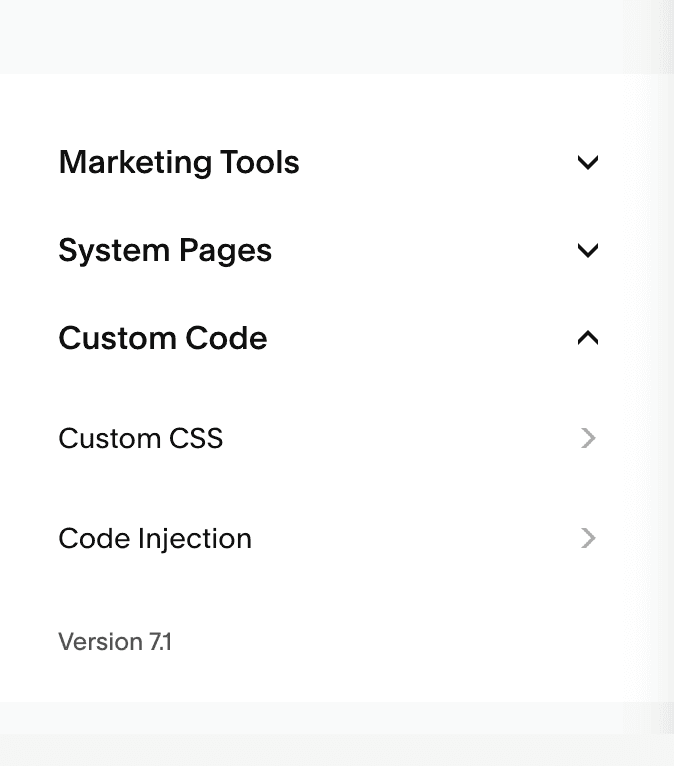
Here, in the Footer box, add:
```
```
You can replace `11.13.5` here with whichever version you want to install. The latest published version can be found on the [npm package page](https://www.npmjs.com/package/motion).
This script contains all the Motion imports, but you can also achieve even greater filesize savings if you want to use just the mini version of the `animate` function, which is just 3.2kb, by importing from `https://cdn.jsdelivr.net/npm/motion@11.13.5/mini/+esm`:
```
```
## Selecting elements
In order to animate elements, we need to **select** them first.
We can select them generically using a tag selector, like `"a"` for selecting all the links on a page. For instance we can use `animate` and `press` to scale links in and out when they're pressed and de-pressed:
```
```
## Custom scripts
By importing scripts directly from this URL, you're importing everything, even the bits of Motion you're not using. But, one of the great things about Motion is it's **tree-shakable**. This means you can use a bundler like [Vite](https://vite.dev/) or [Rollup](https://rollupjs.org/) to only include the bits you use.
In fact, this is a good practise for all of your Squarespace custom code. It will ensure you package everything into one neat bundle and only package the bits you need.
For example, if you only wanted to use the `animate`[ function](https://motion.dev/docs/animate), you could replace the above code with this:
```
import { animate } from "motion"
animate("header", { opacity: 1 })
```
Building this with Rollup, uploading to a CDN, and then including with an `async` JS tag will boost SEO scores even further:
```
```
## Next
Now that you have Motion running in your Squarespace project, you can follow our [quick start guide](https://motion.dev/docs/quick-start) to start making more complex animations.
---
Source: https://motion.dev/docs/wordpress
# Add animations to your WordPress site
Add Motion to a WordPress site for high-performance animations on any theme.
Motion lets you add custom animations to your [WordPress](https://wordpress.org/) site.
Many WordPress templates have built-in animations, but they often lack customisation options. Some also rely on older libraries like jQuery, which can affect performance and SEO.
By using Motion, you gain:
- **Flexibility:** You're not limited to the template's in-built options (if any). You can design any animation you want using any of Motion's APIs like [scroll](https://motion.dev/docs/scroll) and [timeline sequencing](https://motion.dev/docs/animate).
- **Performance:** Motion is built on the latest browser APIs for hardware accelerated performance.
- **Improved SEO:** Motion's tiny `animate()` function is just 3.2kb, and the rest of the library is small too. This leads to better SEO scores.
Motion is also free and open source!
## Installation
Installation of custom scripts can be tricky in WordPress. We recommend using a plugin like [Insert Headers and Footers](https://wordpress.org/plugins/insert-headers-and-footers/), as it lets you can add custom JS tags in a safe way, without blocking template updates or hacking around with PHP code.
Once the plugin is installed, you can navigate to the plugin UI via the WordPress admin panel.
Here, in the Footer section, add:
```
```
You can replace `11.13.5` here with whichever version you want to install. The latest published version can be found on the [npm package page](https://www.npmjs.com/package/motion).
This script contains all the Motion imports, but you can also achieve even greater filesize savings if you want to use just the mini version of the `animate` function, which is just 3.2kb, by importing from `https://cdn.jsdelivr.net/npm/motion@11.13.5/mini/+esm`:
```
```
## Selecting elements
In order to animate elements, we need to **select** them first.
We can select them generically using a tag selector, like `"a"` for selecting all the links on a page. For instance we can use `animate` and `press` to scale links in and out when they're pressed and de-pressed:
```
```
Or we can be more specific, by going to the **Appearance > Themes** menu, clicking the active template "Customise" button, and applying a class to the element we want to animate.
```
animate(".my-class", { rotate: [0, 20, 0] }, { duration: 0.4 })
```
## Custom scripts
By importing scripts directly from this URL, you're importing everything, even the bits of Motion you're not using. But, one of the great things about Motion is it's **tree-shakable**. This means you can use a bundler like [Vite](https://vite.dev/) or [Rollup](https://rollupjs.org/) to only include the bits you use.
In fact, this is a good practise for all of your WordPress custom code. It will ensure you package everything into one neat bundle and only package the bits you need.
For example, if you only wanted to use the `animate`[ function](https://motion.dev/docs/animate), you could replace the above code with this:
```
import { animate } from "motion"
animate("header", { opacity: 1 })
```
Building this with Rollup, uploading to a CDN, and then including with an `async` JS tag will boost SEO scores even further:
```
```
## Next
Now that you have Motion running in your WordPress project, you can follow our [quick start guide](https://motion.dev/docs/quick-start) to start making more complex animations.
---
Source: https://motion.dev/docs/performance
# Animation performance
How browsers render animations, and how to write ones that hit 120fps.
There are two primary factors that contribute to the performance of a [web animation](https://motion.dev/): **rendering**, and **hardware acceleration**.
Rendering is the process of taking an update to the DOM and reflecting that change on screen. This affects the performance of **all animations**.
Hardware acceleration is the ability to run an animation off the main JavaScript thread. This affects the performance of **animations that run at the same time as other JS processes**, like React rendering or other data crunching.
Let's take a deeper look at each.
## Rendering
When we update the styles an element:
```
element.style.height = "500px"
```
The browser needs to reflect this change by re-rendering the page, taking the HTML and CSS and turning it into an image that shows on your screen.
Generally speaking, the steps a browser's renderer takes to do this are:
1. **Layout**: Calculate the size and position of elements on the page
2. **Paint**: Draw the page into graphical **layers** - essentially individual images that make up the page
3. **Composite**: Draw these layers to the viewport.
As a rule of thumb, it is quicker to do less work.
### Slow rendering
For instance, if we update one element's `height`, this changes the size of the element. Changing the size of an element might then affect the size and/or position of a sibling or child element, which itself might have knock-on effects, and so on. So we need to recalculate the layout of all the affected elements.
Whenever the layout of a page changes, the browser also needs to repaint and recomposite the affected layers too. Many styles affect layout, like `height`, `border-width`, `padding`, `position`, etc.
Smooth animations usually run at 60 frames a second (fps), the same as most screen refresh rates. So if we want to change the `height` of an element at 60fps, we need to be able to re-render in 16.7 milliseconds. Screens and browsers are increasingly capable of animating at 120fps, so this time window can be reduced further to 8ms.
Re-renders can easily take upwards of 100ms! This is why animating layout is so often discouraged.\
However, this isn't a hard and fast rule. If an element's layout is isolated, for instance it has `position: absolute` and very few children, then you might be able to animate it smoothly. Just make sure you test these animations on low-powered devices.
### Fast rendering
The best performing styles are those that trigger only the third rendering step, the compositor.\
In every modern browser, `transform` and `opacity` will operate directly on a layer. These are therefore the safest values to animate across all devices.
Browsers are adding more values to this list, too. For instance, Chrome and Firefox handle `filter` and SVGs entirely on the compositor, and Chrome is adding support for `background-color` and `clip-path` soon.
Additionally, because Motion is built on the Web Animations API, browsers are smart enough to automatically place elements animating these values on a new graphical layer.
### Everything in-between
There are also plenty of values like `box-shadow` and `border-radius` that can be updated without triggering a render, but do require a potentially expensive paint (step 2).
You should **always** test the animation of these properties on low-powered devices.
However, there are still ways you can improve the performance of these animations.
#### Reduce layer size
First, the time a browser takes to repaint a layer is proportional to its size. So you can improve the performance of these animations by making smaller layers.
You can hint to the browser that they should create a new layer by setting the `willChange`[ style](https://developer.mozilla.org/en-US/docs/Web/CSS/will-change) to `"transform"`:
```
element.style.willChange = "transform"
animate(element, { borderRadius: "50%" })
```
Creating new layers doesn't come for free. Each takes space on the GPU. So do so sparingly. 3D transforms ride the same compositor path, but establishing a 3D context promotes more elements than you might expect: [3D transforms and perspective](https://motion.dev/docs/3d-transforms) has the trade-off.
#### Use alternative styles
Second, you can try replacing styles will better-performing alternatives.
We've already seen that browsers are improving support for `filter` on the compositor. So instead of animating `boxShadow`, animate `filter`[ with the ](https://developer.mozilla.org/en-US/docs/Web/CSS/filter)`drop-shadow`[ function](https://developer.mozilla.org/en-US/docs/Web/CSS/filter):
```
// ❌
animate(element, { boxShadow: "10px 10px black" })
// ✅
animate(element, { filter: "drop-shadow(10px 10px black)" })
```
Likewise, browsers are adding `clipPath` to the compositor. So instead of animating `borderRadius`, animate `clipPath`[ with the ](https://developer.mozilla.org/en-US/docs/Web/CSS/clip-path)`inset`[ function](https://developer.mozilla.org/en-US/docs/Web/CSS/clip-path):
```
// ❌
animate(element, { borderRadius: "50px" })
// ✅
animate(element, { clipPath: "inset(0 round 50px)" })
```
### Which is which?
So how do you tell which styles will trigger layout or paint, and which will just trigger composition?
Most tutorials on this subject will recommend [CSS Triggers](https://csstriggers.com). While this is still a good guide to catching layout-triggering styles (`border`, `width`, `top`), it's very out of date, missing data on `clip-path`, `filter` and outdated info on others.
Browsers are changing all the time so the best approach is when venturing outside `transform` and `opacity` to test cross-browser and cross-device. Every browser has performance profiling tools, most can remotely debug mobile devices, so be sure to use those to investigate further.
## Hardware acceleration
Rendering performance should be your primary focus because it will be a consideration in every animation you make. But there's the additional factor of the animation process itself and whether it can be hardware accelerated.
An animation, at its most basic, mixes two values over a duration of time. For example, if we wanted to animate between `"100px"` and `"200px"` over one second, if `0.5` seconds has elapsed our animation would calculate `"150px"`. This is a very simple calculation and doesn't produce noticeable overhead compared to rendering.
However, in a browser there are several ways we can compute this value:
- With JavaScript, using `requestAnimationFrame` (like [GSAP](https://gsap.com) and [Motion](https://motion.dev/))
- With the Web Animations API (like Motion)
- With CSS
The JavaScript code will **always** run on the main JS thread. This means if your app is running other JS code at the same time, your animation code could be blocked from running at all. This will result in janky animations.
However, WAAPI and CSS **can** run **some** animations off the main JS thread, directly on the compositor itself. As this is usually a GPU, this is often referred to as **hardware acceleration**.
An animation that is hardware accelerated will remain smooth, no matter how busy your main JS thread becomes.
Because Motion is built on WAAPI, it can also run hardware accelerated animations.
### Accelerated values
As a general rule, if a style invokes only the composite rendering step, it can theoretically be animated on it, too.
`transform` and `opacity` are widely supported compositor styles and these do usually animate on the compositor.
Other values like `filter`, `background-color`, `clip-path` and SVGs either have support or are gaining it in most browsers.
### Independent transforms
Motion is unique from WAAPI and CSS in that it supports the animation of independent transforms:
```
animate(".box", { x: 100, scale: 2 })
```
These are hardware accelerated, just like animating `transform` directly.
### CSS variables
Animating a CSS variable isn't hardware accelerated, even when the variable is applied to `transform`. Animate the transform itself instead.
### Other exceptions
Even when animating supposedly performant styles, each browser has different rules for when an animation does or doesn't receive acceleration.
For instance, until very recently, if Chrome detected a `%` based transform like this:
```
animate(element, { transform: "translateX(100%)" })
```
It **wouldn't** be hardware accelerated.
### Progressive enhancement
All of this is to say, it can be a minefield ensuring your animations are hardware accelerated.
We recommend treating acceleration like progressive enhancement. It's great when a browser supports it, but usually not essential.
If you do encounter a lot of jank from a busy JavaScript thread, stick to `transform`, `filter`, `clipPath` and `opacity`.
## Conclusion
To achieve smooth animations your main priority should be **which values you animate**. As a developer, that is the thing you have most control over.
`transform` and `opacity` are cheapest to render in all browsers. Browsers are improving the rendering performance of other styles (and SVG) all the time, with `filter`, `background-color` and `clip-path` on the horizon.
Layout-triggering styles **can** be animated on elements that don't affect the layout of surrounding elements (for instance if they're `position: absolute`). But make sure you test these animations in many browsers, especially low-powered devices.
Finally, hardware acceleration is an excellent tool to avoid jank if your website is performing heavy processing during an animation. But it isn't something you have full control over, there are many conditions under which it gets disabled.
---
Source: https://motion.dev/docs/arc
# arc
`arc` can change the path between two points from a straight line to a curved one.
By default, when Motion animates `x` and `y` between two values, the element travels in a straight line. `arc()` can bend that line.
```
import { arc, motion } from "motion/react"
Any content
Card Title
Card Title
Expanded content...
Front
Back
```
It will also dynamically set attributes via their JavaScript setter, if available, for improved type-safety and performance.
## Usage
Import `attrEffect` from `"motion"`:
```
import { attrEffect } from "motion"
```
`attrEffect` accepts an element, list of elements, or CSS selector, plus a map of motion values:
```
const progress = motionValue(0.5)
attrEffect("#progress", { "data-progress": progress })
```
When any of the motion values update, the element(s) will re-render on the next animation frame:
```
progress.set(1)
animate(progress, 1)
```
Each motion value can be applied to any number of attributes, on any number of elements.
Any motion value can be provided, including those defined by `mapValue` and `transformValue`.
### Cancel
`attrEffect` returns a cleanup function which, when called, will stop applying changes to the motion values to the element:
```
const cx = motionValue(0)
const cy = motionValue(0)
const cancel = attrEffect("circle", { cx, cy })
cancel()
```
---
Source: https://motion.dev/docs/clamp
# clamp
clamp() limits a value to a minimum and maximum.
`clamp` keeps a value inside a range.
```
clamp(0, 100, 150) // 100
```
Where [`wrap`](https://motion.dev/docs/wrap) loops a value back around, `clamp` stops it at the edge. It's useful for keeping a calculated position, scale or progress value in bounds.
## Usage
Import from Motion:
```
import { clamp } from "motion"
```
`clamp` accepts a `min`, a `max` and a value.
Values inside the range are returned unchanged:
```
clamp(0, 1, 0.5) // 0.5
```
Values outside the range are limited to the nearest edge:
```
clamp(0, 1, 2) // 1
clamp(0, 1, -1) // 0
```
It pairs well with [`progress`](https://motion.dev/docs/progress), which doesn't limit its output:
```
const amount = clamp(0, 1, progress(100, 400, scrollY))
```
---
Source: https://motion.dev/docs/css
# CSS
Spring animations as CSS, ready for React Server Components, Astro, Vue, and CSS-in-JS.
Motion can generate spring animations via CSS, both on the server and in the browser.
It's common to reach for a JavaScript library like Motion when you want to perform spring animations. But you can also use Motion to generate CSS springs.
In this guide, we'll learn how to make spring animations with CSS, with a variety of libraries and frameworks:
- React Server Components
- Via the `style` attribute
- CSS-in-JS (Styled Components, Tamagui)
- Astro
- React
- Vue
We'll also learn how to fall back to either no animation or a different animation for cross-browser support.
Live example: https://examples.motion.dev/react/css-spring
## AI editors
The Motion AI Kit enables your AI code editor to [generate CSS springs](https://motion.dev/docs/ai-kit-generate-css) without needing to import any library into your project.
## Import
To generate our spring CSS rules, we're going to be using Motion's `spring()`[ function](https://motion.dev/docs/spring).
```
import { spring } from "motion"
```
## Overview
`spring` has two features that makes it perfect for CSS generation.
1. A `toString()` method.
2. A `spring(visualDuration, bounce)` shorthand.
`toString()` returns the spring as a CSS duration and easing. The new shorthand makes it simpler than ever to make springs.
Put together, we can create CSS rules like this:
```
transition: transform ${spring(0.5, 0.2)};
// Outputs:
// transition: transform 800ms linear(...)
```
The generated duration can be longer than the one provided to `spring` because it accepts the `visualDuration`[ option](https://motion.dev/docs/spring), which makes it easier to edit springs and coordinate them with other transitions:
```
transition:
opacity 0.5s ease-out,
transform ${spring(0.5, 0.2)};
```
Here, `transform` will **actually** take longer, but it will **appear **to take a similar amount of time to animate as `opacity`. This is because the `visualDuration` defines the amount of time the animation takes to first reach its target, not perform the "bouncy bit" after.
## Server generation
### React Server Components
With React Server Components (RSC), it's possible to set springs via the `style` prop.
```
{children}
)
}
```
`root` makes Lenis control the page scroll. Now `useScroll` works as normal anywhere inside it:
```
const { scrollYProgress } = useScroll()
const transform = useTransform(scrollYProgress, [0, 1], ["scaleX(0)", "scaleX(1)"])
return
```
This code will be run entirely server-side, with no runtime overhead.
It's also possible to use the `style` tag:
```
```
## Client generation
### `style` attribute
You can set `transition` on an element at runtime, before changing its other values.
```
const element = document.querySelector("button")
element.style.transition = "transform " + spring(0.3)
element.style.transform = "scale(1.2)"
```
### CSS-in-JS
CSS-in-JS follows the same basic approach of string concatination, with the exact pattern depending on your library of choice:
#### Styled Components
```
const Button = styled.button`
transition: opacity ${spring(0.5)};
`
```
#### Tamagui
```
export const RoundedSquare = styled(View, {
transition: "opacity " + spring(0.5)
})
```
### Astro
In [Astro](https://astro.build/), you can define the spring as a CSS variable using JavaScript, and then in your CSS use that value with `var()`:
```
```
### Vue
```
const springTransition = ref(spring(0.3, 1))
```
```
```
## Fallbacks
By default, the browser will ignore your animation if it doesn't support the `linear()` easing function.
In CSS it's possible to set a second `transition` with a lower specificity to act as a fallback, though this might not be supported by all CSS generators (like setting via `style`):
```
transition: filter 0.3s ease-out;
transition: filter ${spring(0.3)};
```
This is another benefit of the `spring()` shorthand accepting `visualDuration` instead of `duration` - you can use the same duration for both of these animations and they'll feel like they take an equivalent time to complete.
---
Source: https://motion.dev/docs/delay
# delay
delay() is a setTimeout replacement that fires in tandem with Motion's frame loop.
`delay` is a `setTimeout` alternative that's locked to Motion's [animation frame loop](https://motion.dev/docs/frame).
This can help synchronise callbacks with other animations, and avoid the overhead of setting many `setTimeout`s.
## Usage
Import `delay` from Motion.
```
import { delay } from "motion"
```
### Delay a callback
Pass a callback and duration (measured in seconds) to `delay`. The callback will fire on the next animation frame after this duration.
```
delay(() => console.log("one second!"), 1)
```
### Cancel
`delay` returns a function that, when called, will cancel the delay.
```
const cancel = delay(callback, 0.25)
cancel() // callback will never fire
```
### Animation loop
`delay` fires its callback on the first step of Motion's [animation loop](https://motion.dev/docs/frame), the `read` step.
We can therefore batch reads and writes with the rest of the loop using `frame`.
```
import { delay, frame } from "motion"
delay(() => {
const { left } = element.getBoundingClientRect()
// Will render later during this animation frame
frame.render(() => {
element.style.left = `${left * 2}px`
})
}, 1)
```
---
Source: https://motion.dev/docs/distance
# distance
distance() and distance2D() measure how far apart two values or points are.
`distance` measures how far apart two numbers are. `distance2D` measures how far apart two points are.
```
distance(100, 40) // 60
distance2D({ x: 0, y: 0 }, { x: 30, y: 40 }) // 50
```
These are useful for gesture thresholds. For instance, to only start a drag after the pointer moves a few pixels, or to make an effect stronger the closer the pointer is to an element.
## Usage
Import from Motion:
```
import { distance, distance2D } from "motion"
```
### `distance`
`distance` accepts two numbers and returns the difference between them. The result is always positive, so the order doesn't matter:
```
distance(10, 50) // 40
distance(50, 10) // 40
```
### `distance2D`
`distance2D` accepts two points, each with an `x` and `y`, and returns the straight-line distance between them:
```
const start = { x: 100, y: 100 }
window.addEventListener("pointermove", (event) => {
const moved = distance2D(start, { x: event.clientX, y: event.clientY })
if (moved > 3) {
// Start dragging
}
})
```
---
Source: https://motion.dev/docs/drag
# drag
drag() makes elements draggable, with momentum, constraints and direction locking built in.
Motion's `drag` function makes elements draggable.
```
drag(".box")
```
It's the same physics-based gesture as the [React `drag` prop](https://motion.dev/docs/react-drag), with:
- Momentum
- Axis locking
- Elastic constraints
- Direction locking
Browsers provide a native [Drag and Drop API](https://developer.mozilla.org/en-US/docs/Web/API/HTML_Drag_and_Drop_API). But it's built to move data, not elements, and it comes with an odd "ghost image" effect. `drag` moves the element itself, with `transform`, so it stays smooth.
Live example: https://examples.motion.dev/js/drag
## Usage
### Import
`drag` can be imported via `"motion"`.
```
import { drag } from "motion"
```
### Make an element draggable
`drag` accepts an `Element`, an array of elements, or a CSS selector. A selector makes every matching element draggable.
```
drag(document.getElementById("my-id"))
drag(".card")
```
`drag` moves the element with its `x` and `y` transforms. It also applies the styles a drag gesture needs:
- `touch-action` stops touch input from scrolling the page.
- `user-select` stops text selection during the gesture.
- `draggable="false"` stops the browser's native drag.
### Axis locking
To lock dragging to one axis, set `axis` to `"x"` or `"y"`.
```
drag(".slider", { axis: "x" })
```
With an axis set, touch input can still scroll the page along the other axis.
### Animate after a drag
`drag` and [`animate`](https://motion.dev/docs/animate) use the same `x` and `y` values for an element. So `animate` can move an element after a drag, and a drag continues from wherever `animate` left the element.
```
drag(".box", {
onEnd: () => {
animate(".box", { x: 0, y: 0 }, { type: "spring" })
}
})
```
If a drag starts while `animate` moves the element, the drag stops that animation.
### Stop the gesture
`drag` returns a function. Call it to remove the gesture and restore the element's original styles.
```
const stopDrag = drag(".box")
stopDrag()
```
### Momentum
When a user releases a draggable element, it has **momentum**. It performs an inertia animation based on the velocity of the pointer.
To turn this off, set `momentum` to `false`.
```
drag(".box", { momentum: false })
```
To change the physics of the inertia animation, use `transition`. It accepts inertia options like `power`, `timeConstant`, `bounceStiffness` and `bounceDamping`.
```
drag(".box", {
transition: { bounceStiffness: 600, bounceDamping: 10 }
})
```
### Snap to origin
To animate the element back to where it started when the user releases it, set `snapToOrigin` to `true`. It can also be `"x"` or `"y"` to snap one axis.
```
drag(".box", { snapToOrigin: true })
```
### Constraints
`constraints` limits where the element can move.
Live example: https://examples.motion.dev/js/drag-constraints
#### Pixel constraints
Pass an object of `top`, `left`, `right` and `bottom` values, in pixels. Each value is relative to the element's origin.
```
drag(".box", {
constraints: { top: -50, left: -50, right: 50, bottom: 50 }
})
```
#### Element constraints
Pass an element to keep the draggable element inside its bounding box.
```
drag(".box", {
constraints: document.querySelector(".container")
})
```
Motion measures the constraints when `drag` runs, and again when the element or the container changes size. To change the measured constraints, return a new box from `onMeasureConstraints`.
```
drag(".box", {
constraints: document.querySelector(".container"),
onMeasureConstraints: (constraints) => ({
...constraints,
top: constraints.top + 20
})
})
```
#### Elastic constraints
By default, an element dragged past its constraints moves with some elasticity, then springs back on release. `elastic` sets how much, from `0` (no movement) to `1` (full movement). The default is `0.35`.
```
drag(".box", {
constraints: { left: 0, right: 300 },
elastic: 0.1
})
```
`elastic` can also be an object, to set a different value for each edge.
```
drag(".sheet", {
axis: "y",
constraints: { top: 0, bottom: 0 },
elastic: { top: 0.15, bottom: 0.8 }
})
```
### Direction locking
To lock the element to the first axis it moves along, set `directionLock` to `true`. `onDirectionLock` fires with the locked axis.
```
drag(".box", {
directionLock: true,
onDirectionLock: (axis) => console.log(`Locked to ${axis} axis`)
})
```
Live example: https://examples.motion.dev/js/drag-lock-direction
### Nested draggable elements
When draggable elements are nested, only the innermost element moves. To allow a gesture to also start on a parent, set `propagation` to `true`.
```
drag(".parent", { propagation: true })
```
## Events
`drag` accepts callbacks for each stage of the gesture.
```
drag(".box", {
onStart: (event, info) => console.log("Drag started"),
onMove: (event, info) => console.log(info.offset.x),
onEnd: (event, info) => console.log("Drag ended"),
onTransitionEnd: () => console.log("Element at rest")
})
```
`onStart`, `onMove` and `onEnd` receive the `PointerEvent` and an `info` object:
- `point`: The `x` and `y` coordinates of the pointer.
- `delta`: The distance moved since the last event.
- `offset`: The distance from where the gesture started.
- `velocity`: The current velocity of the pointer.
`onTransitionEnd` fires when the element stops moving after a release.
For example, to dismiss a sheet when the user drags it down far enough, or fast enough:
```
drag(".sheet", {
axis: "y",
constraints: { top: 0, bottom: 0 },
onEnd: (event, info) => {
if (info.offset.y > 100 || info.velocity.y > 800) close()
}
})
```
Live example: https://examples.motion.dev/js/sheet-modal
### Style the element while dragging
Use `onStart` and `onEnd` to add and remove a class.
```
const box = document.querySelector(".box")
drag(box, {
onStart: () => box.classList.add("dragging"),
onEnd: () => box.classList.remove("dragging")
})
```
### Motion values
To use the dragged element's position elsewhere, bind your own [motion values](https://motion.dev/docs/motion-value) to its `x` and `y` with [`styleEffect`](https://motion.dev/docs/style-effect). Do this **before** you call `drag`. The gesture then moves your motion values.
```
import { drag, mapValue, motionValue, styleEffect } from "motion"
const box = document.querySelector(".box")
const x = motionValue(0)
styleEffect(box, { x })
drag(box, { axis: "x" })
styleEffect(document.body, {
opacity: mapValue(x, [-200, 0, 200], [0, 1, 0])
})
```
To move the element after a drag and keep linked values in step, animate the motion value itself.
```
drag(box, {
axis: "x",
onEnd: () => animate(x, 0, { type: "spring" })
})
```
Live example: https://examples.motion.dev/js/use-transform
## Troubleshooting
### Dragging an image shows a ghost image
`drag` sets `draggable="false"` on the draggable element. But `![]() ` children are still draggable, so the browser shows its ghost image.
Set `draggable="false"` on these elements too.
```
` children are still draggable, so the browser shows its ghost image.
Set `draggable="false"` on these elements too.
```
` tag" dialog. In here, we can add our Motion code.
Here, you can add a new `script` block that imports Motion.
```
```
You can replace `11.13.5` here with whichever version you want to install. The latest published version can be found on the [npm package page](https://www.npmjs.com/package/motion).
This script contains all the Motion imports, but you can also achieve even greater filesize savings if you want to use just the mini version of the `animate` function, which is just 3.2kb, by importing from `https://cdn.jsdelivr.net/npm/motion@11.13.5/mini/+esm`:
```
```
## Custom scripts
By importing scripts directly from this URL, you're importing everything, even the bits of Motion you're not using. But, one of the great things about Motion is it's **tree-shakable**. This means you can use a bundler like [Vite](https://vite.dev/) or [Rollup](https://rollupjs.org/) to only include the bits you use.
In fact, this is a good practise for all of your Webflow custom code. It will ensure you package everything into one neat bundle and only package the bits you need.
For example, if you only wanted to use the `animate`[ function](https://motion.dev/docs/animate), you could replace the above code with this:
```
import { animate } from "motion"
animate("header", { opacity: 1 })
```
Building this with Rollup, uploading to a CDN, and then including with an `async` JS tag will boost SEO scores even further:
```
```
## Next
Now that you have Motion running in your Webflow project, you can follow our [quick start guide](https://motion.dev/docs/quick-start) to start making animations!
---
Source: https://motion.dev/docs/inview
# inView
inView() runs callbacks when elements enter and leave the viewport, built on IntersectionObserver.
`inView` detects when elements enter and leave the viewport.
```
inView("#carousel li", (element) => {
animate(element, { opacity: 1 })
})
```
Detecting when an element is in view can help creating effects like:
- Animating elements when they scroll into and out of view.
- Deactivating animations when they're no longer visible.
- Lazy-loading content.
- Automatically start/stop videos.
`inView` function is built on the browser's native [Intersection Observer API](https://developer.mozilla.org/en-US/docs/Web/API/Intersection_Observer_API) for the best possible performance (all calculations happen off the main JavaScript thread) and a tiny filesize (just 0.5kb).
Live example: https://examples.motion.dev/js/scroll-triggered
## Usage
Import from `"motion"`:
```
import { inView } from "motion"
```
`inView` can accept either a selector, `Element`, or array of `Element`s.
```
// Selector
inView("section", callback)
// Element
const box = document.getElementById("box")
inView(box, callback)
```
By default, the provided callback will fire just once, when the element first enters the viewport.
```
inView(element, () => {
console.log("Element has entered the viewport")
})
```
This callback is provided the matched element and [an ](https://developer.mozilla.org/en-US/docs/Web/API/IntersectionObserverEntry)`IntersectionObserverEntry`[ object](https://developer.mozilla.org/en-US/docs/Web/API/IntersectionObserverEntry) which contains information on the intersection.
```
inView("a", (element, info) => {
console.log("The link ", element, " has entered the viewport")
})
```
### Leaving the viewport
A function returned from this callback will fire when the element leaves the viewport.
```
inView(element,
(element, enterInfo) => {
const animation = animate(element, { opacity: 1 })
// This will fire when the element leaves the viewport
return (leaveInfo) => animation.stop()
}
)
```
Additionally, the gesture will also continue to fire as the element enters/leaves the viewport.
### Change viewport
By default, `inView` detects when the provided element(s) enter/leave the default viewport: The browser window.
But it can also detect when the element(s) enter/leave the viewport of a scrollable parent element, by passing that element to the `root` option:
```
const carousel = document.querySelector("#carousel")
inView("#carousel li", callback, { root: carousel })
```
### Stop detection
`inView` returns a function that, when fired, will stop viewport detection.
```
const stop = inView(element, callback)
stop()
```
## Options
### `root`
**Default:** `window`
If provided, `inView` will use the `root` element's viewport to detect whether the target elements are in view. Otherwise defaults to the browser window.
```
const carousel = document.querySelector("#carousel")
inView("#carousel li", callback, { root: carousel })
```
### `margin`
**Default:** `0`
One or more margins to apply to the viewport. This will extend or contract the point at which the element is considered inside or outside the viewport.
`margin` can be defined in pixels or percentages. It can accept up to four values in the order of top/right/bottom/left.
```
inView(element, callback, { margin: "0px 100px 0px 0px" })
```
Positive values extend the viewport boundaries beyond the root whereas negative values will pull it in.
**Note:**
For browser security reasons, `margin` won't take affect within cross-origin iframes unless `root` is explicitly defined.
### `amount`
**Default:** `"some"`
The amount of the target element that needs to be within the viewport boundaries to be considered in view.
This can be defined as `"some"`, for some of the element, or `"all"`, for all of the element.
Additionally, it can be defined as a number proportion between `0` and `1` where `0` is `"some"` and `1` is `"all"`.
---
Source: https://motion.dev/docs/lenis
# Lenis
Drive Lenis smooth scroll from Motion's frame loop, and keep scroll() and useScroll animations in sync.
[Lenis](https://github.com/darkroomengineering/lenis) is a smooth scroll library from darkroom.engineering, and a fixture of award-winning sites. Instead of jumping in steps, smooth scroll eases towards its target.
Lenis needs an animation loop to run in. Most guides plug it into another library's ticker. Motion has its own [frame loop](https://motion.dev/docs/frame), so you can drive Lenis from Motion and skip the extra loop.
Lenis also moves the *native* scroll position. That means Motion's [`scroll()`](https://motion.dev/docs/scroll) and [`useScroll`](https://motion.dev/docs/react-use-scroll) animations work with it, unchanged. This includes the hardware-accelerated ones.
Live example: https://examples.motion.dev/js/lenis-smooth-scroll
## Install
Install Lenis alongside Motion:
```
npm install motion lenis
```
Lenis also ships a recommended stylesheet. Importing `lenis` doesn't load it, so add it yourself, once:
```
import "lenis/dist/lenis.css"
```
Smooth scroll works without it, but these rules fix some edge cases. They give `html` and `body` an automatic height while Lenis is active, lock scrolling while Lenis is stopped, stop scroll chaining out of `data-lenis-prevent` areas and stop iframes catching the pointer during a smooth scroll. The `autoToggle` option needs them.
Without a bundler, link `lenis/dist/lenis.css` from a CDN or copy its rules into your own CSS.
## Usage
### Drive Lenis with Motion
Create Lenis with `autoRaf: false`, so it doesn't start its own `requestAnimationFrame` loop. Then call `lenis.raf()` from Motion's frame loop:
```
import Lenis from "lenis"
import { frame, cancelFrame } from "motion"
const lenis = new Lenis()
function update({ timestamp }) {
lenis.raf(timestamp)
}
frame.setup(update, true)
```
The second argument, `true`, keeps `update` running every frame. Motion's `timestamp` is in milliseconds, which is the unit `lenis.raf()` expects.
To remove Lenis, cancel the callback and destroy the instance:
```
cancelFrame(update)
lenis.destroy()
```
### Why `frame.setup`?
Each Motion frame runs in a fixed order of steps. The [frame docs](https://motion.dev/docs/frame) cover `read`, `update` and `render`, but there's also a `setup` step that runs first.
`scroll()` and `useScroll` measure the scroll position in `read`. When Lenis runs in `setup`, it writes the new scroll position before Motion later measures it. So scroll-linked values use this frame's scroll position.
Lenis's own guide for Motion uses `frame.update`. That works too, but `update` runs after `read`. So any scroll animation that Motion runs on the main thread renders one frame behind the page.
Hardware-accelerated scroll animations aren't affected either way. More on those below.
### Scroll animations
There's nothing extra to set up. `scroll()` works as normal:
```
import { animate, scroll } from "motion"
scroll(
animate(".progress", { transform: ["scaleX(0)", "scaleX(1)"] }, { ease: "linear" })
)
```
Where the browser supports `ScrollTimeline` and `ViewTimeline`, Motion hands animations like this one to the browser to run off the main thread. The browser reads the native scroll position, and Lenis sets that position every frame. So these animations stay in sync with the smoothed scroll automatically.
Animations that can't be hardware accelerated, and scroll callbacks, run on the main thread:
```
scroll((progress) => {
counter.textContent = Math.round(progress * 100) + "%"
})
```
These are the animations that benefit from driving Lenis in `frame.setup`.
### Scroll to an element
Use `lenis.scrollTo()` to smoothly scroll to an element, selector or pixel value. Its `easing` option accepts any function that takes and returns a progress value, so Motion's [easing functions](https://motion.dev/docs/easing-functions) work as-is:
```
import { easeInOut, cubicBezier } from "motion"
lenis.scrollTo("#contact", { duration: 1.6, easing: easeInOut })
lenis.scrollTo(0, { duration: 1, easing: cubicBezier(0.65, 0, 0.35, 1) })
```
### Spring scroll
For a [spring](https://motion.dev/docs/spring), let Motion's `animate()` calculate the scroll position, and pass each value to Lenis with `immediate: true`:
```
import { animate } from "motion"
function springTo(element) {
const top = lenis.scroll + element.getBoundingClientRect().top
if (lenis.prefersReducedMotion) {
lenis.scrollTo(top)
return
}
const animation = animate(lenis.scroll, top, {
type: "spring",
visualDuration: 0.8,
bounce: 0.2,
onUpdate: (latest) => lenis.scrollTo(latest, { immediate: true }),
onComplete: () => stopListening(),
})
// If the user scrolls, give them control back
const stopListening = lenis.on("virtual-scroll", () => {
animation.stop()
stopListening()
})
}
```
### React
The `lenis/react` package provides a `ReactLenis` component. Unlike `new Lenis()`, it starts its own loop by default, so set `autoRaf: false` in its `options`. Then keep a `ref` to it and drive it from Motion's frame loop in an effect:
```
import { ReactLenis } from "lenis/react"
import { frame, cancelFrame } from "motion/react"
import { useEffect, useRef } from "react"
import "lenis/dist/lenis.css"
export function SmoothScroll({ children }) {
const lenisRef = useRef(null)
useEffect(() => {
function update({ timestamp }) {
lenisRef.current?.lenis?.raf(timestamp)
}
frame.setup(update, true)
return () => cancelFrame(update)
}, [])
return (
...
```
To lock page scroll, for example while a modal is open, call `lenis.stop()`, then `lenis.start()` to unlock it.
## Limitations
Lenis has some limitations worth knowing about before you commit:
- It doesn't support CSS scroll snap. Use [`lenis/snap`](https://github.com/darkroomengineering/lenis/tree/main/packages/snap) instead.
- Smooth scroll stops over iframes, because they don't forward wheel events to the page.
- Safari caps it at 60fps, and at 30fps in Low Power Mode.
- It moves wheel scrolling onto the main thread. Native scrolling runs on the compositor and keeps moving while JavaScript is busy. With Lenis, a long task pauses the scroll itself, and every animation linked to it, including hardware-accelerated ones.
---
Source: https://motion.dev/docs/map-value
# mapValue
mapValue() maps a motion value's output range to numbers, colours, or complex strings.
`mapValue` creates a new read-only [motion value](https://motion.dev/docs/motion-value) that maps the output of a numerical motion value to a range of numbers, colors or complex strings.
```
const x = motionValue(100)
// Fade out outside the 0-100 range
const opacity = mapValue(x, [-100, 0, 100, 200], [0, 1, 1, 0])
// Shift color when fading out
const backgroundColor = mapValue(opacity, [0, 1], ["#f00", "#00f"])
```
Live example: https://examples.motion.dev/js/image-reveal-slider
## Usage
Import `mapValue` from `"motion"`:
```
import { mapValue } from "motion"
```
`mapValue` accepts a **numerical** motion value, an input range, and an output range:
```
const x = motionValue(0)
const opacity = mapValue(x, [-100, 0, 100, 200], [0, 1, 1, 0])
```
- Both ranges **must always be the same length**.
- The **input range** must always be a linear series of numbers, either counting up or counting down.
- The **output range** can be a non-linear series of numbers, colors, or complex strings.
When mapping to complex strings, the format of each string must be the same in each keyframe, with the same number of numbers and colors, all in the same order:
```
const boxShadow = mapValue(
progress,
[0, 1],
["0px 0px 0px rgba(0, 0, 0, 0)", "10px 10px 5px rgba(0, 0, 0, 0.3)"]
)
```
### Unclamped ranges
By default, `mapValue` clamps the output value to the ranges provided:
```
const progress = motionValue(3)
const double = mapValue(progress, [0, 1], [0, 2])
double.get() // progress clamped to 1, outputs 2
```
By passing the `{ clamp: false }` option, we can unclamp this interpolation:
```
const progress = motionValue(3)
const double = mapValue(progress, [0, 1], [0, 2], { clamp: false })
double.get() // 6
```
---
Source: https://motion.dev/docs/migrate-from-gsap-to-motion
# Migrate from GSAP to Motion
Move from GSAP to Motion: tweens, timelines, scroll, and React, mapped step by step.
GSAP is an incredible animation library. But, you can achieve all of the same effects using Motion, with hardware accelerated performance, often for a far smaller bundlesize.
Unlike GSAP, Motion doesn't need a costly yearly license to run on commercial websites, as its supported by [corporate sponsors](https://motion.dev/sponsor) and optional [Motion+ memberships](https://motion.dev/plus).
By the end of this guide we'll have learned the benefits and drawbacks of migrating, and also how to migrate basic animations, timeline sequences, scroll-linked and scroll-triggered animations, and React animations.
## Benefits
Motion is built on modern browser APIs like [Web Animations API](https://developer.mozilla.org/en-US/docs/Web/API/Web_Animations_API) (WAAPI) and [Scroll Timeline](https://developer.mozilla.org/en-US/docs/Web/API/ScrollTimeline), which is what enables it to offer hardware acceleration for common animations like `transform`, `filter` and `opacity`.
There are other optimisations, like using the [Intersection Observer API](https://developer.mozilla.org/en-US/docs/Web/API/Intersection_Observer_API) for scroll-triggered animations rather than measuring the scroll position every frame (which can trigger style recalculations).
Likewise, when you start an animation with the `animate` function and it needs to read initial styles from the DOM, that process is batched and optimised, reducing layout thrashing and style recalculations.
Motion's APIs are generally smaller than GSAP too, with our `scroll`[ function](https://motion.dev/docs/scroll) is just 75% the size of its GSAP equivalent, and the mini `animate`[ function](https://motion.dev/docs/animate) over 85% smaller at just 3.2kb. Even the full-sized `animate` function, which offers timeline sequencing, independent transform animations, and more, is 22kb, smaller than the GSAP animation functions.
Finally, because Motion is built with ES modules, it is tree-shakable. Which means if you only import the `scroll` function, then only this code will end up being delivered to your users. This is an immediate SEO benefit of a few Lighthouse performance points.
## Drawbacks
A robust feature comparison with GSAP can be found in our [feature comparison guide](https://motion.dev/docs/gsap-vs-motion), but the biggest missing feature from the Motion JavaScript API is [layout animations](https://motion.dev/docs/react-layout-animations).
Motion for React's layout animations go far beyond traditional "FLIP" techniques, with every animation performed with transforms, full scale correction for children and `border-radius`, and more. So if you are a keen user of GSAP's FLIP functionality then Motion doesn't offer a comparable API yet.
GSAP is also geared squarely towards power users, with APIs that we don't believe are used by the majority of users, like the ability to get/set a `delay` after an animation has started. Motion's philosophy is to tend towards a more accessible, smaller API, and this is shown in the relative filesizes.
Finally, `animate`'s `onUpdate` callback is currently only available for animating single values, though this will change in the future.
## Migrate
For this guide, we're going to take a look at the examples given in the [GSAP documentation](https://gsap.com/) and see how we'd rewrite them in Motion.
### Basic animations
The "Hello world' of JavaScript animations, a rotating box. In GSAP, this would be written with `gsap.to`, which creates a [tween](https://motion.dev/docs/tween):
```
gsap.to("#animate-anything-css", {
duration: 10,
ease: "none",
repeat: -1,
rotation: 360,
})
```
Motion's basic animation function is `animate`:
```
animate(
"#animate-anything-css",
{ rotate: 360 },
{ ease: "linear", duration: 10, repeat: Infinity }
)
```
You can see here that it looks broadly similar, with a couple of key differences.
1. `rotate` instead of `rotation`
2. `repeat: Infinity` instead of `-1` for infinitely-repeating animations
3. `ease: "linear"` instead of `ease: "none"`
Something else to note is that in GSAP the options and animating values are all bundled in together. Whereas with Motion, these are separate objects. This isn't of huge practical importance but when animating a plain object it means that object can't have properties with the same name as GSAP options.
GSAP has two other animation methods, `fromTo` and `from`.
`fromTo` allows you to specify start and end keyframes:
```
gsap.fromTo(".box", { opacity: 0 }, { opacity: 0.5, duration: 1 })
```
With Motion, you just use the keyframe syntax:
```
animate(".box", { opacity: [0, 0.5] }, { duration: 1 })
```
This type of syntax (or equivalent also exists in GSAP, but `fromTo` is more of a legacy API.
`from` allows you to define values to animate **from**, with the target values being read from the DOM.
```
gsap.from(".box", { opacity: 0 })
```
Motion doesn't have a comparable API to this, but this is partly because we don't recommend it. Practically what has to happen here is GSAP reads the existing value from the DOM, set this as a target value, then animate from the given value. Unless the user writes their JavaScript to be render-blocking (discouraged), this "incorrect" style will be visible for a frame or more, which is rarely what we want.
### Animation controls
Both GSAP and Motion animations return animation controls. GSAP offers far more here. For instance, each animation option gets a method to get/set that option, whereas Motion tends towards the immutability of options.
```
const animation = gsap.to()
animation.delay(0.5) // No Motion equivalent
```
However, there are some Motion equivalents to know about.
- `.timeScale()` is `.speed`
- `.time()` is `.time`
- `.kill()` is `.stop()`
- `.revert()` is `.cancel()`
- `.progress(1)` is `.complete()`
- `.resume()` is `.play()`
### Timeline sequencing
Both Motion and GSAP offer timeline sequencing. The fundamental difference is that GSAP has a more imperative API, with a `.timeline()` constructor and `.to`, `.add()` and `.addLabel()` methods used to compose/amend the timeline:
```
const timeline = gsap.timeline(options)
timeline.to("#id", { x: 100, duration: 1 })
timeline.addLabel("My label")
timeline.to("#id", { y: 50, duration: 1 })
```
Whereas Motion uses a declarative array syntax:
```
const timeline = [
["#id", { x: 100, duration: 1 }],
"My label",
["#id", { y: 100, duration: 1 }]
]
animate(timeline, options)
```
The benefit of the GSAP approach is it's easier to dynamically change a timeline in progress. Whereas with Motion, it's a little less boilerplate to compose long animations.
Composing multiple timelines is different in each library, much as above:
```
// GSAP
timeline.add(timelineA)
timeline.add(timelineB)
// Motion
const timeline = [...timelineA, ...timelineB]
```
### Scroll-triggered animations
Scroll-triggered animations are normal time-based animations that trigger when an element enters the viewport.
GSAP has the `ScrollTrigger`[ ](https://gsap.com/docs/v3/Plugins/ScrollTrigger/?page=1)plugin whereas Motion uses `inView` function.
```
// GSAP
gsap.to('.box', {
scrollTrigger: '.box',
x: 500
})
// Motion
inView(".box", ({ target }) => {
animate(target, { x: 500 })
})
```
There fundamental technical difference between the two is `inView` is based on the browser's Intersection Observer API, which is a super-performant way of detecting when elements enter the viewport. Whereas `ScrollTrigger` measures the element and then tracks its position relative to scroll every frame. These reads/writes cause style recalculations.
Additionally, as `inView` only triggers when the tracked element enters the viewport, it means scroll-triggered animations are lazily initialised. In combination with Motion's deferred keyframe resolution, this can result in drastically shorter startup times when using many scroll-triggered animations.
### Scroll-pinning
GSAP has an option called `pin`. If set, this will `pin` the element to the viewport during the [scroll animation](https://motion.dev/docs/react-scroll-animations). For performance reasons, we recommend using CSS `position: sticky` instead.
### Scroll-linked animations
By passing `scrub: true` to `scrollTrigger`, GSAP can create scroll-linked animations. These are fundamentally different in that instead of animations being driven by time, they're being driven by scroll progress instead.
```
gsap.to('.box', {
scrollTrigger: {
trigger: '.box',
scrub: true
}
x: 500
});
```
In Motion, these kinds of animations are driven by the `scroll`[ function](https://motion.dev/docs/scroll).
```
const animation = animate(element, { x: 500 })
scroll(animation, { target: element })
```
`scroll` is different in that, much like `animate` can use the Web Animations API for hardware accelerated performance, `scroll` can use the Scroll Timeline API for two performance benefits:
- Enables hardware accelerated scroll animations
- Can measure scroll progress for callbacks without polling scroll position (removing style recalculations)
Instead of `start` and `end` offset options, `scroll` accepts a single `offset` array, with options much like those found in GSAP.
```
scroll(callback, {
target: element,
offset: ["start start", "end start"] // Exits the viewport top
})
```
You can see here that instead of using `"top"`/`"bottom"`, or `"left"`/`"right"`, Motion uses the axis-agnostic `"start"` and `"end"` keywords.
The benefit of a single `offset` option is we can map more than two offsets to more than two animation keyframes. Here's an animation where the element fades in and out of the viewport:
```
const animation = animate(element, { opacity: [0, 1, 1, 0] })
scroll(animation, {
target: element,
offset: [
// When the target starts entering the bottom of the viewport, opacity = 0
"start end",
// When the target is fully in the bottom of the viewport, opacity = 1
"end end",
// When the target starts exiting the top of the viewport, opacity = 1
"start start",
// When the target is fully off the top of the viewport, opacity = 0
"end start"
]
})
```
### SplitText
Motion has an equivalent for the Club GSAP API `SplitText` for [Motion+](https://motion.dev/plus) members called `splitText`.
Live example: https://examples.motion.dev/js/split-text-scatter
It works in much the same way as `SplitText` without the need to register a plugin:
```
animate(
splitText("h1").chars,
{ opacity: [0, 1] }
)
```
Unlike GSAP's `SplitText`, Motion's `splitText` correctly applies the `aria-label` attribute to the original element with the original text, to ensure it can be read correctly by screen readers.
The main drawback to `splitText` vs GSAP is that it doesn't yet respect nested tags, like `a` tags. GSAP's `SplitText` is around 4kb whereas Motion's `splitText` is 0.7kb, so handling cases like this can add a significant overhead. It's possible to fix this by wrapping the text before/after the tag with its own `span` and splitting these individually:
```