Web UI
MotionScore's web UI is the easiest way to spin up new animation performance audits.
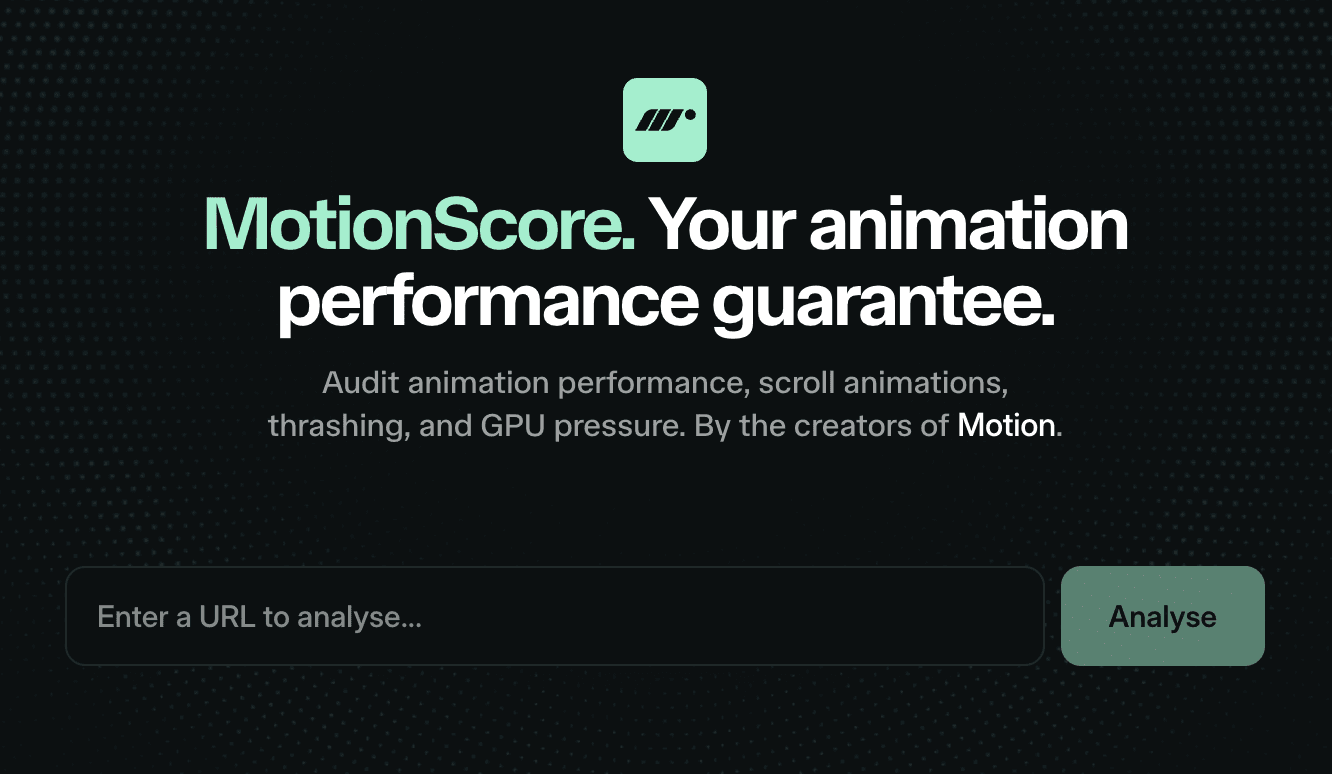
MotionScore will load your page in a headless browser and capture two performance snapshots, one for desktop and one for mobile.
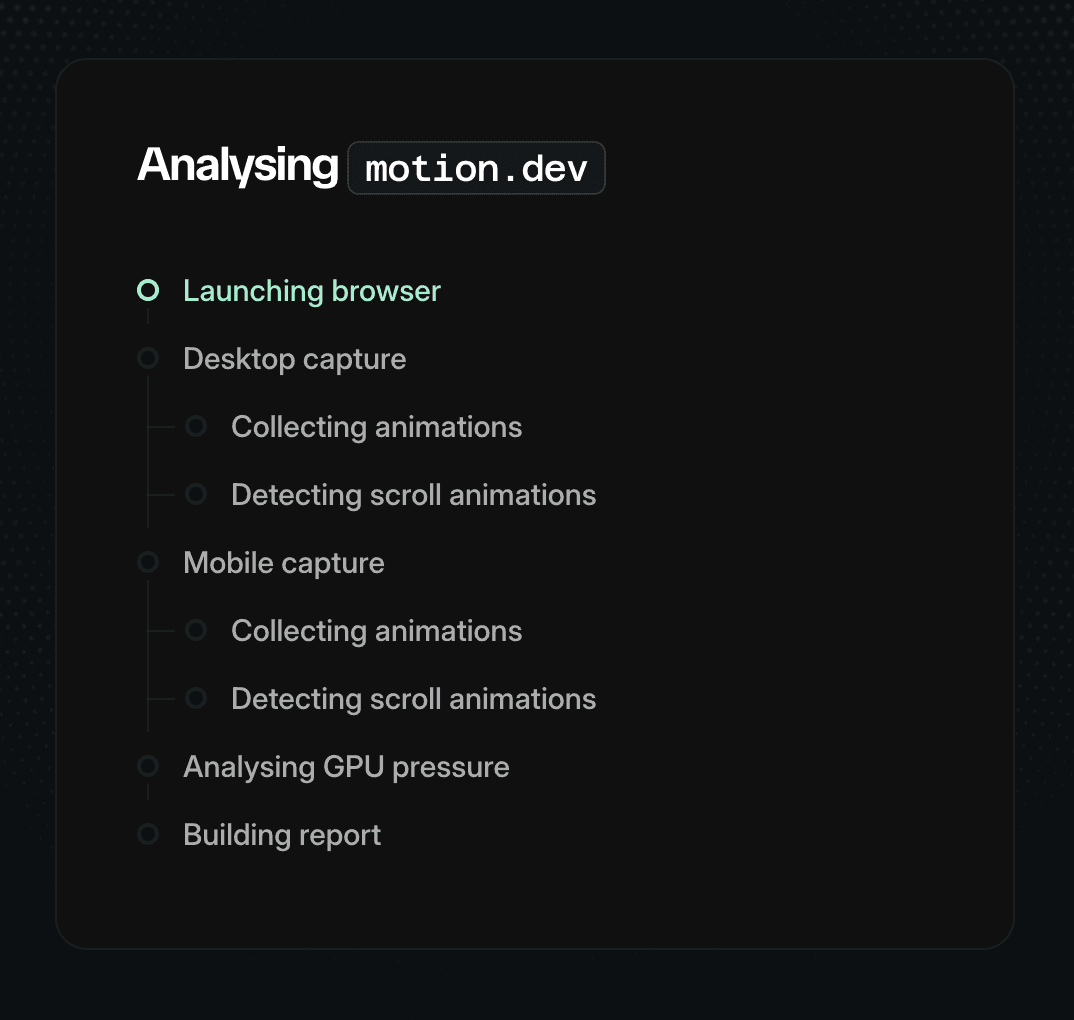
A progress timeline shows each phase of the audit as it runs. Most audits complete in around a minute - but you can leave the page and come back to the URL later.
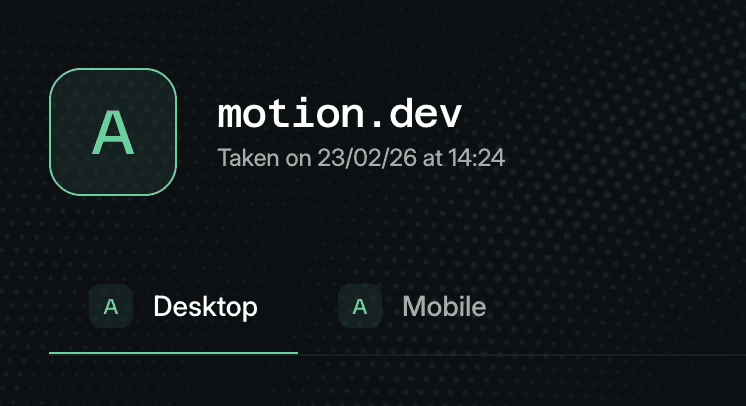
When the audit completes, this page will update with the full report. Tabs allow you to switch between viewport results - and each viewport is score independently.
MotionScore is currently in beta while we tweak the detection and methodology/scoring systems.
A navigation bar shows the four scored sections with their individual tier badges:
Animations: Animations that play on mount
Scroll animations: Animations linked to or triggered by scroll
Thrashing: Mount and per-frame style/layout thrashing events
GPU pressure: Number and memory footprint of layers

The overall tier for each viewport is a weighted average of these section tiers. The final site-wide tier averages the desktop and mobile viewport tiers.
Animations
The Animations section scores all detected CSS transitions, WAAPI animations, and JavaScript-driven style changes that load on page mount.
Pages are scored negatively for excessive or off-screen animations.
Scroll animations
The Scroll animations section evaluates scroll-linked animations (continuously driven by scroll position) and scroll-triggered animations (fired when an element enters or exits the viewport).
It identifies the scroll mechanism used: ScrollTimeline, ViewTimeline, IntersectionObserver, JavaScript scroll handler. It applies score multipliers based on how efficiently each mechanism operates.
Stats include total scroll animations, breakdown by linked vs triggered, and the total number of registered scroll listeners.
Thrashing
The Thrashing section detects layout and style thrashing: Interleaved DOM reads and writes that force the browser to recalculate styles or layout mid-frame.
It reports two phases:
Mount: Forced recalculations during page initialisation, typically from measuring elements while setting up animations
Frame: Read/write interleaving inside animation frames, which causes per-frame layout recalculation
Each thrash event lists the write selector, written property, read selector, and the API that triggered the read.
GPU pressure
The GPU pressure section measures compositor layer overhead. It reports:
Texture memory: Estimated GPU memory consumed by compositor layer textures at reference pixel density (2x for desktop, 3x for mobile)
Tiled memory: Estimated memory for scroll root tiled layers
Compositor layers: Total texture layer count
Each metric is shown on a gauge with tier thresholds for the current viewport. Below the gauges, a layer table lists every compositor layer with its dimensions, memory, and promotion reason.
GPU pressure findings flag issues like overlap-promoted layers, persistent will-change, excessive layer counts, and high memory usage.
Recommendations and prompt-to-fix
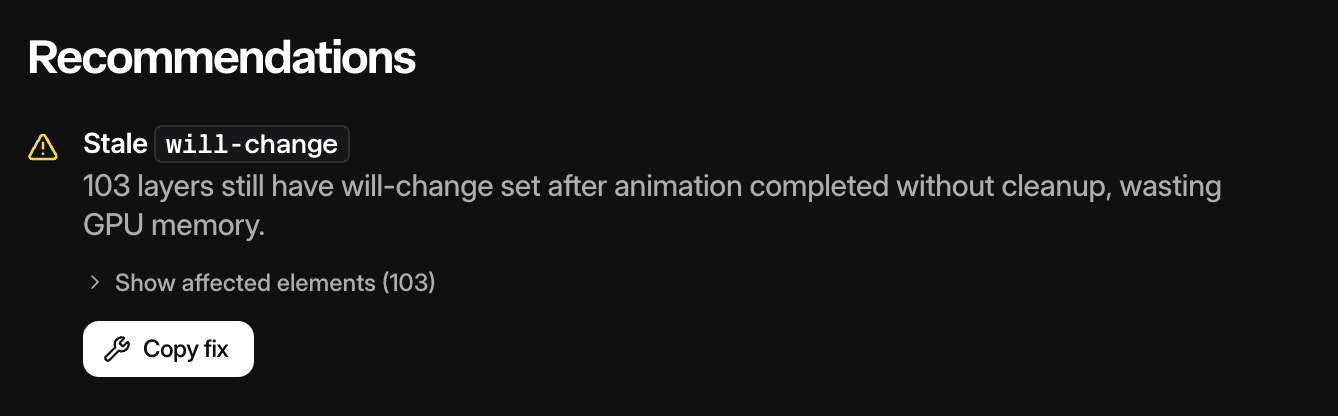
Below each section, a Recommendations panel lists findings relevant to that section and viewport. Each finding has:
A severity badge: critical, high, or low
A title summarising the issue
A description with specific details (affected element count, memory values, etc.)
A fix button explaining how to fix it
Many findings include a Copy fix button. Clicking it copies a structured prompt to your clipboard that you can paste into any LLM (ChatGPT, Claude, Copilot, etc.). The prompt includes the problem description, affected element selectors, and a targeted fix strategy so the LLM can generate the specific code changes needed for your project.
Privacy toggle
On the Pro plan, audit owners see a Private toggle in the report header. When enabled, the audit is only accessible to you - it won't be visible to anyone with the URL. Privacy can be toggled at any time after the audit completes.
Via the dashboard, you can set all reports for a specific URL to private. Setting privacy via the dashboard sets all past and future audits to the selected privacy settings.
Scheduled audits
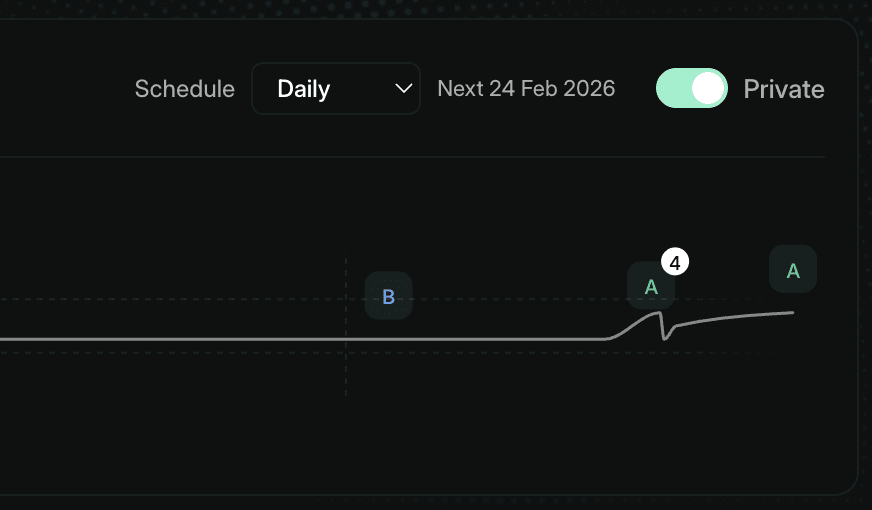
Also via the dashboard, it's possible to set audits to run hourly, daily or monthly. When a scheduled audit completes, you'll receive an email with the latest results.
MotionScore's web UI is the easiest way to spin up new animation performance audits.
MotionScore will load your page in a headless browser and capture two performance snapshots, one for desktop and one for mobile.
A progress timeline shows each phase of the audit as it runs. Most audits complete in around a minute - but you can leave the page and come back to the URL later.
When the audit completes, this page will update with the full report. Tabs allow you to switch between viewport results - and each viewport is score independently.
MotionScore is currently in beta while we tweak the detection and methodology/scoring systems.
A navigation bar shows the four scored sections with their individual tier badges:
Animations: Animations that play on mount
Scroll animations: Animations linked to or triggered by scroll
Thrashing: Mount and per-frame style/layout thrashing events
GPU pressure: Number and memory footprint of layers
The overall tier for each viewport is a weighted average of these section tiers. The final site-wide tier averages the desktop and mobile viewport tiers.
Animations
The Animations section scores all detected CSS transitions, WAAPI animations, and JavaScript-driven style changes that load on page mount.
Pages are scored negatively for excessive or off-screen animations.
Scroll animations
The Scroll animations section evaluates scroll-linked animations (continuously driven by scroll position) and scroll-triggered animations (fired when an element enters or exits the viewport).
It identifies the scroll mechanism used: ScrollTimeline, ViewTimeline, IntersectionObserver, JavaScript scroll handler. It applies score multipliers based on how efficiently each mechanism operates.
Stats include total scroll animations, breakdown by linked vs triggered, and the total number of registered scroll listeners.
Thrashing
The Thrashing section detects layout and style thrashing: Interleaved DOM reads and writes that force the browser to recalculate styles or layout mid-frame.
It reports two phases:
Mount: Forced recalculations during page initialisation, typically from measuring elements while setting up animations
Frame: Read/write interleaving inside animation frames, which causes per-frame layout recalculation
Each thrash event lists the write selector, written property, read selector, and the API that triggered the read.
GPU pressure
The GPU pressure section measures compositor layer overhead. It reports:
Texture memory: Estimated GPU memory consumed by compositor layer textures at reference pixel density (2x for desktop, 3x for mobile)
Tiled memory: Estimated memory for scroll root tiled layers
Compositor layers: Total texture layer count
Each metric is shown on a gauge with tier thresholds for the current viewport. Below the gauges, a layer table lists every compositor layer with its dimensions, memory, and promotion reason.
GPU pressure findings flag issues like overlap-promoted layers, persistent will-change, excessive layer counts, and high memory usage.
Recommendations and prompt-to-fix
Below each section, a Recommendations panel lists findings relevant to that section and viewport. Each finding has:
A severity badge: critical, high, or low
A title summarising the issue
A description with specific details (affected element count, memory values, etc.)
A fix button explaining how to fix it
Many findings include a Copy fix button. Clicking it copies a structured prompt to your clipboard that you can paste into any LLM (ChatGPT, Claude, Copilot, etc.). The prompt includes the problem description, affected element selectors, and a targeted fix strategy so the LLM can generate the specific code changes needed for your project.
Privacy toggle
On the Pro plan, audit owners see a Private toggle in the report header. When enabled, the audit is only accessible to you - it won't be visible to anyone with the URL. Privacy can be toggled at any time after the audit completes.
Via the dashboard, you can set all reports for a specific URL to private. Setting privacy via the dashboard sets all past and future audits to the selected privacy settings.
Scheduled audits
Also via the dashboard, it's possible to set audits to run hourly, daily or monthly. When a scheduled audit completes, you'll receive an email with the latest results.