Motion's animateView() function makes it simple to animate between two different views or layouts. It's built on the browser's native View Transition API for small filesize and great performance, and removes its complexity while expanding on it:
-
Cleaner API
-
Spring animations
-
Interruption handling/queuing
-
Simplified shared element matching
animateView(update).enter({ opacity: 1 })Import
animateView can be imported from the main "motion" package.
import { animateView } from "motion"Usage
The animateView function must be passed a function, or async function, that updates the DOM.
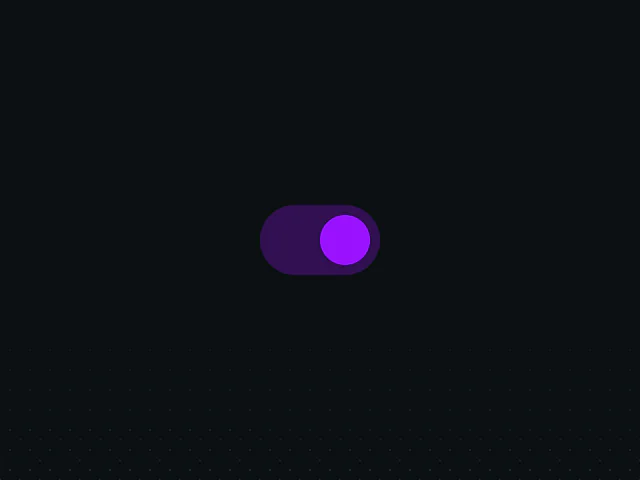
let isOn = true

const update = () => {
  isOn = !isOn
  container.style.justifyContent = isOn ? "flex-end" : "flex-start"
}

animateView(update)Page crossfade
By default, no animation will occur. We can add a simple crossfade effect by adding an opacity animation to the new layer:
animateView(update).new({ opacity: 1 })Animate elements
The simplest way to animate an element is to target it with add, and it'll animate its size and position automatically:
animateView(update).add(".toggle-handle")add accepts a selector or an Element. It resolves the matching elements, assigns each a unique view-transition-name (if not already present), and removes it once the animation finishes. A single call can target many elements at once.
When passing a selector, it'll be re-run after the update function to ensure newly-added elements are included in the animation.
Set a default transition
animateView supports the same transition options as the animate function:
import { spring } from "motion"

animateView(
  update,
  { type: spring, duration: 0.8, bounce: 0.4 }
)Override a transition
By default the layout animation uses the default transition you pass to animateView. To give a specific element its own transition, pass one to layout:
animateView(update, { duration: 0.5 })
  .add(".card")
.layout({ duration: 1 })layout sets the transition for the shared layout animation only, so enter, exit, new and old methods can each define their own transition override too.
Shared-element transitions
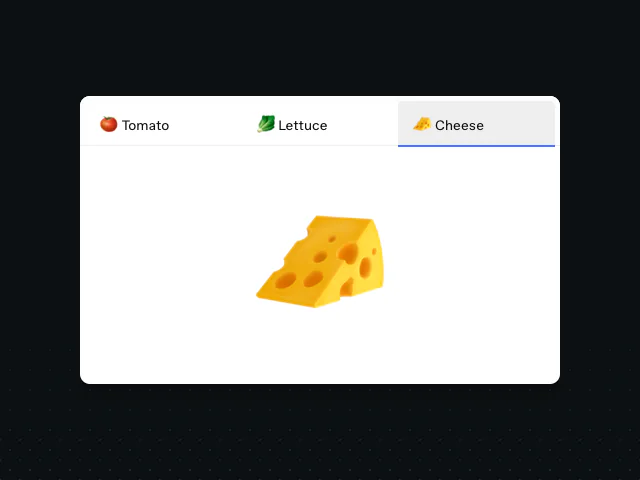
To morph between two different elements, like a card that grows into a full detail view, pass both to add: the element present before the update, and the one present after. animateView gives them a shared view-transition-name so the first morphs into the second, and cleans both names up afterwards.
animateView(update).add(fromElement, toElement)Enter and exit animations
enter and exit can define animations on elements that have no matching old or new layer, respectively. Values passed to exit will, by default, be used as the initial keyframe of matching enter values:
// A dialog that wipes in as it appears
animateView(update)
  .add(".dialog")
  .exit({ clipPath: "inset(50%)" })
.enter({ clipPath: "inset(0%)" }) // animates from 50%Page transitions
The entire page can be animated with the new and old methods, which target its incoming and outgoing snapshots directly. These are useful for making crossfade or wipe effects.
// Crossfade
animateView(update)
  .old({ opacity: 0 })
  .new({ opacity: 1 })

// Wipe left
animateView(update)
  .new({
    clipPath: ["inset(0% 0% 0% 100%)", "inset(0% 0% 0% 0%)"]
  })

// Slide up
animateView(update)
  .old({ opacity: 0, transform: "translateY(-50px)" })
.new({ opacity: 1, transform: ["translateY(50px)", "none"] })new and old both accept transition options that will override the default transition:
// Fade out then in
animateView(update)
  .old({ opacity: 0 }, { duration: 0.2 })
.new({ opacity: 1 }, { delay: 0.2 })new and old can also be used to animate specific element layers:
// Crossfade a morphing element's old and new states
animateView(update)
  .add(".card")
  .old({ opacity: [1, 0] })
.new({ opacity: [0, 1] })Animating values
animateView animates any value the browser can animate with CSS, passed as keyframes to new, old, enter, exit or add. This includes transform, opacity, clipPath, filter, backgroundColor and more.
animateView(update)
.new({ clipPath: ["inset(50%)", "inset(0%)"] })Non-animatable values
Because the View Transition API animates pseudo-elements, which aren't targetable by JavaScript animations, animateView is limited to animating values that are also animatable by CSS.
However, the new CSS.registerProperty function allows for the animation of CSS properties, and it's available in all browsers where the View Transition API is available.
We can use this to animate values like mask-image. Set the mask on the layer in CSS, with its gradient stops driven by custom properties:
::view-transition-new(.wipe) {
  mask-image: linear-gradient(
    90deg,
    transparent var(--wipe-a),
    black var(--wipe-b)
  );
}Register those properties so they can animate, then tag the entering layer with class so the rule targets it and animate the stops:
function makeWipeProp(position, initialValue) {
  // Can only register properties once
  try {
    CSS.registerProperty({
      name: "--wipe-" + position,
      syntax: "<length-percentage>",
      inherits: false,
      initialValue,
    })
  } catch (e) {}
}

makeWipeProp("a", "-100%")
makeWipeProp("b", "0%")

animateView(update)
  .add(".panel")
  .class("wipe")
  .enter({
    "--wipe-a": "100%",
    "--wipe-b": "200%"
})Stagger
Because add can resolve a selector to many elements, you can stagger their enter, exit or layout animations. Pass the stagger function as the delay option:
import { stagger } from "motion"

animateView(update)
  .add(".item")
  .enter(
    { opacity: [0, 1], scale: [0.6, 1] },
    { delay: stagger(0.05) }
)Each resolved element animates 0.05 seconds after the previous one. stagger behaves exactly as it does with the animate function, so options like from and ease apply.
Animation controls
animateView is an async function that returns animation controls.
const animation = await animateView(update)

animation.pause()This allows full control over the view animation once it's begun.
It supports all the same controls as the animate function, except then and cancel.
To run code after the animation has finished you can await animation.finished:
await animation.finishedCropping
When an element, or set of shared elements, animate between different aspect ratios, the View Transition API will maintain the aspect ratio of each element as they crossfade. In most situations, this looks quite distracting.
animateView crops layers that change aspect ratio to avoid this effect. To force clipping on or off, set crop(false) or crop(true):
animateView(update)
  .add(".title", ".heading")
.crop(false)Grouping
By default, the View Transition API flattens any nested hierarchies. This means that child elements with a delay set will move separately from their parents.
This is in contrast to Motion's layout animations, where children move with their parents before performing their own animations.
Additionally, ungrouped elements will appear to "break out" of their parents.
animateView will match the original DOM hierarchy by default, by opting in to the View Transition API's grouping feature.
Grouping can be disabled with group(false):
animateView(update)
  .add(".thumbnail")
.group(false)Styling pseudo layers
Because add generates the view-transition-name, there's no stable name to write CSS against. When you need to style a layer's pseudo-elements, for example to set its stacking order or give it a bespoke group animation, tag it with class:
animateView(update)
  .add(".card")
.class("card")This sets a view-transition-class on the layer's generated pseudo-elements, which you can target with the view-transition-class selectors:
::view-transition-group(.card) {
  z-index: 2;
}Interruption
If a browser View Transition API animation is interrupted with a new one, the current animation will visually break by snapping to its end position before the new animation starts.
animateView fixes this by queuing the incoming animation until the current one has finished.
This behaviour can be overridden by setting interrupt: "immediate". Starting an animation with "immediate" interruption will flush any pending DOM update functions along with the interrupting animation.
Future versions will expand on the queue by optionally fast-forwarding existing animations.
Offset scroll position
Motion for React's layout animations cancel out any changes in scroll position, so these aren't animated. This is usually (though not always) the correct behaviour - especially with same-element transitions.
The View Transition API is limited to animating the current view, as it appears on screen. Which means any element with a view-transition-name when this kind of DOM update happens:
animateView(() => window.scrollTo(0, 100))Will get animated 100px. This behaviour is clearly incorrect and a future version of this API will allow this kind of animation to be cancelled out.
Methods
animateView(update, options) returns a chainable builder: every method returns the builder, and the builder is awaitable to get animation controls.
.add(target, newTarget?)
Target elements by selector or Element, assigning each an automatic view-transition-name and opting them into a layout animation. Pass a second target to morph two different elements into one another.
animateView(update).add(".card").new(keyframes, options?)
Animate the new (incoming) view of a layer, whether it's appearing or persisting. Pair with old for a crossfade or slide-through.
animateView(update).new({ opacity: 1 }).old(keyframes, options?)
Animate the old (outgoing) view of a layer, whether it's leaving or persisting.
animateView(update).old({ opacity: 0 }).enter(keyframes, options?)
Animate a layer that purely appears across the update. A defined exit is mirrored as the starting value.
animateView(update).add(".item").enter({ opacity: 1 }).exit(keyframes, options?)
Animate a layer that purely leaves across the update.
animateView(update).add(".item").exit({ opacity: 0 }).layout(options?)
Set the transition for a targeted element's layout animation, leaving enter and exit on their own transitions.
animateView(update).add(".card").layout({ duration: 1 }).crop(enabled?)
Force aspect-ratio cropping (overflow: clip + object-fit: cover) on or off. Morphs crop by default; crop(false) is useful for text.
animateView(update).add(".title").crop(false).group(enabled?)
Control whether a layer nests under its DOM-ancestor layer. group(false) flattens it so it can escape an ancestor's clip.
animateView(update).add(".thumbnail").group(false).class(name)
Tag the generated layers with a view-transition-class so they can be targeted from CSS.
animateView(update).add(".card").class("card")FAQs
- What is animateView?
animateViewis Motion's wrapper around the browser's native View Transition API. You pass it a function that updates the DOM, and it animates between the old and new states with a cleaner API, spring support and interruption handling.- How are view animations different from layout animations?
Layout animations animate elements as they exist on the page, using
transformfor performant, fully interruptible motion, and many can run at once. View animations take an image snapshot of the old and new states and crossfade between them, which unlocks effects like full-page wipes and morphs across completely different DOM, at the cost of being one-animation-at-a-time and snapshot-based. Reach for layout animations for responsive-feeling, interruptible UIs, andanimateViewfor page transitions and in filesize-constrained situations.- Which browsers support animateView?
animateViewruns wherever the View Transition API is available. In browsers without it the DOM update still runs, it just isn't animated, so it degrades gracefully.- Can I use springs with view animations?
Yes. Pass a transition as the second argument to
animateView, includingtype: spring, and it'll drive the whole update.- How do I animate the whole page versus a single element?
Use
newandoldfor the page, since the root snapshot persists across the update. Useenterandexit(chained afteradd) for an element that purely appears or leaves.- Is animateView available in React?
Yes. React has the AnimateView component, which wraps the same View Transition API with a declarative API.