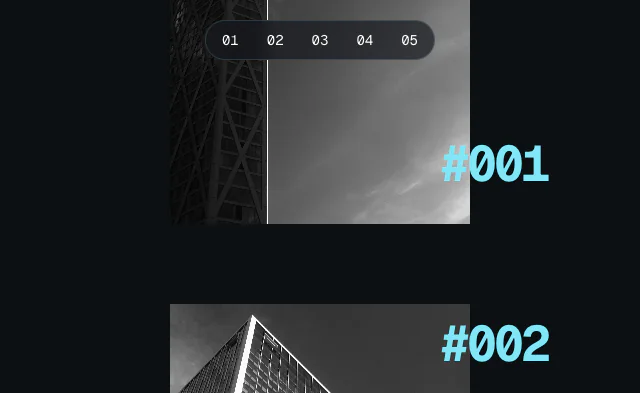
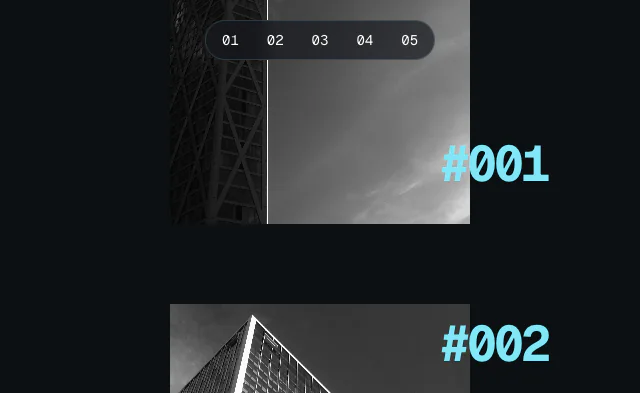
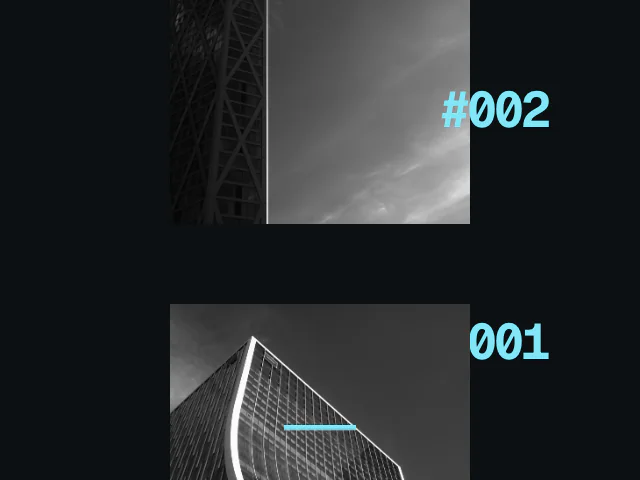
Lenis is a smooth scroll library from darkroom.engineering, and a fixture of award-winning sites. Instead of jumping in steps, smooth scroll eases towards its target.
Lenis needs an animation loop to run in. Most guides plug it into another library's ticker. Motion has its own frame loop, so you can drive Lenis from Motion and skip the extra loop.
Lenis also moves the native scroll position. That means Motion's scroll() and useScroll animations work with it, unchanged. This includes the hardware-accelerated ones.
Install
Install Lenis alongside Motion:
npm install motion lenisLenis also ships a recommended stylesheet. Importing lenis doesn't load it, so add it yourself, once:
import "lenis/dist/lenis.css"Smooth scroll works without it, but these rules fix some edge cases. They give html and body an automatic height while Lenis is active, lock scrolling while Lenis is stopped, stop scroll chaining out of data-lenis-prevent areas and stop iframes catching the pointer during a smooth scroll. The autoToggle option needs them.
Without a bundler, link lenis/dist/lenis.css from a CDN or copy its rules into your own CSS.
Usage
Drive Lenis with Motion
Create Lenis with autoRaf: false, so it doesn't start its own requestAnimationFrame loop. Then call lenis.raf() from Motion's frame loop:
import Lenis from "lenis"
import { frame, cancelFrame } from "motion"

const lenis = new Lenis()

function update({ timestamp }) {
  lenis.raf(timestamp)
}

frame.setup(update, true)The second argument, true, keeps update running every frame. Motion's timestamp is in milliseconds, which is the unit lenis.raf() expects.
To remove Lenis, cancel the callback and destroy the instance:
cancelFrame(update)
lenis.destroy()Why frame.setup?
Each Motion frame runs in a fixed order of steps. The frame docs cover read, update and render, but there's also a setup step that runs first.
scroll() and useScroll measure the scroll position in read. When Lenis runs in setup, it writes the new scroll position before Motion later measures it. So scroll-linked values use this frame's scroll position.
Lenis's own guide for Motion uses frame.update. That works too, but update runs after read. So any scroll animation that Motion runs on the main thread renders one frame behind the page.
Hardware-accelerated scroll animations aren't affected either way. More on those below.
Scroll animations
There's nothing extra to set up. scroll() works as normal:
import { animate, scroll } from "motion"

scroll(
  animate(".progress", { transform: ["scaleX(0)", "scaleX(1)"] }, { ease: "linear" })
)Where the browser supports ScrollTimeline and ViewTimeline, Motion hands animations like this one to the browser to run off the main thread. The browser reads the native scroll position, and Lenis sets that position every frame. So these animations stay in sync with the smoothed scroll automatically.
Animations that can't be hardware accelerated, and scroll callbacks, run on the main thread:
scroll((progress) => {
  counter.textContent = Math.round(progress * 100) + "%"
})These are the animations that benefit from driving Lenis in frame.setup.
Scroll to an element
Use lenis.scrollTo() to smoothly scroll to an element, selector or pixel value. Its easing option accepts any function that takes and returns a progress value, so Motion's easing functions work as-is:
import { easeInOut, cubicBezier } from "motion"

lenis.scrollTo("#contact", { duration: 1.6, easing: easeInOut })

lenis.scrollTo(0, { duration: 1, easing: cubicBezier(0.65, 0, 0.35, 1) })Spring scroll
For a spring, let Motion's animate() calculate the scroll position, and pass each value to Lenis with immediate: true:
import { animate } from "motion"

function springTo(element) {
  const top = lenis.scroll + element.getBoundingClientRect().top

  if (lenis.prefersReducedMotion) {
    lenis.scrollTo(top)
    return
  }

  const animation = animate(lenis.scroll, top, {
    type: "spring",
    visualDuration: 0.8,
    bounce: 0.2,
    onUpdate: (latest) => lenis.scrollTo(latest, { immediate: true }),
    onComplete: () => stopListening(),
  })

  // If the user scrolls, give them control back
  const stopListening = lenis.on("virtual-scroll", () => {
    animation.stop()
    stopListening()
  })
}React
The lenis/react package provides a ReactLenis component. Unlike new Lenis(), it starts its own loop by default, so set autoRaf: false in its options. Then keep a ref to it and drive it from Motion's frame loop in an effect:
import { ReactLenis } from "lenis/react"
import { frame, cancelFrame } from "motion/react"
import { useEffect, useRef } from "react"
import "lenis/dist/lenis.css"

export function SmoothScroll({ children }) {
  const lenisRef = useRef(null)

  useEffect(() => {
    function update({ timestamp }) {
      lenisRef.current?.lenis?.raf(timestamp)
    }

    frame.setup(update, true)

    return () => cancelFrame(update)
  }, [])

  return (
    <ReactLenis root options={{ autoRaf: false }} ref={lenisRef}>
      {children}
    </ReactLenis>
  )
}root makes Lenis control the page scroll. Now useScroll works as normal anywhere inside it:
const { scrollYProgress } = useScroll()
const transform = useTransform(scrollYProgress, [0, 1], ["scaleX(0)", "scaleX(1)"])

return <motion.div className="progress" style={{ transform }} />Components inside ReactLenis can get the Lenis instance with the useLenis hook from lenis/react, for example to call scrollTo().
Vue
lenis/vue provides a VueLenis component. The pattern is the same as React: set autoRaf: false in its options, get the instance from a template ref, and call frame.setup(update, true) in onMounted and cancelFrame(update) in onUnmounted.
Reduced motion
From version 1.3.26, Lenis respects prefers-reduced-motion by default. When the user turns on reduced motion, Lenis turns off smoothing, and scrollTo() jumps straight to its target. It also picks up a change to the setting without a reload.
Read lenis.prefersReducedMotion to make the same decision in your own code, as in the spring example above.
With older versions, don't create Lenis when the user prefers reduced motion:
const reduceMotion = window.matchMedia("(prefers-reduced-motion: reduce)").matches

if (!reduceMotion) {
  const lenis = new Lenis({ autoRaf: false })
  frame.setup(({ timestamp }) => lenis.raf(timestamp), true)
}Your scroll() animations still work without Lenis. They follow the normal native scroll.
Nested scroll areas
Lenis takes over wheel input for the whole page. To let an inner element, like a modal or a code block, scroll natively, give it a data-lenis-prevent attribute:
<div class="modal-body" data-lenis-prevent>...</div>To lock page scroll, for example while a modal is open, call lenis.stop(), then lenis.start() to unlock it.
Limitations
Lenis has some limitations worth knowing about before you commit:
- It doesn't support CSS scroll snap. Use
lenis/snapinstead. - Smooth scroll stops over iframes, because they don't forward wheel events to the page.
- Safari caps it at 60fps, and at 30fps in Low Power Mode.
- It moves wheel scrolling onto the main thread. Native scrolling runs on the compositor and keeps moving while JavaScript is busy. With Lenis, a long task pauses the scroll itself, and every animation linked to it, including hardware-accelerated ones.