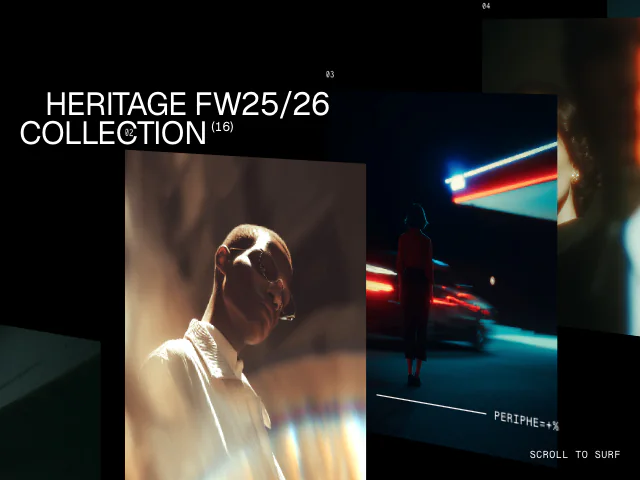
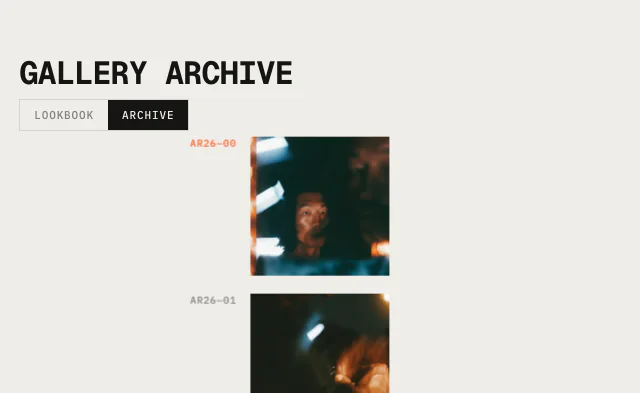
Gallery is a React component for creating dynamic image and video galleries in 2D and 3D.
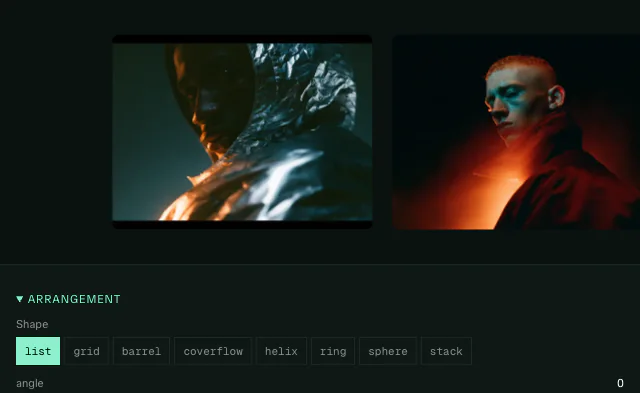
Lay items out as a list, grid, barrel, coverflow, helix, ring, sphere or card stack, then drag, scroll or key through them.
Change the arrangement, open an item or add and remove items, and every change animates smoothly from wherever the gallery is.
<Gallery arrange={barrel()} aria-label="Collection">
  <Gallery.Image src="/a.jpg" alt="Runner" width={1200} height={1600} />
  <Gallery.Video src="/b.mp4" poster="/b.jpg" alt="Shoe rotating" />
</Gallery>Features
-
Eight arrangements:
list,grid,barrel,coverflow,helix,ring,sphereandstack, or write your own withdefineGalleryArrangement. -
Smooth everything: Arrangement swaps, opening an item, adding and removing items all blend from the current pose, with springs and stagger.
-
Inputs: Drag with momentum, wheel and keyboard navigation out the box, with snapping and infinite looping.
-
Detail views: Open an item into its own box with a thumbnail strip, or reveal a panel around it. Higher-res assets are loaded automatically.
-
Velocity effects:
tiltandripplemodifiers link items to the gallery's speed. -
Shaders: Draw items with WebGPU through shaders like
depthOfFieldandreflection. Without WebGPU, the DOM draws them as normal. -
Accessible: Uses the correct ARIA tags, respects reduced motion and supports keyboard navigation.
-
Performant: All items animated with
transform, and only visible media loads and plays.
Install
First, install Motion UI in your project. You need to be a Motion+ member to generate an access token.
Usage
Import
Import Gallery from "motion-plus/gallery":
import { Gallery } from "motion-plus/gallery"Arrangements, modifiers and presence presets are separate imports, so only the ones you use are bundled:
import { Gallery, barrel, tilt } from "motion-plus/gallery"Items
Gallery accepts three kinds of item as children.
-
Gallery.Imagerenders animg.altis required. Use""for decorative images. -
Gallery.Videorenders avideo.altis required and is applied asaria-label. -
Gallery.Itemrenders anliwith any content inside.
<Gallery aria-label="Studio work">
  <Gallery.Image
    src="/photo.jpg"
    alt="Dancer mid-turn"
    width={800}
    height={1000}
  />
  <Gallery.Video src="/clip.mp4" poster="/clip.jpg" alt="Product turntable" />
  <Gallery.Item>
    <h2>Any content</h2>
  </Gallery.Item>
</Gallery>Each item can take a value. This is its identity for active, selected, callbacks and hooks. Without one, items are identified by their index.
<Gallery.Image value="runner" src="/runner.jpg" alt="Runner" />Size
Give the gallery a size with CSS, and its items a size with the --gallery-item-width and --gallery-item-height CSS variables. Items default to 240px by 320px.
.gallery {
  height: 100vh;
}

.gallery [data-gallery-item] {
  --gallery-item-width: 300px;
  --gallery-item-height: 400px;
}The engine owns each item's position, size, transform and opacity. Everything else, like border-radius, background and filter, is yours to style.
Arrangements
Pass an arrangement to arrange. The default is list().
<Gallery arrange={helix({ itemsPerTurn: 8 })} />Change arrange at any time and the gallery animates into the new shape.
list
Items along a straight track: horizontal, vertical (axis="y") or diagonal (angle).
| Option | Default | Description |
|---|---|---|
angle | 0 | Direction of the track in degrees. -30 gives a rising diagonal. |
curl | 0 | Degrees of rotateY per item away from focus. |
depth | 0 | Pixels pushed back per item away from focus, either side. |
recede | 0 | Pixels pushed back per item along the track, like a staircase into the page. |
turn | 0 | rotateY in degrees for every item. |
wave | 0 | Amplitude in pixels of a sine wave across the track. |
room | 24 | Pixels kept clear around an item opened inline. |
<Gallery arrange={list({ angle: -30, curl: 20, depth: 40, wave: 30 })} />grid
An infinite, pannable plane. When looping, which is the default, it's tiled with clones so its edge is never visible.
| Option | Default | Description |
|---|---|---|
columns | "auto" | Columns in the repeating block. "auto" fits the viewport. |
fill | "sequence" | How the plane repeats when the item count doesn't fill a block: "sequence", "offset" or "none". |
rotateX | 0 | Leans the plane back, in degrees. |
rotateY | 0 | Brings the plane's left side forward, in degrees. |
rotateZ | 0 | Turns the plane clockwise, in degrees. |
bulge | 0 | Pixels the plane bulges towards the viewer at focus. |
<Gallery arrange={grid({ columns: 6, fill: "offset", rotateX: 20, bulge: 120 })} />barrel
Items around a cylinder. axis="y" gives a vertical barrel. A barrel always loops.
| Option | Default | Description |
|---|---|---|
radius | "auto" | Cylinder radius in pixels. "auto" spaces items by their size plus gap. |
rotateX | -8 | Camera tilt in degrees. Negative views the barrel from above. |
<Gallery arrange={barrel({ radius: 600, rotateX: -12 })} axis="y" />coverflow
The classic: a flat focused item with angled, overlapping neighbours. Coverflow spaces items with its own options, so it ignores gap.
| Option | Default | Description |
|---|---|---|
turn | 55 | rotateY of side items, in degrees. |
spread | 0.3 | Spacing between side items, as a fraction of item width. |
depth | 0.5 | How far side items sit behind the focused one, as a fraction of width. |
centerSpacing | 0.8 | Spacing between the focused item and each neighbour, as a fraction of width. From 1.05 it's a plain slide. |
<Gallery arrange={coverflow({ turn: 45, spread: 0.25, depth: 0.6, centerSpacing: 0.9 })} />helix
A spiral. The default axis is "y", which gives a vertical spiral. axis="x" gives a horizontal corkscrew.
| Option | Default | Description |
|---|---|---|
radius | "auto" | Radius in pixels. "auto" spaces a turn's items by their size plus gap. |
itemsPerTurn | 10 | Items per full turn. |
pitch | "auto" | Pixels travelled along the axis per item. "auto" is 22% of an item. |
<Gallery arrange={helix({ radius: 500, itemsPerTurn: 12, pitch: 48 })} />ring
Items around a flat circle, like a dial. An arc under 360 fans them out.
| Option | Default | Description |
|---|---|---|
radius | "auto" | Circle radius in pixels. |
arc | 360 | Degrees of arc to spread items over. A full ring always loops. |
upright | false | Keep items upright instead of rotating them around the circle. |
flip | false | Curve towards the other side of the track. |
rotateX | 0 | Camera tilt in degrees. |
<Gallery arrange={ring({ arc: 120, upright: true, flip: true, rotateX: 10 })} />sphere
Items on a sphere. Dragging spins it both ways. A sphere always loops.
| Option | Default | Description |
|---|---|---|
radius | "auto" | Radius in pixels. "auto" is the smallest sphere where neighbours stay gap apart. |
gap | The gallery's gap | Pixels between neighbouring items. |
face | "camera" | "camera" keeps items facing the viewer. "outward" lies them flat on the surface. |
<Gallery arrange={sphere({ radius: 700, gap: 12, face: "outward" })} />stack
A deck of cards. Swipe the top card away to reveal the next. A stack spaces items with its own options, so it ignores gap.
| Option | Default | Description |
|---|---|---|
peek | 14 | Pixels each card behind the top one peeks out above it. |
depth | 50 | Pixels each card behind the top one is pushed back. |
visible | 4 | Number of cards visible behind the top card. |
<Gallery arrange={stack({ peek: 20, depth: 60, visible: 3 })} />Every numeric arrangement option, apart from grid's columns, also accepts a motion value, so it can be animated or linked to scroll without a re-render.
const rotateX = useMotionValue(-8)

return <Gallery arrange={barrel({ rotateX })} />