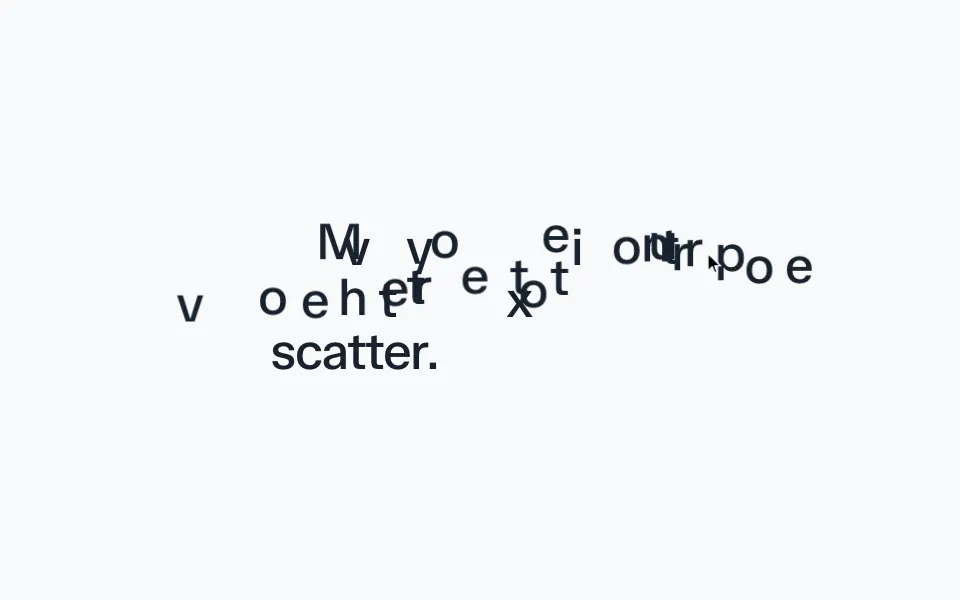
"Text animation" covers a broad family of techniques.
These include split text animations, rolling text, typing effects and text that appears on scroll.
In this guide we're going to go through the predominant animations that people mean when they say "text animation", see what they do, how they work, and how they perform.
Split text
"Split text" is, in part, a genre of text animation where blocks of text have been cut up into their constituent characters, words or lines, and then animated independently.
Confusingly, split text is also the name of the process by which we split this blocks of text up, a process that underpins other text animations that we'll see later on, like scramble text and (sometimes) rolling text.
To perform any of these animations we need to split text up because neither CSS or JavaScript give us a way of targeting parts of text on their own. Instead, we need to change blocks of text like this:
<h1>Hello</h1>Into something like this:
<h1>
  <span>H</span>
  <span>e</span>
  <span>l</span>
  <span>l</span>
  <span>o</span>
</h1>Where every character or group of characters that we want to element receives their own element. Then, they can be targeted and animated individually:
import { animate, stagger } from "motion"

animate(
  "h1 span",
  { opacity: 1 },
  { delay: stagger(0.05) }
)However, now we've got two problems.
One, the authorship process. It's a pain to write all those elements by hand. And if you want to edit the text? A nightmare. These days, AI can help with this process but it feels like a waste of tokens. Additionally, splitting by line requires runtime calculations that depend on how the text is rendering on a given device.
Two, where a screen reader previously read this text as "Hello", now it's going to read out "H", "e", etc in turn. To fix this, we can repeat the string in the h1 aria-label attribute, but now we're maintaining the text in two places.
Motion's splitText handles both tasks automatically. It preserves the original string by moving it to the container's aria-label, then replaces the visible text with spans, returning arrays of chars, words and lines:
import { animate, stagger } from "motion"
import { splitText } from "motion-plus"

useEffect(() => {
  const { chars } = splitText(ref.current)

  animate(
    chars,
    { opacity: 1, y: 0 },
    { delay: stagger(0.03)
  })
}, [])These are lists of ordinary elements. You can animate them with Motion, style them with CSS, or attach interactions to individual characters.
When splitting text on page mount, ensure the process runs after document.fonts.ready so line measurements use the intended font.
About inline-block
A <span> is display: inline by default. This is fine for opacity animations but CSS transforms don't apply to ordinary inline boxes.
We could use display: block, but then every character would start a new line. That's where inline-block comes in: it sits inside a line like text, but behaves like a box that can be translated, scaled or rotated.
.char {
  display: inline-block;
  transform: translateY(-12px); /* works! */
}splitText automatically applies inline-block to its character, word and line spans for you. This can change the final rendering of the text, but it's also necessary to achieve split text animations.
Stagger
Splitting text is just the first step. You then need to actively animate the characters/words.
Animate every character at once and the result would look exactly like animating the original heading, only with considerably more DOM. The stagger is what makes the split visible.
stagger() takes an interval in seconds and turns it into a sequence of delays:
animate(
  chars,
  { opacity: 1 },
  { delay: stagger(0.03) }
)The from options can move the origin to the centre, the end, or a specific index. ease reshapes how the delays are distributed:
animate(
  chars,
  { opacity: 1 },
  { delay: stagger(0.05, { from: "center" }) }
)This is the difference between letters arriving like a queue and an animation that opens out from the middle. The stagger reference covers the full set of options.
Clipped containers
In the previous split text example, all the characters faded in. But you can animate in with translate alone for a slightly different effect by adding clipping to the line container.
const { lines, words } = splitText(ref.current)

lines.forEach((line) => {
  line.style.display = "block"
  line.style.overflow = "hidden"
})

animate(words, { y: ["120%", "0%"] }, { delay: stagger(0.04) })Rolling text hover
This effect is usually called a rolling text hover, a rolling label, or simply a text rollover:
The trick to this animation is to stack two copies of the same label inside a one-line clipped container.
<button aria-label="Start free">
  <span class="label-window" aria-hidden="true">
    <span class="label-copy">Start free</span>
    <span class="label-copy label-copy--incoming">Start free</span>
  </span>
</button>.label-window {
position: relative;
display: block;
overflow: hidden;
}
.label-copy {
display: block;
}
.label-copy--incoming {
position: absolute;
inset: 0;
}The first label stays in normal flow and sizes the button. The second is positioned over it. For a downward roll, animate the first from translateY(0%) to translateY(100%) while the second moves from translateY(-100%) to translateY(0%).
Keep both visual copies inside aria-hidden and put the accessible name on the button via aria-label. Otherwise a screen reader may announce the label twice.
Alternatively, Motion UI's RollingTextButton component handles this for you:
<RollingTextButton>Start free</RollingTextButton>It also handles keyboard accessibility for you, by playing the animation on focus.
Stagger the characters
Already the whole-label roll looks great, but for a more playful version we can use our text splitting technique from before.
const outgoing = splitText(outgoingRef.current)
const incoming = splitText(incomingRef.current)
const delay = stagger(0.025)

animate(
  outgoing.chars,
  { transform: "translateY(100%)" },
  { delay },
)
animate(
  incoming.chars,
  { transform: "translateY(0%)" },
  { delay },
)The RollingTextButton Motion UI component enables this automatically with the staggerCharacters prop.
Scramble text
Scramble text animations cycles characters through random characters before settling on the final text.
Because this involves updating text in the DOM, a naive approach to this would be to use React's setState to update the text. Rather than involving the component tree, a more performant approach to this would be setting innerText directly.
Because motion components can render motion values, a simple way of doing this would be to store your text in a motion value and update it at a set interval:
const text = useMotionValue("Hello")

useEffect(() => {
  setInterval(() => {
    text.set(/** insert scrambled text */)
  }, 50)
})

return <motion.div>{text}</motion.div>This is how Motion's ScrambleText component works under the hood, while providing hover, mount, custom character sets, stagger support and more:
import { stagger } from "motion"
import { ScrambleText } from "motion-plus/react"

<ScrambleText delay={stagger(0.05, { from: "center" })}>
  Hello world!
</ScrambleText>There's also a vanilla scrambleText function, plus examples of scramble triggered by hover and staggering from the centre.
Typewriter
A typewriter animation attempts to make it look like text is being typed in by a human.
Like scramble text effects, this involves updating innerText at a set interval:
const element = document.querySelector(".typewriter")
const text = "Hello world!"
let length = 0

const interval = setInterval(() => {
  length++
  element.innerText = text.substring(0, length)

  if (length === text.length) clearInterval(interval)
}, 50)The drawback to this approach is no human types each character at a monotonous interval. Animations look robotic.
In reality, people change the cadence of their typing with a degree of randomness - but also depending on what they are typing. Characters tend to flow faster or slower depending on whether we're mid word, within a long word, and various other factors.
Motion+'s Typewriter accounts for all of these variables for a natural-feeling typing animation:
import { Typewriter } from "motion-plus/react"

<Typewriter speed="slow">Hello world!</Typewriter>In vanilla JavaScript, the typewriter function does the same:
import { typewriter } from "motion-plus"

typewriter(".typewriter", "Hello world!", { speed: "slow" })It also handles the aria-label accessibility that we've seen so far, as well as offering various backspace techniques to handle full scripts in a natural way.
Number animation
Counters, prices and countdowns look like text animation. But the value underneath is still a number, and turning it into a row of character spans only throws useful information away.
Instead, animate the number and format it on the way out. AnimateNumber uses Motion's layout animations to move digits as the value changes, while Intl.NumberFormat handles currencies, percentages and separators:
import { AnimateNumber } from "motion-plus/react"

<AnimateNumber format={{ style: "currency", currency: "GBP" }}>
  {price}
</AnimateNumber>It takes the usual transition prop, so putting a spring on the digits is one line. See it used as a counter, a price switcher and a set of scroll-triggered stats.
Reveal on scroll
A final popular technique is having individual words fade in line by line as the page is scrolled:
Inside each word, useTransform maps that small slice of progress to opacity:
const start = words.length === 1
  ? 0
  : (index / (words.length - 1)) * 0.8
const range = [start, start + 0.2]

const opacity = useTransform(progress, range, [0.15, 1])The first word starts at progress 0. The last starts at 0.8 and settles at 1. Everything between them is distributed evenly, so the reveal reads as a stagger without being tied to time.
Each visual word gets its own span. The parent keeps the complete sentence as its accessible label, while those generated spans are hidden from assistive technology.
You can copy the ScrollWordReveal Motion UI component, or open the complete example to see the sticky scroll range around it.
Performance
Animating text does come at a slight cost. Split a long paragraph and suddenly the size of your DOM has ballooned. Luckily, each of these elements is typically small, so even if you run a paint-triggering animation on them like color the damage is limited.
Then the process of splitting the text by swapping out a single element with a bunch more is in itself potentially expensive - but it is a one-time cost rather than something that happens every frame.
What isn't a one-time cost is the techniques like typewriter and scramble text that update strings via innerText, which triggers layout recalculations.
For scramble text, the blast radius of this can be reduced by using mono fonts for these animations. Your animations will look better as text stops jumping around so much. For typewriter, remember to use contain: layout where possible.
Blur is a classic trap. filter can be handled by the compositor, which sounds like it'll always perform well, but higher blurs are dangerous anyway, before taking small character-sized layers and applying a blur that makes them much larger. These layers, now overlapping, become much more expensive in terms of surface area and GPU usage, than a blurring a single root layer.
In general, animating fewer, smaller elements is better, but as ever with animation performance this is something you have to profile and keep an eye on yourself. Tools like Chrome'a Performance panel and MotionScore can help here.
FAQ
- How do I animate text letter by letter?
Split the text into per-character elements first, then stagger their animations.
splitTextreturnschars,wordsandlinesas arrays you can pass straight toanimatewithdelay: stagger(0.03).- Can CSS animate individual letters on its own?
No. CSS has
::first-letterand nothing beyond it, so there's no selector for the third character or the second line. Something has to put each character in its own element first.- Does splitting text break screen readers?
It does if the container isn't labelled, because the reader finds a run of single-character spans instead of a sentence.
splitTextsets the original string as anaria-labelon the container before it rewrites the contents.- Which properties are cheapest to animate on split text?
transformandopacity. Both run on the compositor, so the cost of animating many characters at once stays low. Layout properties and per-character blur are where split text starts to jank.