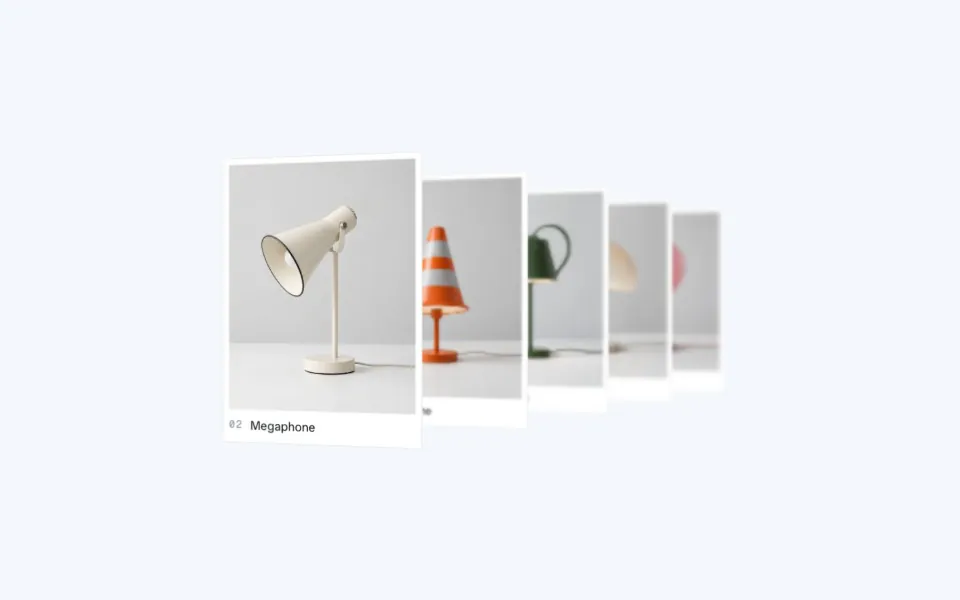
FX is a React component that draws its children in a WebGPU canvas.
Your children stay real HTML elements. You can select their text, click their buttons and read them with a screen reader. But because the canvas draws them, they can have effects that CSS can't do, like real motion blur, lens blur, and depth fog.
import { motion } from "motion/react"
import { FX, motionBlur } from "motion-plus/fx"

<FX shaders={[motionBlur()]}>
  <motion.div
    className="card"
    animate={{ x: 400 }}
    transition={{ type: "spring" }}
  />
</FX>There's no new animation API to learn. animate, whileHover, whileTap, drag, layout and AnimatePresence all work on motion components in FX as they do anywhere else.
Features
- Live HTML: Children keep their text selection, focus, events and accessibility tree.
- Motion blur: Each child blurs realistically along its path, including zoom and rotation.
- Lens blur: Depth of field with a focal plane you can move and tilt, properly applied to elements positioned with CSS transforms.
- Fog: Like a 90s 3D game, distant objects gradually turn a solid colour for opacity-esque fades without the transparency.
- Animatable options: Every shader option accepts a motion value which can be animated.
- Composable: Effects run in the order of the list, each one on the output of the one before it.
- Normal DOM fallback: Without browser support, the children are rendered as normal DOM and still animate.
- Small: Around 15kb.
Browser support
FX uses HTML-in-canvas and WebGPU. Both are available in Chrome 157 and later.
In every other browser, and on the server, the children are displayed as normal DOM. Your layout, animations and gestures work the same. Only the effects are missing.
Install
First, install Motion UI in your project. You need to be a Motion+ member to generate an access token.
Usage
Import
Import FX and its effects from "motion-plus/fx":
import { FX, motionBlur, lensBlur, fog } from "motion-plus/fx"Layout
FX renders a <motion-fx> element. Use it like a normal HTML element and use CSS, via className or style, to position it and its children, just as you would any other element. Any layout works, including grid and flex.
<FX className="grid" shaders={[motionBlur()]}>
  {items.map((item) => (
    <motion.div key={item.id} layout whileHover={{ scale: 1.1 }} />
  ))}
</FX>The underlying canvas can't draw outside of this container, so ensure it's given sufficient space to draw effects that might make children "bigger", like motion blur.
FX elements automatically stop rendering when they're outside the viewport for smoother performance.
Shaders
Set shaders with the shaders prop. It accepts an array, so you can compose multiple shaders together. Each shader applies to every child.
<FX shaders={[motionBlur(), lensBlur({ blur: 3 })]} />One effect doesn't need a list:
<FX shaders={motionBlur()} />Effects run in the order of the list. Each one reads the output of the one before it, so [motionBlur(), lensBlur()] puts the blurred motion out of focus, and [lensBlur(), motionBlur()] blurs the motion of the soft picture. An effect can be in the list more than once.
Each effect is drawn in its own pass, so the cost of a list is the sum of its effects. A child at rest skips motion blur.
Change shaders at any time to replace the list. You can create the shaders during render: FX keeps its GPU resources when the list has the same shaders with the same values.
Motion blur
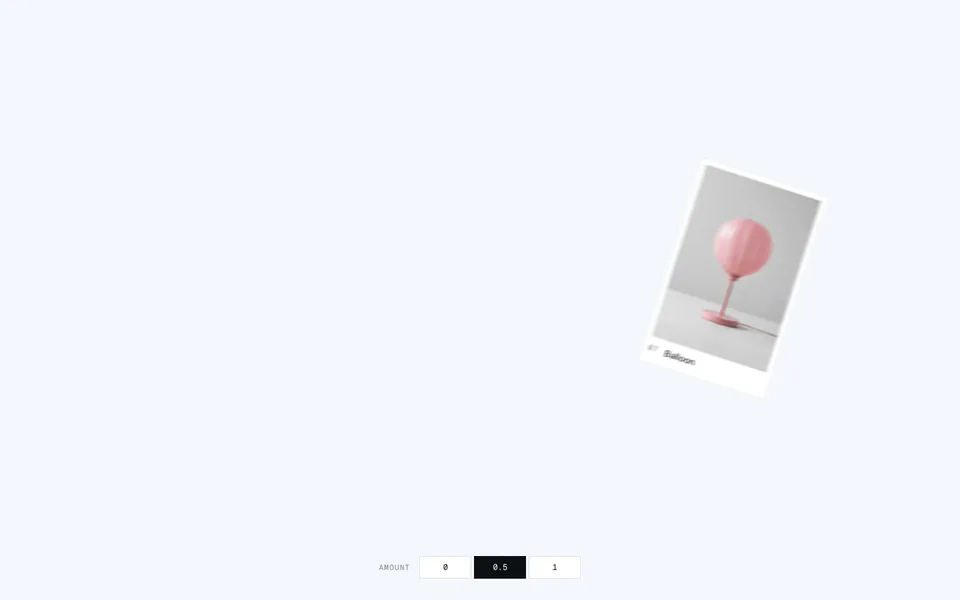
motionBlur() blurs each child along the path it moved in the last frame.
<FX shaders={[motionBlur({ amount: 0.5 })]}>
  <motion.div
    animate={{ x: 400, rotate: 90 }}
    transition={{ type: "spring", bounce: 0.4 }}
  />
</FX>This isn't a directional smear. The blur follows the real path of the element, so a spin correctly blurs more at the edges, and a fast spring blurs more than a slow one.
| Option | Default | Description |
|---|---|---|
amount | 0.5 | How long the shutter is open, as a part of one frame. 0 is no blur, 1 blurs the whole movement. |
quality | 24 | The maximum number of poses blended for one child in one frame, from 2 to 24. |
Lens blur
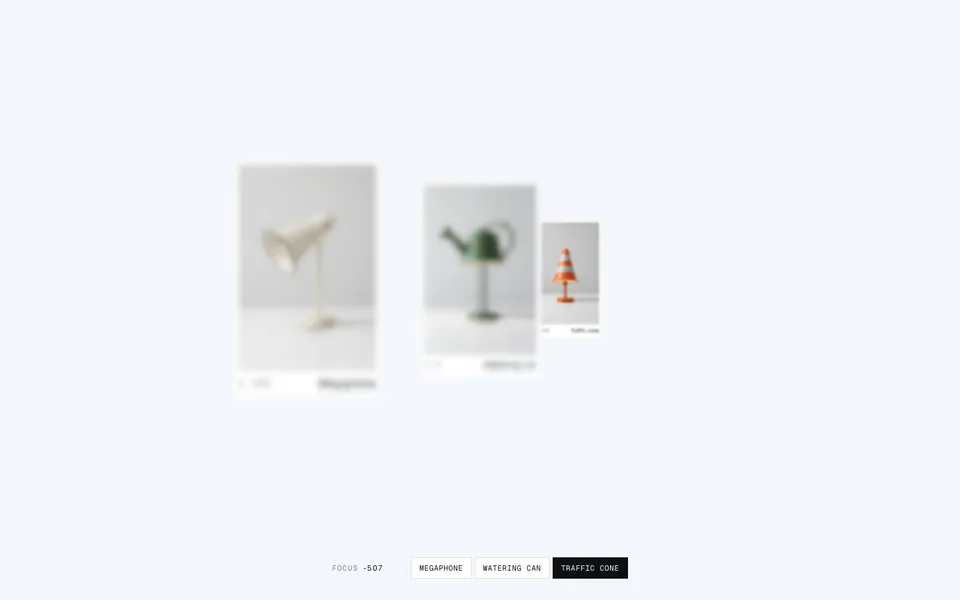
lensBlur() blurs each pixel by its distance from a focal plane, like a camera lens. Pixels in front of the plane and behind it are blurred.
Depth needs a scene with depth. Set the CSS perspective of FX, then move children with z, rotateX and rotateY.
<FX style={{ perspective: 900 }} shaders={[lensBlur({ blur: 3 })]}>
  <motion.div className="card" />
  <motion.div className="card" animate={{ z: -400 }} />
</FX>focus is the position of the focal plane in z, in pixels. By default it's 0, the plane of the screen.
const focus = useMotionValue(0)

// Rack focus to the far card
animate(focus, -400, { duration: 1.2 })

return (
  <FX style={{ perspective: 900 }} shaders={[lensBlur({ blur: 3, focus })]} />
)Focal plane
Lower range to make the blur grow faster with distance from the plane.
// Sharp at the screen, fully blurred 200px away
<FX shaders={[lensBlur({ blur: 3, range: 200 })]} />Tilt the plane with rotateX or rotateY for a tilt-shift effect on flat content.
<FX shaders={[lensBlur({ blur: 3, rotateX: 60 })]} />Shape
By default, the lens blur is smooth. Set shape: "disc" to spread each pixel over a disc instead, as a lens with a round opening does. Blurred text and small bright shapes keep more of their shape, at the cost of more GPU work.
<FX shaders={[lensBlur({ blur: 3, shape: "disc" })]} />| Option | Default | Description |
|---|---|---|
blur | 2 | The blur of the pixels that are most out of focus. Each step of 1 about doubles the blur. |
focus | 0 | The position of the focal plane in z, in pixels towards the viewer. 0 is the screen. |
x, y | Canvas centre | The point the focal plane tilts around, in pixels from the top left of the element. |
rotateX, rotateY | 0 | The tilt of the focal plane, in degrees. |
range | 500 | The distance from the focal plane, in pixels, where the blur reaches blur. |
shape | "smooth" | "smooth" or "disc". Not animatable. |
Fog
fog() covers each pixel with a colour by its distance behind the screen, like distance fog in a game. A far child goes to the solid fog colour and stays opaque, so nothing behind it shows through. This is the difference from a fade with opacity, where children that overlap show through each other.
As with lens blur, set the CSS perspective of FX and move children in z. Set color to the colour behind the scene.
<FX style={{ perspective: 900 }} shaders={[fog({ color: "#f5f5f5" })]} />color accepts any CSS colour, including a CSS variable and currentColor. It's resolved on the element, and follows the variable when it changes, so the fog follows a theme.
<FX shaders={[fog({ color: "var(--background)" })]} />The fog starts at near and is full at range pixels after it.
// Clear to 100px behind the screen, full fog at 400px
<FX shaders={[fog({ near: 100, range: 300 })]} />Fog works after lens blur. The soft edge of a blurred child fades into the fog with no halo.
<FX shaders={[lensBlur({ blur: 3 }), fog()]} />Animate near to bring a scene out of the fog. The nearest children come out first.
const near = useMotionValue(-400)

useEffect(() => {
  animate(near, 0, { type: "spring" })
}, [])

return <FX shaders={[fog({ near })]} />Fog is only drawn by the canvas. Without browser support the children have no fog, so fade the far children with opacity as a fallback if the design needs it.
| Option | Default | Description |
|---|---|---|
color | "#fff" | The colour of the fog, as any CSS colour or var(). Use the colour behind the scene. |
near | 0 | Where the fog starts, in pixels behind the screen. |
range | 400 | The distance after near, in pixels, where the fog is full. |
density | 1 | The shape of the curve between near and full fog. Above 1, the fog gets thick sooner. |
Animate effects
Every shader option accepts a motion value. Animate the motion value and the effect follows, without a re-render.
const blur = useMotionValue(0)

useEffect(() => {
  animate(blur, 4)
}, [])

return <FX shaders={[lensBlur({ blur })]} />shaders isn't an animation prop of a motion component.
3D
With a CSS perspective, children are positioned in real 3D space.
<FX style={{ perspective: 500 }}>
  <motion.div animate={{ rotateY: 40, z: -200 }} />
</FX>As in CSS, children are drawn in DOM and z-index order. To sort them by depth, add transform-style: preserve-3d. Then a child that moves in front of another is drawn in front of it, and receives the pointer events.
<FX style={{ perspective: 500, transformStyle: "preserve-3d" }} />Deeper elements
By default, only the direct children of FX are drawn as their own objects. In other words, only the root elements will have a motion blur, or lens blur applied. Children moving within those won't.
To apply effects to elements deeper in the tree on their own, give them the fx prop.
<FX shaders={[motionBlur()]}>
  <ul>
    {items.map((item) => (
      <motion.li key={item} fx layout />
    ))}
  </ul>
</FX>An element with fx is still clipped by an ancestor with overflow, so a scrolling list works as you'd expect.
Fallback styles
FX renders a <motion-fx> element, which matches :state(drawing) while the canvas draws. Use it for styles that only make sense with the effects.
motion-fx:state(drawing) .card {
  background: transparent;
}A ref gives you the element. Its ready promise resolves with true when the canvas draws the children, and with false if it never will.
const ref = useRef(null)

useEffect(() => {
  ref.current.ready.then(setIsDrawing)
}, [])

return <FX ref={ref} />Limitations
- Effects need Chrome 157 or later.
- The canvas is the size of
FX. Children aren't drawn outside it. - An ancestor's
overflowclips a deeper element as a rectangle.border-radius,clip-pathand masks on the ancestor don't clip it. - Each element is drawn as its border box and what is inside it. Anything painted outside that box is not drawn: a
box-shadow, anoutline, adrop-shadow()filter, atext-shadowpast the edge, or a child that overflows. To keep a shadow, make the drawn element a wrapper with padding, and put the shadow inside the padding. - An image from another origin needs CORS (
crossorigin="anonymous"and a server that allows it). Without CORS it is drawn blank. - A
wheellistener on an element insideFXcan't callpreventDefault(), because the browser doesn't see listeners on drawn elements. Add the listener to theFXelement (through itsref) instead. Motion+ Carousel does this for you. - An
<svg>that is a direct child ofFX, or that has thefxprop, is not drawn. Put it inside adiv. - With
preserve-3d, elements are sorted by their centre. Elements that pass through each other are not cut: one is drawn fully in front of the other.
Options
FX
FX accepts all the props of an HTML element, and the following:
| Prop | Description |
|---|---|
shaders | One shader, or an array of shaders in the order they run, for every child. |
ref
The ref is the underlying <motion-fx> element. Read its properties with JavaScript.
| Property | Description |
|---|---|
ready | A promise. Resolves true when the canvas draws, false if it never will. |
supported | true while the canvas draws the children. |